SillyTavern on Docker (2026): Install, Volumes, Updating and the Errors People Hit
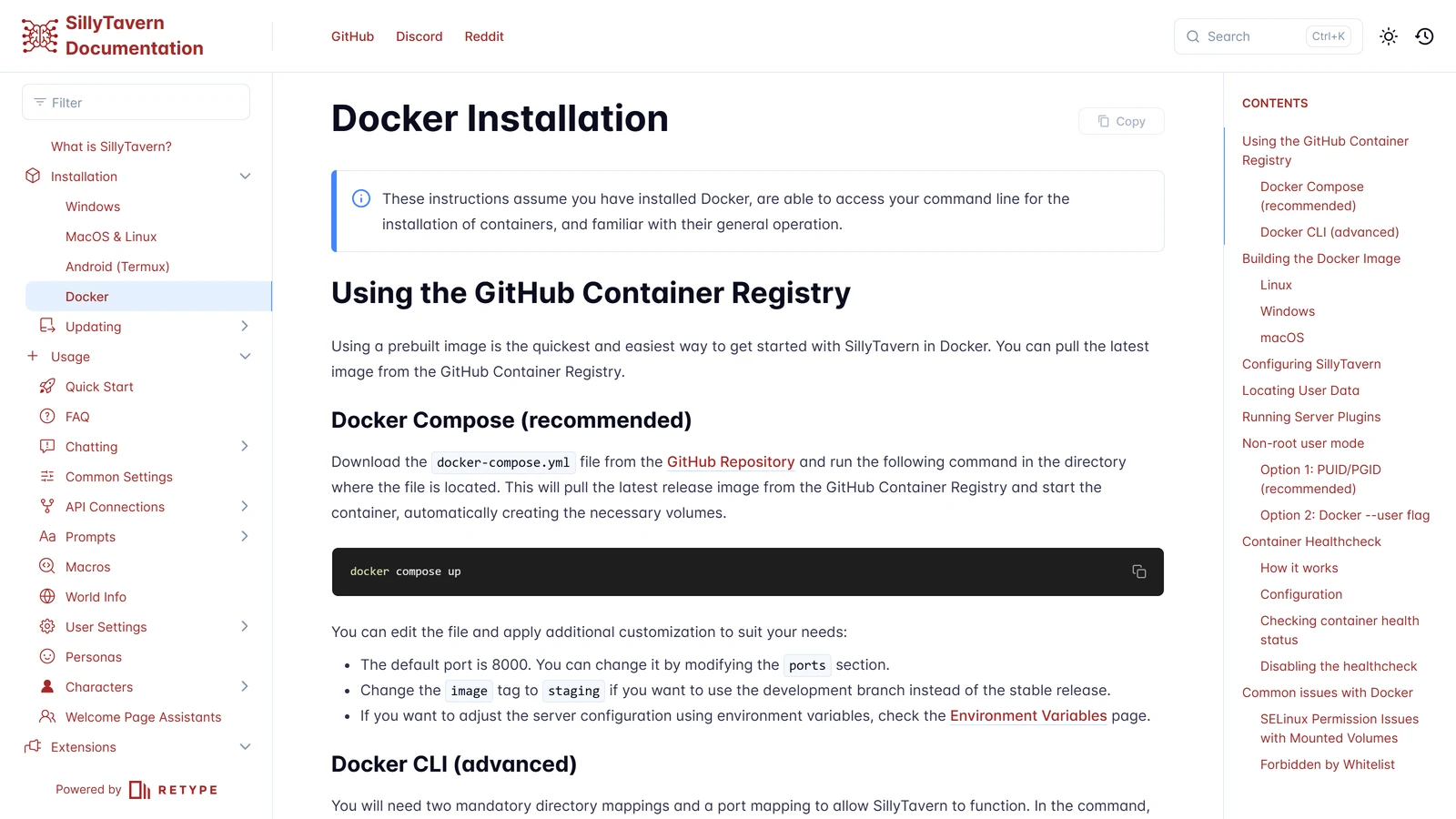
Running SillyTavern in Docker means the program lives in a container you can delete and rebuild, while everything that is yours (chats, characters, settings, keys) lives in folders on your own disk. That split is the whole idea, and it is also where most of the mistakes happen. Get the folders right and an update is four commands. Get them wrong and the update takes your chats with it.
We read SillyTavern’s Docker installation page, its update page, the repository’s own docker-compose.yml and its notes on remote access on 7 November 2026. We did not install Docker, pull the image or run the container for this page, so nothing below is a test result. Every command is the project’s, quoted from its documents, and where we are reasoning instead of quoting, we say so.
SillyTavern is an independent open-source project. Arcanum is not affiliated with it. Docker is a trademark of its owner and is named only to identify the software.
The Short Answer
- Do you need Docker at all? No. The installation guide covers the normal route, which is Node.js and Git. The Docker page itself says that on Windows, Docker is “really complicated” and points readers to the native Windows guide.
- Who is Docker for? People who already run containers: a home server, a NAS, a spare Linux box, a small rented server. It keeps SillyTavern from touching the rest of the machine.
- The command:
docker compose up, run in the folder with the compose file. - The part that matters: four folders (
config,data,extensions,plugins) are mapped from your disk into the container. They are your install. The container is disposable. - The warning to keep: do not put the port on the open internet. The documentation says so in capital letters, and so do we.
What Docker Changes (and What It Does Not)
SillyTavern is a program that runs on your computer and shows you a web page. Your browser is the screen; a small server (Node.js) is the program. Docker packs that server and everything it needs into one image, a sealed copy of the software. A container is a running copy of that image.
Two things follow from this:
- Updating means replacing the image, not patching files. There is no
git pullinside a container. The update page’s steps are about removing the old image and downloading a new one. - A container forgets everything you did inside it unless the folder is mapped to a place on your disk. The mapped folders are called volumes, and SillyTavern needs four of them.
What does not change: the app is the same app. Your connections to a model (an API key for a provider, or a local backend such as KoboldCpp or Ollama), your characters, your lorebooks and your presets work the same way. The pages on connecting a backend and on Ollama still apply, with one catch covered under “Connecting to a model on the same machine” below.
The Install, From the Project’s Own Page
SillyTavern offers two ways to start from the ready-made image, which is published on the GitHub Container Registry as ghcr.io/sillytavern/sillytavern. The documentation calls the compose file the recommended way.
Docker Compose (recommended)
- Download
docker-compose.ymlfrom the SillyTavern repository. It sits in thedockerfolder of thereleasebranch. - Open a terminal in the folder where you saved it.
- Run:
docker compose upThe documentation says this pulls the latest release image, starts the container and creates the volumes it needs. When the log settles, open http://localhost:8000.
Run as written, the container stays in the foreground and stops when you close the terminal. Add -d (docker compose up -d) to run it in the background. The documentation uses -d in its own build instructions further down, and notes the same flag for the plain docker run command.
What is inside the compose file
We read the file in the repository on 7 November 2026. The parts that matter:
| Line in the file | What it does |
|---|---|
image: ghcr.io/sillytavern/sillytavern:latest | Which image to run. latest follows the current release |
ports: "8000:8000" | Left number is the port on your machine, right number is the port inside the container |
./config:/home/node/app/config | Your config.yaml |
./data:/home/node/app/data | Your chats, characters, personas, lorebooks, presets |
./plugins:/home/node/app/plugins | Server plugins (optional) |
./extensions:/home/node/app/public/scripts/extensions/third-party | Extensions installed for all users |
restart: unless-stopped | Starts the container again after a reboot, unless you stopped it yourself |
SILLYTAVERN_HEARTBEATINTERVAL=30 plus a healthcheck block | Lets Docker tell whether the server is still answering |
The file also contains a build: .. line. That tells Docker it may build the image from the repository instead of downloading it, which is what the “build it yourself” steps further down rely on.
The documentation lists two edits people usually make:
- The port. Change the first number in
"8000:8000". To use 8080 on your machine, write"8080:8000". The inside number stays 8000, because the container always listens there. - The branch. Change the tag
latesttostagingto run the development branch instead of the stable release. Our page on release versus staging covers when that is worth doing. With Docker the branch is the tag you pulled, and nothing else tells you.
Docker CLI (advanced)
If you would rather not use a compose file, the project gives a single docker run command, built from variables you set first:
SILLYTAVERN_VERSION="latest"
PUBLIC_PORT="8000"
CONFIG_PATH="./config"
DATA_PATH="./data"
PLUGINS_PATH="./plugins"
EXTENSIONS_PATH="./extensions"

docker run \
  --name="sillytavern" \
  -p "$PUBLIC_PORT:8000/tcp" \
  -v "$CONFIG_PATH:/home/node/app/config:rw" \
  -v "$DATA_PATH:/home/node/app/data:rw" \
  -v "$EXTENSIONS_PATH:/home/node/app/public/scripts/extensions/third-party:rw" \
  -v "$PLUGINS_PATH:/home/node/app/plugins:rw" \
  ghcr.io/sillytavern/sillytavern:"$SILLYTAVERN_VERSION"
The documentation says two folder mappings and one port mapping are mandatory: config, data and the port. Plugins and extensions are optional. The block is written for a Unix shell. On Windows PowerShell the variable syntax is different, which is one more reason the compose file is the easier route.
The Four Folders, and Why They Are the Whole Point
| Folder on your disk | Inside the container | What lives there |
|---|---|---|
config | /home/node/app/config | config.yaml, the server settings |
data | /home/node/app/data | User data, including characters. The Docker page says your files will be in here |
extensions | /home/node/app/public/scripts/extensions/third-party | Extensions installed “for all users” |
plugins | /home/node/app/plugins | Server plugins, off unless you enable them |
Our page on presets lists what a user’s data folder contains. For Docker, the point is simpler: if data is not mapped, your chats are inside the container and a docker compose down followed by a rebuild will not bring them back. The default compose file maps all four, so do not remove those lines to “tidy up”.
The update page has a line for people who learned this the hard way. Under common problems it says that if you use Docker and all your data is gone after an update, you must follow the migration guide for Docker containers, because version 1.12.0 introduced a new data model and the volume mappings changed. If you built your compose file years ago from an old guide, compare its volumes: lines to the list above before you update.
Updating Without Losing Anything
SillyTavern’s update page gives these steps for Docker:
- Open a terminal and go to the docker folder:
cd SillyTavern/docker - Delete the container:
docker compose down - Delete the old image from the cache:
docker rmi ghcr.io/sillytavern/sillytavern:latest(use:stagingin place of:latestif you run the staging branch) - Start it again:
docker compose up -d
The documentation says Docker should then download the image again and you will be running shortly. Steps 2 and 3 remove the container and the image. They do not touch your folders, which is why the mapped volumes are the safety net.
Our advice, which is general practice and not a quote from the docs: copy your data and config folders somewhere else before step 2. Nothing in this procedure should touch them. A copy costs a minute, and the one time a mapping was wrong, it is the only thing between you and a fresh start. The next section shows how.
If your terminal says “permission denied” when you run these commands on Linux, the update page’s explanation is that your user is not set up to talk to Docker. It offers two ways around it: put sudo in front of each command, or fix your permissions properly, which depends on the distribution.
Backups
You do not need a Docker-specific method. Two documented routes:
- Copy the folders. The Docker page says backing up the data folder “should be easy”. It adds that restoring or adding content may need administrator rights, because the files can belong to root (see the permissions section below).
- Download a backup from inside SillyTavern. In multi-user mode, the account menu has a Download Backup button that gives you an archive of your user data folder. Our page on multi-user mode covers where it is.
Do both before a big change. A chat you have played for months is not recreatable.
Editing config.yaml in a Container
The configuration file sits in your config folder. Editing it is “no different” from a normal install, according to the documentation, with one catch: you may need nano or a code editor running with administrator rights to save it, because of who owns the file.
After every change, restart the container from the docker folder:
docker compose restart sillytavernThe documentation puts a warning around this command: don’t forget to restart the container to apply your changes. Our reading of why: the server reads config.yaml when it starts, so saving the file changes nothing until you restart.
The project also documents environment variables as another way to change server settings, on its config page. In Docker, that means adding lines under environment: in the compose file. We did not read each variable, so check that page for the setting you want.
Files Owned by root: Non-Root Mode
By default the container runs as root. The result is that files it creates in your mapped folders belong to root on your machine, and you need administrator rights to edit them. The documentation describes a non-root mode with two options:
Option 1, PUID and PGID (the recommended one). Set two environment variables to the user and group numbers you want, usually the ones from your own account (often 1000 on Linux). The container’s start-up script then changes ownership of the folders it needs and runs the server as that user.
services:
  sillytavern:
    environment:
      - PUID=1000
      - PGID=1000
Option 2, Docker’s --user flag. The server runs as the user you name, but the documentation notes that in this mode the container cannot fix permissions for you. Your mapped folders have to be writable by that user before you start.
Our reading: if the only trouble you have is root-owned files, option 1 is the shorter fix. We have not run either option.
Connecting to a Model on the Same Machine
This is the catch we promised. Inside a container, localhost means the container, not your computer. If you point SillyTavern at a backend such as KoboldCpp, LM Studio or Ollama on the host machine and type http://127.0.0.1:5001, it will look inside itself and find nothing.
The documents we read do not give a step-by-step for this, and we did not test it. What they do tell us:
- On Docker Desktop (Windows, macOS), the name
host.docker.internalpoints at the host. The Docker page’s whitelist section relies on that name. - On Docker Engine for Linux, that name does not resolve. The page says so directly, in the next section.
So the usual cause of “my backend works in the browser but SillyTavern cannot reach it” on Docker is the address, not the settings. Use a name or address the container can reach, and check that your backend is listening on more than the local loopback. The pages on KoboldCpp setup and Ollama list the ports each backend uses. If you only want a hosted model such as one through OpenRouter, none of this applies, because the container just needs internet access.
The Errors the Documentation Names
”Forbidden by whitelist”
SillyTavern only talks to addresses on a whitelist. In a Docker install, the project’s default setting (whitelistDockerHosts) adds the Docker host automatically, by looking up host.docker.internal and gateway.docker.internal. Those names exist only in Docker Desktop. On Docker Engine for Linux the lookup fails and the container log shows lines like:
Failed to resolve whitelist hostname host.docker.internal: getaddrinfo ENOTFOUND host.docker.internalThe documented fix:
- Run
docker network inspect docker_default. - Find Gateway in the output (the page’s example is
172.18.0.1) and copy it. - Edit
config.yamlin theconfigfolder. Underwhitelist:, add the address below127.0.0.1:
whitelist:
    - 127.0.0.1
- 172.18.0.1- Restart:
docker compose restart sillytavern.
The page adds that if your Docker network is a bridge, you can also add outside addresses to the whitelist as usual. Your own gateway number may differ from the example, so copy yours.
Permission denied on the mapped folders (SELinux)
On distributions that ship SELinux (the page names RHEL, CentOS and Fedora), the system can stop a container from reading or writing a folder you mapped. You see “permission denied” even though the folder looks fine. The documented fix is to add a letter to each volume line:
volumes:
  - ./config:/home/node/app/config:z
  - ./data:/home/node/app/data:Z
Lower-case z is for content shared between containers. Upper-case Z is for content used by one container only. For a single SillyTavern container, the documentation’s example uses Z on the data folder.
”Permission denied” when running Docker itself
A different problem with a similar message, and it is on the update page, not the install page: on Linux, your user may not be allowed to use Docker at all. Add sudo, or follow Docker’s own post-install steps for running without root.
Server plugins that do nothing
If you add a plugin and it never loads, there are two things the documentation says you need: the plugins folder mapped in the compose file (the default file does this), and enableServerPlugins: true in config.yaml, followed by a restart. Plugins run on the server and can reach your files, so install only ones you trust.
Healthchecks, Briefly
The compose file ships with a healthcheck. In short: with a heartbeat setting of 30 seconds, the server writes a timestamp to heartbeat.json in the data folder, and a small script checks that the file is fresh. If it is missing or more than two intervals old, Docker marks the container unhealthy. You can see the state with:
docker inspect --format='{{.State.Health.Status}}' sillytavernor in the STATUS column of docker ps. By default outside the compose file the heartbeat is off (0). If you move your data directory away from the default, the documentation says to set the SILLYTAVERN_DATAROOT variable so the script can find it. Most people can ignore all of this unless Docker keeps reporting “unhealthy” for a container that seems fine.
Building the Image Yourself
You can skip the downloaded image and build one from the source. The documentation gives short steps for Linux, Windows and macOS: install Docker, install Git, clone the repository (git clone https://github.com/SillyTavern/SillyTavern && cd SillyTavern/docker, or add -b staging for the development branch) and run docker compose up -d from the docker folder.
Two details are easy to miss:
- On Linux, install Docker Engine and not Docker Desktop. The page marks this with a danger box.
- Windows and macOS need Docker Desktop, and on Windows the page warns that you must switch on Windows Subsystem for Linux and virtualisation in your firmware, which differs by manufacturer. It calls the whole thing “a rough idea” and suggests the native Windows guide.
Most readers do not need this. It matters if you want to change the code or you cannot reach the registry.
Do Not Put This on the Open Internet
The documentation says it twice on the Docker page, in a variable description: do not expose the port to the internet without a separate service for security. SillyTavern’s page on remote connections is stronger. Its disclaimer, in capitals, says never to host an instance on the open internet without proper security. It recommends a VPN or a tunneling service over port forwarding, and says HTTP basic authentication “does not provide strong security” because there is no rate-limiting against guessing.
The reason is what is in the data folder. Our reading of the multi-user page: user data, including API keys and chat history, is stored in plain text on the server. Whoever gets in sees your keys. If you want to play from your phone away from home, a private network tool is the better route, and our mobile page walks through the options. If several people share one server, read the multi-user page first.
What We Did Not Check
| Not checked | Why it matters |
|---|---|
| Running the image or compose file | We read the documents and the repository file. We did not start a container |
Whether the current latest tag matches the release page | The registry’s tag list is a separate page we did not read |
| The environment variables list | The Docker page links to the config page for it and we did not read each entry |
| Reaching a host backend from the container | The documents do not give a recipe, so our section above is reasoning |
| Docker on Windows or macOS | The project itself calls these sections a rough idea |
| Updating from a pre-1.12.0 setup | The migration guide for Docker is a separate page we did not follow |
If you run SillyTavern this way and something here is wrong or out of date, tell us and we will correct the page.
Frequently Asked Questions
How do I run SillyTavern in Docker?
Download the docker-compose.yml file from the SillyTavern GitHub repository, open a terminal in the folder that holds it and run docker compose up. SillyTavern’s documentation says this pulls the latest release image from the GitHub Container Registry, creates the volumes and starts the container. Then open http://localhost:8000 in a browser.
Where does SillyTavern store my chats and characters in Docker?
In the data folder you mapped into the container, which the default compose file maps from ./data to /home/node/app/data. The config folder holds config.yaml, and the extensions and plugins folders hold third-party add-ons. If those folders are not mapped to the host, deleting the container deletes what was inside it.
How do I update SillyTavern in Docker?
SillyTavern’s update page gives four steps from the docker folder: docker compose down, remove the old image with docker rmi ghcr.io/sillytavern/sillytavern:latest, then docker compose up -d to download the new one. Your data survives because it lives in the mapped folders, not in the image.
How do I change the SillyTavern port in Docker?
Edit the ports section of the compose file. The container always listens on 8000 inside, so the first number is the one to change, for example 8080:8000, and then you open the new port on your own machine.
Why do I get “Forbidden by whitelist” with Docker?
SillyTavern’s Docker page says the automatic whitelist works by resolving host.docker.internal, which only exists in Docker Desktop on Windows and macOS. On Docker Engine for Linux you copy the gateway address from docker network inspect docker_default into the whitelist section of config.yaml and restart the container.
Is it safe to expose SillyTavern in Docker to the internet?
The documentation says not to expose the port to the internet without a separate service for security. SillyTavern’s remote connection pages recommend a VPN or a tunneling service instead of port forwarding, and describe basic authentication as not strong security.
SillyTavern’s Docker installation page and update page, the docker-compose.yml file in the release branch of its repository, and its remote connection and multi-user pages were read on 7 November 2026. We did not install Docker, pull the image or run any command for this page. SillyTavern and Docker are independent of Arcanum, and we have no commercial relationship with either.