SillyTavern Multi-User Mode (2026): Accounts, Passwords, Backups and What It Does Not Protect
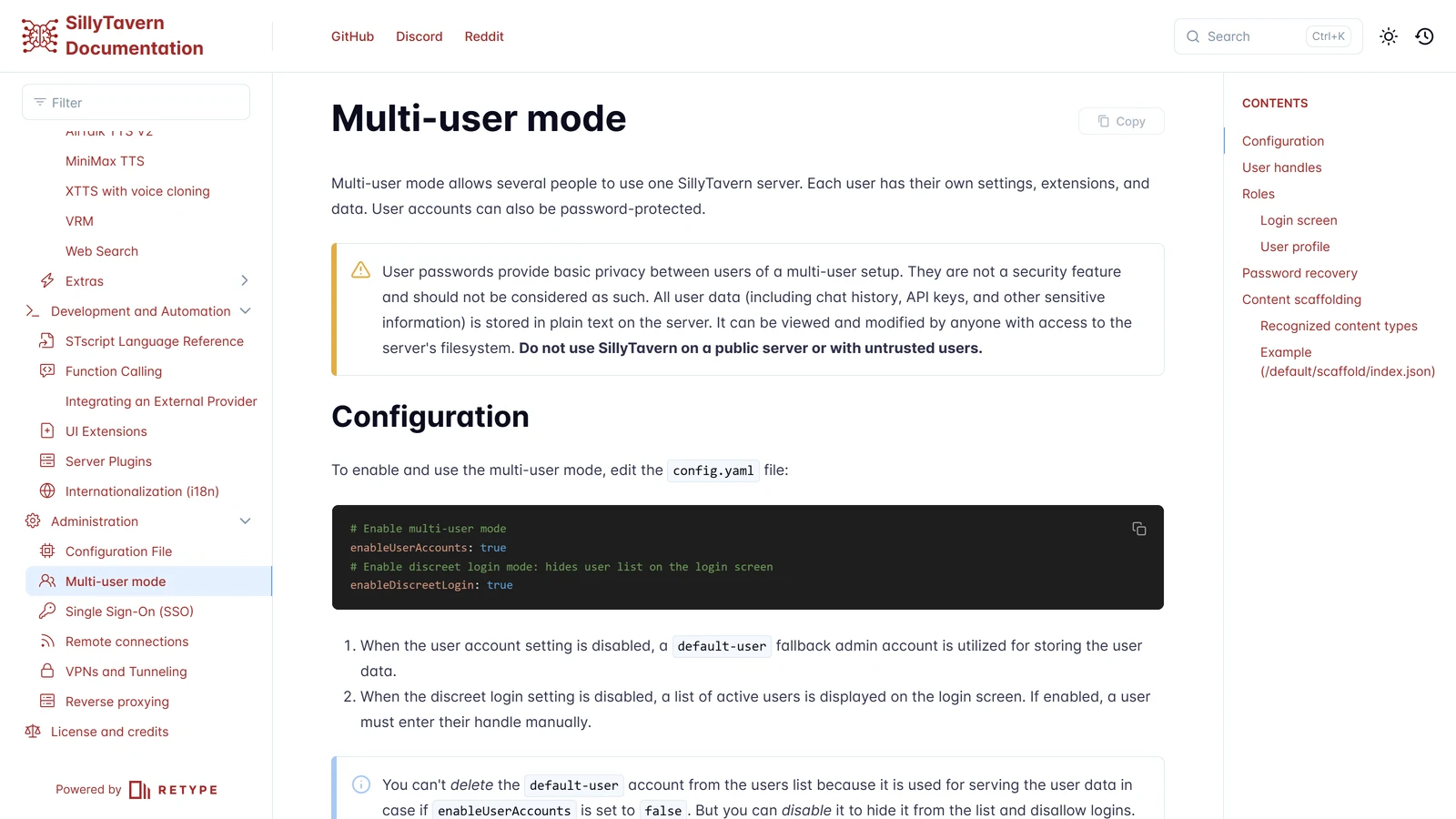
SillyTavern’s multi-user mode lets several people use one SillyTavern server, each with their own settings, extensions and data, and each account can have a password. It is a small feature with a big warning attached: the project’s own documentation says the passwords provide “basic privacy between users” and are “not a security feature”. This page explains how to turn it on, what an account is, what the roles can do, how to get back in after you forget a password, and where the plain-text warning leaves you.
We read SillyTavern’s multi-user page, its remote connections page and its release notes on 7 November 2026. We did not enable the mode, create an account or run any script, so nothing below is a test result. Where we are reasoning instead of quoting, we say so.
SillyTavern is an independent open-source project. Arcanum is not affiliated with it.
The Short Answer
- Turn it on with
enableUserAccounts: trueinconfig.yaml, then restart the server. - What you get: separate settings, extensions, chats, characters and presets per account. A folder per user, named by a handle.
- Who it suits: a household, a flat, a few trusted friends on one machine you control.
- Who it does not suit: strangers. The documentation says “do not use SillyTavern on a public server or with untrusted users”.
- The catch: every account’s chats and API keys sit in plain text in files on the server. A password hides them from the other accounts, not from anyone who can open the folder.
Why You Might Want It
A normal SillyTavern install has one user, called default-user. Everything you do (every chat, character, preset, persona and saved API key) lives under that user. That is fine alone. It is awkward when:
- Two people share a computer or a home server and neither wants the other’s chats, lorebooks or a pile of unrelated characters in their list.
- You want your public self and a private one on the same install, for example a campaign group’s characters kept apart from your solo stories.
- You run SillyTavern on a spare machine and let a partner or friends connect to it from their own phones. Our mobile page covers the connection side.
Multi-user mode solves the separation. It does not turn SillyTavern into a hosted service, and it was not designed as one.
Turning It On
The documentation’s configuration is two lines in config.yaml:
# Enable multi-user mode
enableUserAccounts: true
# Enable discreet login mode: hides user list on the login screen
enableDiscreetLogin: true
Two notes the page gives:
- When accounts are off, SillyTavern uses a fallback admin account,
default-user, to store the user data. You cannot delete that account, because it is what serves your data if you ever switch accounts off again. You can disable it, which hides it from the list and stops logins to it. - Discreet login controls what the login screen shows. With it off, you see a list of active users. With it on, nobody sees a list and each person must type their handle by hand. That is a small privacy courtesy and not a lock: anyone who knows or guesses a handle can try it.
Restart the server after the change. The config.yaml that counts is the one in the SillyTavern root folder, not the one in default. The remote connections page warns about this, because there are two files with the same name. If you run SillyTavern in Docker, our Docker page shows where the config folder sits.
If you already have chats
Your existing chats live in default-user. Turning on accounts does not move them. They stay in that account, which is still in the list unless you disable it. Our reading is that the existing install simply becomes the first account, but the page does not describe a conversion, so make a copy of your data folder before you try.
Handles and Where Data Goes
A handle is the unique name of an account. The documentation allows only lowercase letters, numbers and dashes, and gives these as valid examples: default-user, juan555, flux-the-cat, cool-guy1337. Spaces and capitals are out.
The handle becomes a folder: the user’s data sit in a directory following the pattern %DATA_ROOT%/%USER_HANDLE%. In practice, that is a folder inside data named after the handle. Everything our presets page describes (the preset folders, characters, chats, worlds and settings) is repeated once per user. That page makes the practical point: a preset saved on one account does not exist on another.
The display name is separate. It appears on the login screen, can be changed, and is not the same as a persona. The documentation says it is not visible to the AI APIs, and you can still use as many personas as you like. If you are unsure what a persona is, see our persona page.
Admin and User Roles
| Admin | User | |
|---|---|---|
| Create, delete and modify other users | Yes | No |
| Install extensions for all users | Yes | No |
| Install extensions for themselves | Yes | Yes |
| Use the rest of SillyTavern | Yes | Yes |
The page is blunt about how small the difference is: “Except for having admin panel access, both user roles are functionally identical and can use a full range of SillyTavern features without any restrictions.” It adds that an implementation of user permissions is “TBD”. So there is no way to give a friend a limited account. Anyone you add can use every feature, including adding their own API keys and installing extensions for themselves.
New accounts are created as regular users and can be promoted to admin afterwards.
An extension installed “for all users” lands in the server-wide extensions folder, which is also the folder Docker maps as extensions. Extensions run code in the browser and some touch the server. Our extensions page covers what to check before you add one, and that applies double when other people share the install.
The Login Screen and the Account Menu
The login screen lets people pick their account, in one of two styles depending on discreet login. If there is only one active user and that user has no password, the login screen is skipped. That is easy to miss: you can switch on accounts and see no change until a second account exists.
Once logged in, an Account button under the User Settings panel in the top menu bar opens a self-management menu:
| Item | What the documentation says it does |
|---|---|
| Display name | Used on the login screen. Can be changed. Unrelated to personas |
| Profile picture | Used on the login screen. A custom picture, the default persona’s picture if set, or the last persona used |
| Password | A lock icon shows whether the account is protected. Set, change or remove it with Change Password |
| Settings Snapshots | Review the backups of your settings.json, and create or restore snapshots |
| Download Backup | Download an archive of your user data folder |
| Reset Settings | Reset to factory default settings and leave other data, such as characters and chats, intact |
Two of these are worth using before anything goes wrong. Download Backup gives you the whole user folder as a file. Settings Snapshots protect only settings.json, which holds your interface and connection settings, not your chats. Both are per account.
Forgot Your Password
SillyTavern documents two ways back in. Both need access to the machine running the server, so neither helps if you are only connecting from a phone to somebody else’s computer.
- From the login screen. It can give you a one-time recovery code of four digits. The code appears in the server console, so you read it from the terminal where SillyTavern is running.
- With a script. In the SillyTavern folder on the server, run:
Usage: node recover.js [account] (password)
Example: node recover.js admin SecurePassword
The account is the handle. The password part is in brackets, so it looks optional in the usage line. We did not run it, and the page does not say what happens when you leave it out, so supply one.
The release notes show the project tightening this area. The 1.18.0 notes (3 May) list rate limiting on basic authentication, an IP whitelist for SSO proxies and session invalidation on a password change. The 1.19.0 notes (14 September) add rate limiting to account resets. The practical lesson: if you change a password because you think someone saw it, existing sessions should end, and an attacker cannot guess recovery codes without limit. We read the one-line notes only, so the details of each change are not something we checked.
The Plain-Text Warning, in Full
This is the paragraph to read twice. The page says user passwords are not a security feature, and:
All user data (including chat history, API keys, and other sensitive information) is stored in plain text on the server. It can be viewed and modified by anyone with access to the server’s filesystem.
What that means in practice, as our reading:
- An account password stops one user opening another’s chats through the browser. It does nothing against someone who can open the
datafolder on the machine. That includes whoever runs the server, anyone on the same computer, and anyone who gets into the machine. - API keys are inside those files. If your account holds a paid key for a model provider, the person who runs the server can read it. Do not store a key in an account on a server you do not control.
- Whoever runs the machine can read everything. If a friend hosts and you are a user on their server, assume they can read your chats, since the files are in plain text on their disk. Say so to everyone before they start, so there is no surprise later.
None of this makes the mode bad. It is the right tool for a trusted household. It is the wrong tool for a stranger on the internet.
Putting It on the Network
Multi-user mode is often switched on because the server is about to be reached from other devices. SillyTavern’s remote connections page describes a few steps, in this order:
- By default the server only listens on the machine itself. Setting
listen: trueinconfig.yamlallows other devices. You should then see the console say it is listening on0.0.0.0:8000. - You must configure at least one access control method or the server will not start. The two documented ones are a whitelist of allowed addresses (individual IPs, CIDR ranges such as
192.168.0.0/16, or wildcards) and HTTP basic authentication. - For basic authentication,
basicAuthMode: trueplus a username and password in the config. The page warns that this gives no strong security: there is no rate-limiting in that description, and the credentials travel in plain text unless the site is served over HTTPS. - The multi-user link: the page describes
perUserBasicAuth: true, used withenableUserAccounts: true. In that mode the basic auth username and password are the same as a multi-user account that has a password, and SillyTavern logs straight in to that account. The page says to make sure the account has a password before turning this on.
Our mobile page uses that last setup and walks through the phone side. The remote connections page is firm on the boundary:
- Do not use port forwarding to expose the server to the internet. Use a VPN or a tunneling service. It names Cloudflare Zero Trust, ngrok and Tailscale as examples.
- It says, in capitals, never to host an instance on the open internet without proper security.
Our advice, as general practice and not a quote: pick a private network tool, keep the accounts to people you know, and treat the multi-user passwords as a courtesy between housemates.
Content Scaffolding: Giving Every New User the Same Starting Set
One feature is aimed at people running a group. Content scaffolding copies a set of files into each user’s data folder when the server starts. You describe the files in an index.json in the /default/scaffold folder, each with a filename (relative to that folder) and a type, and the page gives this example:
[
    {
        "filename": "themes/Midnight.json",
        "type": "theme"
    },
    {
        "filename": "backgrounds/city.png",
        "type": "background"
    },
    {
        "filename": "characters/Charlie.png",
        "type": "character"
    }
]
The recognised types include settings, character, sprites, background, world (a World Info file), avatar, theme, workflow (ComfyUI), quick_replies, sysprompt, instruct, context, reasoning, and the preset types for KoboldAI, NovelAI, Chat Completion and Text Completion. Scaffolded files are copied before the defaults, so they override a default file with the same name.
Each user data directory has a content.log listing the files copied. The page says to remove that file to force a new sync at the next restart. Our reading: if you add a new character to the scaffold later, a user who already has a content.log will not receive it until you delete theirs. We did not test that.
This could suit a group campaign where every player should start with the same world file and the same narrator card. Our pages on lorebooks and character cards explain what those files are.
What We Did Not Check
| Not checked | Why it matters |
|---|---|
| Turning the mode on or creating an account | We read the documents and ran nothing |
| What happens to existing chats when accounts are enabled | The page describes default-user as the fallback but gives no conversion steps |
recover.js without a password argument | The usage line puts it in brackets and the page says nothing more |
| Whether content scaffolding re-sends new files to existing users | We read the content.log note and reasoned from it |
| The tunneling and SSO pages | The remote connections page links to both and we did not follow them |
| Any security property beyond what the documents say | We make no claim that the mode is or is not safe, beyond the project’s own warnings |
Frequently Asked Questions
How do I turn on multi-user mode in SillyTavern?
Open config.yaml in the SillyTavern root folder, set enableUserAccounts to true, and restart the server. SillyTavern’s documentation also offers enableDiscreetLogin, which hides the list of users on the login screen so a person must type their handle.
Does each user get their own chats and characters?
Yes. The documentation says each user has their own settings, extensions and data. Data is stored in a folder named after the user’s handle, so one account’s chats, characters and presets are not shown in another account.
Are SillyTavern passwords secure?
The documentation says they give basic privacy between users and are not a security feature. All user data, including chat history and API keys, is stored in plain text on the server and can be read by anyone with access to the server’s files. It says not to use SillyTavern on a public server or with untrusted users.
What can an admin do that a normal user cannot?
An admin can create, delete and modify other users and can install extensions for all users. A normal user cannot manage other users and installs extensions only for themselves. Apart from the admin panel the two roles can use the same features.
I forgot my SillyTavern password. How do I get back in?
There are two documented routes. The login screen can give you a one-time four-digit recovery code, which appears in the server console, so you need access to the machine running SillyTavern. Or run the recover.js script on the server with the account handle and a new password.
Can I back up one user’s data?
Yes. The Account menu in User Settings has a Download Backup button that gives you an archive of your user data folder. It also has Settings Snapshots, which let you create and restore backups of your settings.json file.
SillyTavern’s multi-user page, its remote connections page and its release notes for versions 1.18.0 and 1.19.0 were read on 7 November 2026. We did not enable multi-user mode or run any script for this page. SillyTavern is independent of Arcanum, and we have no commercial relationship with it.