SillyTavern Macros Explained (2026): {{user}}, {{char}}, Variables, if/else and Dice
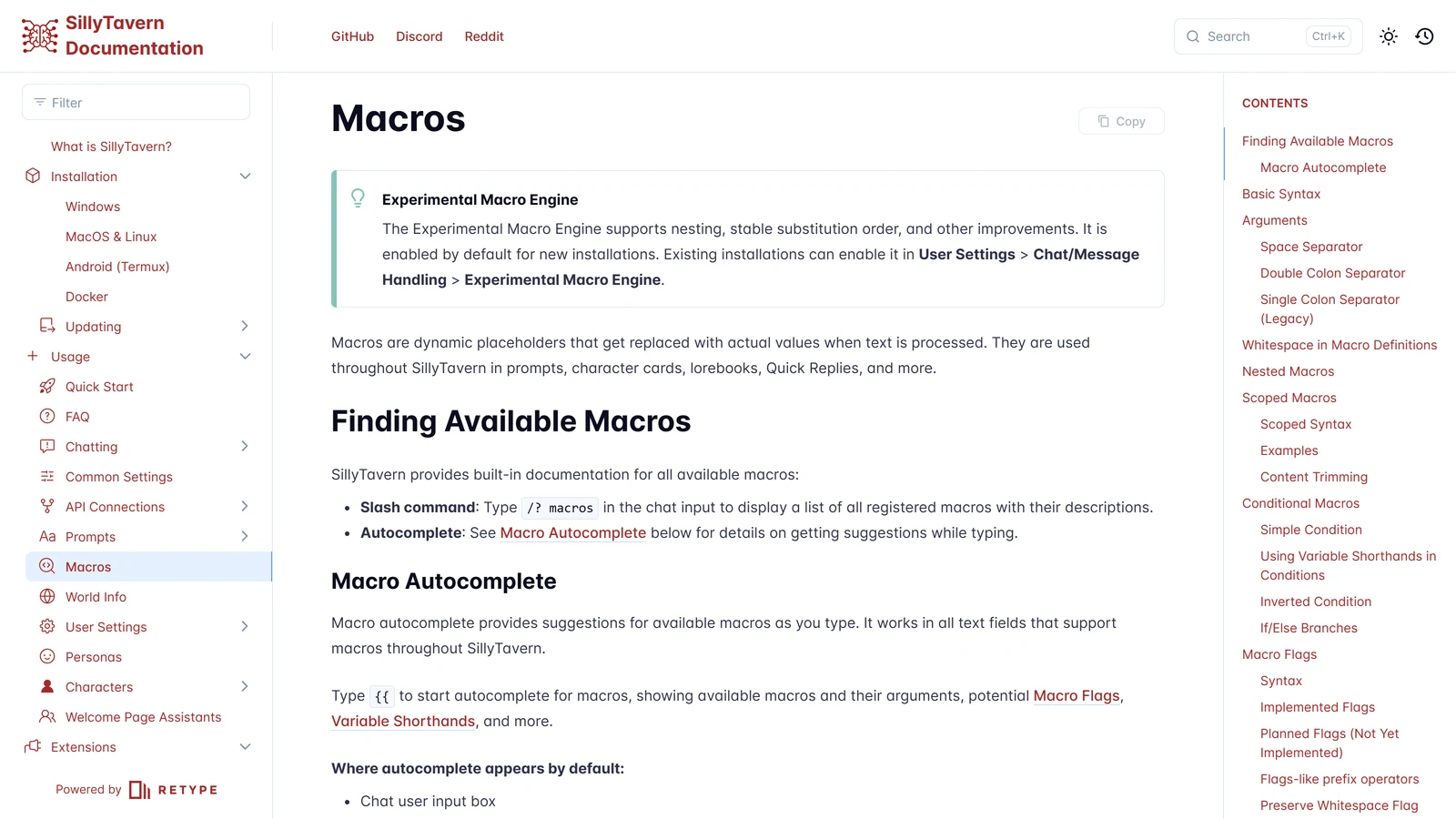
A SillyTavern macro is a placeholder in double curly braces, such as {{user}}, that the program swaps for a real value (your name, the character’s name, the time, a dice roll, a note you stored) at the moment it builds the prompt. The documentation says macros are used “in prompts, character cards, lorebooks, Quick Replies, and more”. If you have ever written a character card that says {{char}} instead of the character’s name, you have used one. The rest of the system is worth knowing, because a few lines of macro can replace a lot of retyping and, with the newer engine, can make a prompt change itself as the story moves.
We read SillyTavern’s macro documentation on 7 November 2026, plus the 1.19.0 release notes. We did not install the software or run any macro for this page. Every macro below is taken from the documentation’s own examples and tables, and our reading is marked as ours.
SillyTavern is an independent open-source project. Arcanum is not affiliated with it.
The Short Answer
| You want | Write | What you get |
|---|---|---|
| Your name | {{user}} | The current user or persona name |
| The character’s name | {{char}} | The current character name |
| The time or date | {{time}}, {{date}}, {{weekday}} | Local time and date |
| A random choice | {{random::red::green::blue}} | One option, chosen again each time |
| A stable random choice | {{pick::a::b::c}} | One option, kept for that chat and position |
| A dice roll | {{roll::2d6+3}} | A result in the prompt text |
| Remember a value | {{setvar::mood::angry}} | Stores it, shows nothing |
| Read it back | {{getvar::mood}} | The stored value |
| Show text only if something exists | {{if personality}}...{{/if}} | The block, or nothing |
| A note for yourself | {{// this is a comment}} | Removed from the output |
If you remember one thing: type /? macros in the chat box. The documentation says it lists every registered macro with a description, and that list will always be more current than any guide, including this one.
What a Macro Is, and Where It Works
A macro is replaced when text is processed, which is the moment SillyTavern assembles what it sends to the model. So a macro in a character’s description is not replaced inside the card file. It is replaced every time the card goes into a prompt. This is why {{user}} keeps working when you change your persona: the card says {{user}}, and the name arrives later. Our persona page covers how that choice is made.
The documentation names where macros run: prompts, character cards, lorebooks and Quick Replies. Our character card guide and lorebook guide show the fields. The documentation does not promise that every text box in the app processes macros. For that reason it describes a shortcut: Ctrl+Space opens macro autocomplete in any field that supports macros, and a setting called “Show in all macro fields” makes the popup appear on its own.
The Syntax in Five Rules
1. Braces, and any case. {{macroName}} is the pattern. Names are case-insensitive, so {{User}}, {{USER}} and {{user}} are the same macro.
2. Arguments after a space or after two colons. For a macro with one argument, a space works: {{roll 1d20}}. For several arguments, use :: between them: {{setvar::mood::angry}}. The documentation lists both as the recommended syntax. A single colon ({{roll:1d20}}) still works but is called legacy and not recommended for new content.
3. Spaces inside are ignored. {{ setvar :: mood :: angry }} means the same as the compact form, so you can lay long macros out so you can read them.
4. Nesting works from the inside out. {{getvar::{{char}}_mood}} first turns {{char}} into, say, Alice, then reads the variable Alice_mood. This is the feature the documentation attributes to the Experimental Macro Engine, which is on by default in new installs. Older installs turn it on under User Settings, Chat/Message Handling, Experimental Macro Engine. If nesting does nothing for you, this is the first thing to check.
5. Escape braces you want to keep. Write \{\{notAMacro\}\} and the output is the literal {{notAMacro}}. Useful when a card is about macros, or when a story has a character who really does speak in curly braces.
There is also an old angle-bracket form (<USER>, <BOT>, <CHAR>, <GROUP>). SillyTavern still converts them, and the documentation says to use the braces in anything new. If you download an older card and see them, they are not broken.
The Macros Most Cards Use
The documentation groups its macros into tables. These are the ones we would expect an ordinary player or card writer to meet first.
Names and who is talking
| Macro | Returns |
|---|---|
{{user}} | The current user or persona name |
{{char}} | The current character name |
{{group}} | In a group chat, the names of all members (muted ones included). In a solo chat, the character’s name |
{{groupNotMuted}} | Group members who are not muted |
{{charIfNotGroup}} | The character name, or nothing in a group |
{{notChar}} | All participants except whoever is speaking now |
{{charIfNotGroup}} is the one worth knowing. A card that says “You are {{char}}” reads fine solo, but in a group chat it gets confusing, and this macro lets a line vanish in groups. Our group chat page goes deeper on that setup.
Fields from the card and persona
{{description}}, {{personality}}, {{scenario}} and {{persona}} return those fields. There are more for the card’s other parts: {{charPrompt}} (a main prompt override), {{charInstruction}} (post-history instructions), {{charDepthPrompt}}, {{charCreatorNotes}}, {{charVersion}}, {{mesExamples}} and {{mesExamplesRaw}} (the dialogue examples, formatted or raw), and {{charFirstMessage}}, which takes an optional number for alternate greetings, as in {{charFirstMessage::1}}.
Why would you ever use these? Mostly when you build your own prompt in the prompt manager, where you decide the order. Our preset page explains that screen.
Chat history
{{lastMessage}}, {{lastUserMessage}} and {{lastCharMessage}} return the most recent message of each kind. {{lastMessageId}} is the index of the last message. {{summary}} returns the latest summary from the Summarize extension, “when available”, which makes it the link between a summary and the prompt (see our memory page). {{idleDuration}} gives a human-readable time since your last message, and {{timeDiff::left::right}} the gap between two times.
Time
{{time}}, {{date}}, {{weekday}}, {{isotime}} (HH:mm) and {{isodate}} (YYYY-MM-DD). {{time::UTC+2}} shows the time at an offset, and {{datetimeformat::format}} takes a pattern such as YYYY-MM-DD HH:mm:ss. These are the macros behind cards that know it is “late at night” without being told.
Model and settings
{{model}} returns the model name for the selected connection. {{maxContextTokens}} and {{maxResponseTokens}} return the limits in the current generation settings. {{isMobile}} is “true” or “false”. {{hasExtension::name}} tells you whether an extension is active, matching the extension name without caring about case. The 1.17.0 release notes list {{greeting}} and {{maxContextTokens}} among macros added with the new engine.
Tidying macros
{{newline}} and {{newline::3}}, {{space}} and {{space::3}}, {{trim}} (removes surrounding newlines), {{noop}} (outputs nothing, useful as a spacer), {{reverse::text}}, and {{input}}, the current contents of your input box. {{outlet::key}} returns a lorebook “outlet” entry, which is how a world info entry can be placed somewhere other than the usual position.
Random, Pick and Roll
| Macro | Behaviour |
|---|---|
{{random::a::b::c}} | One option. It is chosen again every time the text is processed |
{{pick::a::b::c}} | One option, stable. The documentation says it is “consistent per chat and position”, and /reroll-pick chooses again |
{{roll::1d20}} | A dice roll in droll syntax. {{roll 1d20}} and {{roll::2d6+3}} also appear in the docs |
The difference between random and pick matters for storytelling. If you want a greeting that changes weather each time the prompt is built, random can make the world flicker, because the weather may differ from one reply to the next. pick fixes the choice for that chat, which is usually what you want for “today it is raining”. We are inferring the practical effect from the documentation’s wording, which does not describe a story example.
One warning from the release notes: the 1.15.0 notes say {{pick}} results differ between the legacy macro engine and the new one. If a chat leaned on a particular pick, switching the engine can change it.
For dice, one caution belongs here too. A {{roll}} puts a number into the prompt text, and that is a different route from the dice buttons in the wand menu. Our page on SillyTavern as a game master walks through which dice rolls the model can actually see.
Variables: A Notebook Inside the Prompt
SillyTavern’s macros can store values. There are local variables (for the chat) and global ones (shared). The long names are:
| Job | Local | Global |
|---|---|---|
| Set | {{setvar::name::value}} | {{setglobalvar::name::value}} |
| Read | {{getvar::name}} | {{getglobalvar::name}} |
| Add | {{addvar::name::value}} | {{addglobalvar::name::value}} |
| +1 | {{incvar::name}} | {{incglobalvar::name}} |
| −1 | {{decvar::name}} | {{decglobalvar::name}} |
| Exists? | {{hasvar::name}} | {{hasglobalvar::name}} |
| Delete | {{deletevar::name}} | {{deleteglobalvar::name}} |
addvar adds numbers, or, if neither side is a number, glues text on the end. incvar and decvar return the new value.
The shorthand
The documentation’s newer way is a prefix: a dot for a local variable and a dollar sign for a global one. It reads closer to a programming language and is much shorter.
| Write | Same as | Result |
|---|---|---|
{{.mood}} | {{getvar::mood}} | The value |
{{.mood = angry}} | {{setvar::mood::angry}} | Sets it, shows nothing |
{{.rations++}} | {{incvar rations}} | Adds 1 and shows the new value |
{{.rations--}} | {{decvar rations}} | Subtracts 1, shows the new value |
{{.gold += 10}} | {{addvar::gold::10}} | Adds 10, shows nothing |
{{.health -= 5}} | Subtracts 5. Numbers only; a non-number logs a warning and changes nothing | |
{{.name || Guest}} | The variable, or “Guest” if it is empty, 0 or false | |
{{.name ?? Guest}} | ”Guest” only if the variable does not exist at all | |
| `{{.name | = Guest}}` | |
{{.name ??= Guest}} | Sets “Guest” only if the variable does not exist | |
{{.status == active}} | true or false | |
{{.health < 20}} | true or false (also >, >=, <=, !=) |
Variable names start with a letter, then letters, digits, underscores or hyphens, and cannot end in an underscore or hyphen. A name that breaks those rules needs the long form with getvar.
The table cells above show the “or” operator with escaped pipes, which is a limit of tables, not of SillyTavern.
An example, built from the documented parts
The documentation shows each piece but not a whole game, so the following is our assembly, not a documented recipe, and we have not run it. A card that tracks rations could put this in a lorebook entry or the Author’s Note:
{{.rations ??= 10}}
Rations left: {{.rations}}.
{{if {{.rations <= 2}}}}The party is running low on food.{{/if}}
The first line creates the variable only if it does not exist, so it will not reset every time. The second prints it. The third adds a warning once it is low. To spend one, you or a Quick Reply runs {{.rations--}}. The question the documentation does not answer is when in the prompt build the macro runs, so the right place to put a line is something to test with your own setup. And as our game master page says, nothing here makes the AI obey the number. It only reads it.
if, else and Scoped Macros
The {{if}} macro shows a block when its condition has a value:
{{ if personality }}
  {{ personality }}
{{ else }}
  No personality defined.
{{ /if }}
The condition can be a macro name, a nested macro ({{if {{getvar::flag}}}}), a variable shorthand (.flag or $flag) or plain text. Empty, false, 0, off and no count as false. A leading ! inverts it: {{ if !personality }}.
The closing tag {{/if}} uses the scoped macro syntax. Any macro that takes an argument can wrap a block, and the block becomes its last argument. These are equivalent:
{{setvar::note::Long text here}}

{{setvar note}}
  Long text here
{{/setvar}}
Scoped content is trimmed and de-indented by default. To keep leading and trailing newlines and indentation, add the # flag: {{# setvar code}}. The scoped form is how you store several lines of text in a variable without it turning into one unreadable line.
Flags that are not available yet
The documentation lists four more flags (! immediate, ? delayed, ~ re-evaluate, > filter) under the heading “Planned Flags (Not Yet Implemented)”. Only / (closing tag) and # (preserve whitespace) work. Do not build on the four planned ones. Guides and cards that use them are describing something that is not there on the page we read.
Comments
{{// this is removed}} leaves a note in a card that never reaches the model. For several lines, wrap them: {{ // }} ... {{ /// }}. This is useful in long cards, where you want to say why a line exists without paying tokens for it. The tokens the model sees are the ones left after macros resolve, a topic our token budget page covers.
Checking a Macro Before You Trust It
The documentation does not offer a “preview this macro” button in the pages we read, and we did not test whether one exists. These are ways to check a macro using only what the docs say:
- Run
/? macrosand confirm the exact name exists. Misspelled names are the most common failure. - Use autocomplete. Typing
{{shows macros and their arguments, so you can see what a macro expects before you finish it. - Turn on the engine if nesting,
ifor the dot syntax does nothing. Old installs have it off. - Remember what you see is not always what is sent. A regex script can change text before it is shown or sent, as our regex page explains. If your macro looks fine on screen but the model acts as though it never saw it, the question is what was in the prompt, not what was on screen. We did not check which tool in the app shows the final prompt, so we do not name one.
- Keep a failing macro simple. Try it alone in the input box with nothing nested.
When a macro prints as plain text, the cause is almost always a wrong name, a missing argument, or a field that does not process macros. That last one is our reading. The documentation says what works where in general terms and does not list every field.
Version Notes
Macros changed a lot in a year. From the release notes:
- 1.15.0 (28 December): the “Macros 2.0” preview arrived behind the Experimental Macro Engine setting. Breaking change:
{{pick}}results differ between engines. - 1.16.0 (14 February): scoped macros, an
ifmacro, variable shorthands and autocomplete, still requiring the experimental engine. - 1.17.0 (28 March): the new macro engine became the default for new installs, with macros such as
{{greeting}}and{{maxContextTokens}}added. - 1.19.0 (14 September): macros can access array elements and object properties, and new expression macros were added for Character Expressions.
Practical result: a card or guide written before 2026 may use only the old syntax, and the new syntax will not work on an install that has the experimental engine switched off. If you share a card that uses if or the dot shorthand, say so in its notes. Our page on release versus staging explains why the version you run matters.
What We Did Not Check
| Not checked | Why it matters |
|---|---|
| Running any macro | We read the documentation and release notes. Nothing was executed |
| The exact order macros resolve in a full prompt | The docs give “stable substitution order” within one text, not across the whole prompt |
| Which fields process macros | The documentation says “all text fields that support macros” and does not list them |
Whether {{roll}} re-rolls when you swipe | The page does not say |
| The full macro list | /? macros is the authority and the page we read is a subset |
| Old cards | We did not test how legacy-syntax cards behave with the new engine |
Frequently Asked Questions
What are macros in SillyTavern?
Macros are placeholders written in double curly braces, such as {{user}} or {{char}}, that SillyTavern replaces with a real value when it builds the prompt. The documentation says they are used in prompts, character cards, lorebooks, Quick Replies and more.
How do I see every SillyTavern macro?
Type /? macros in the chat box to list every registered macro with a description. You can also type two opening braces in the chat box, the expanded editor or the prompt manager to get autocomplete, and press Ctrl+Space in other fields.
What is the difference between {{random}} and {{pick}}?
Random picks again every time the text is processed. Pick makes a stable choice that stays the same for that chat and position, and the /reroll-pick command can choose again. The documentation lists both under randomization.
How do I store a number or a note in SillyTavern?
Use a variable. {{setvar::name::value}} sets a local variable and {{getvar::name}} reads it. The newer shorthand writes the same as {{.name = value}} and {{.name}}. Global variables use a dollar sign instead of a dot and are shared across chats.
Can SillyTavern macros do if and else?
Yes, with the experimental macro engine. {{if condition}} text {{else}} other text {{/if}} shows one branch depending on whether the condition has a value. Empty, false, 0, off and no count as false. The engine is on by default for new installs and can be switched on under User Settings for older ones.
Why is my SillyTavern macro printed as text instead of replaced?
The usual causes are a typo in the name, a macro that needs an argument written without one, or text sitting in a field that does not process macros. Check the name with /? macros. To print braces on purpose, escape them with backslashes.
SillyTavern’s macro documentation and its release notes for versions 1.14.0 to 1.19.0 were read on 7 November 2026. We did not install SillyTavern or run any macro for this page. SillyTavern is independent of Arcanum, and we have no commercial relationship with it.