SillyTavern Regex (2026): What It Does, How to Import Scripts, and Five Recipes That Work
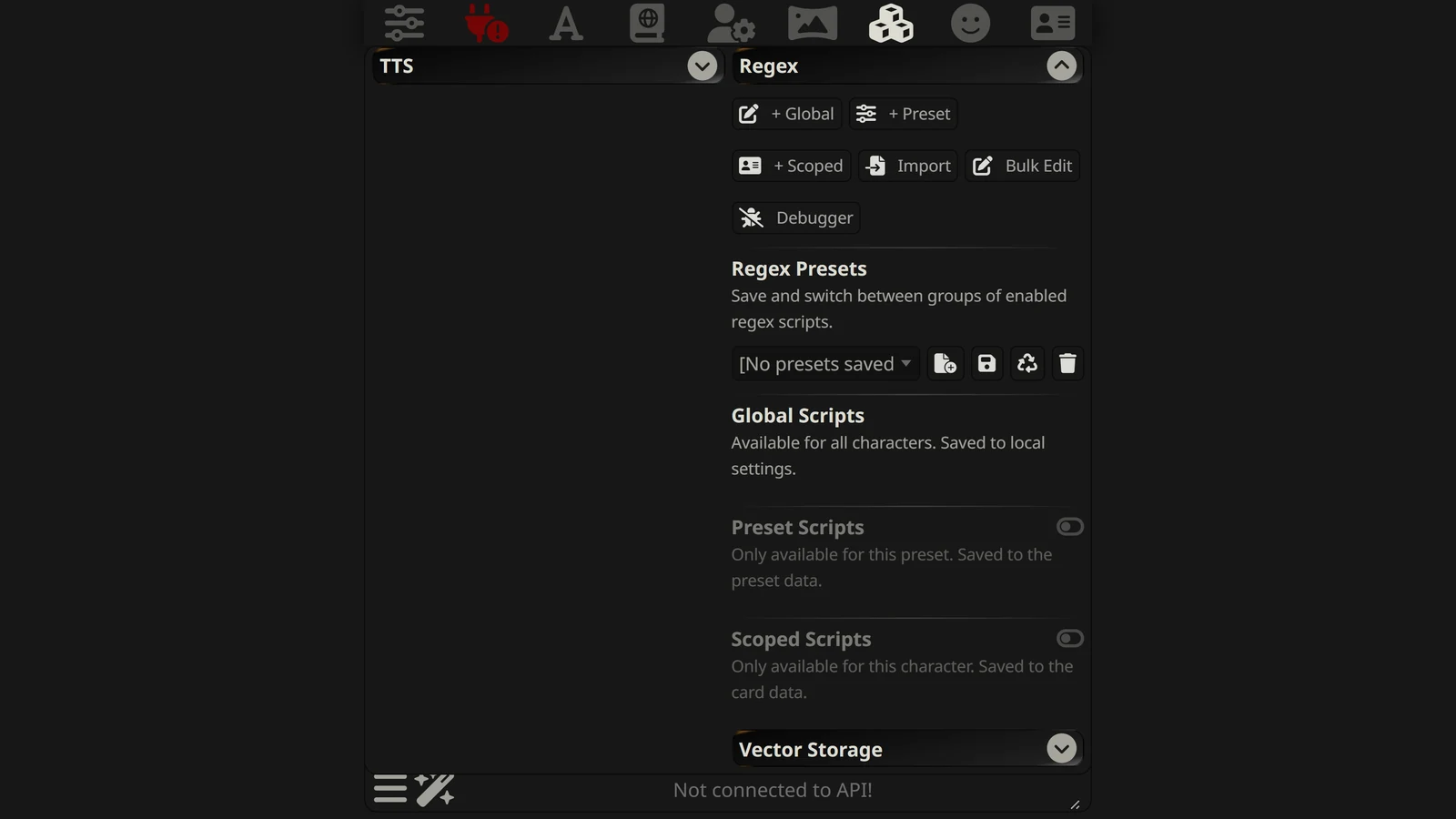
SillyTavern’s Regex extension is a find-and-replace tool for your chat: each script looks for text that matches a pattern and replaces it with something else, in your messages, the AI’s replies, the prompt, or all of them. It is how players delete a phrase the model will not stop using, stop the AI from writing their lines, restyle text, or clean up what the model sees.
It is also easy to get wrong. A regex script can quietly and permanently change your saved chat, or change only what you see while the model sees something else. This guide explains the settings that decide that, how to add and import scripts, five recipes you can copy, and the fixes for the common errors, based on SillyTavern 1.19.0.
How we checked. We read SillyTavern’s Regex documentation and the extension’s source code in 1.19.0 (public/scripts/extensions/regex/), and checked each recipe’s pattern against the way that code applies it, on 19 October 2026. The recipes are ours. Arcanum has no commercial relationship with SillyTavern.
The Short Answer
| You want to | Do this |
|---|---|
| Find the Regex panel | Extensions (cubes icon) → Regex |
| A rule for every character | + Global |
| A rule that travels with a preset | + Preset |
| A rule that travels with one character | + Scoped |
| Add someone else’s script | Import a .json file |
| Change only what you see | Tick Only Format Display |
| Change only what the model sees | Tick Only Format Prompt |
Hide <think> blocks | Use Auto-Parse under Reasoning, not regex |
| Test a script | Test Mode in the editor |
The Three Kinds of Script
SillyTavern 1.19.0 has three places a script can live. The panel describes each one:
| Kind | Panel description | Use it for |
|---|---|---|
| Global | ”Available for all characters. Saved to local settings.” | Rules you always want, such as removing a phrase any model overuses |
| Preset | ”Only available for this preset. Saved to the preset data.” | Rules that belong to a particular prompt setup or model |
| Scoped | ”Only available for this character. Saved to the card data.” | Rules for one character, such as formatting its special notation |
Any script can be moved between the three with the Move to buttons. The code runs them in a fixed order, with a comment that says “ORDER MATTERS”: global first, then preset, then scoped. Inside each group, scripts run in the order of the list, which you can change by dragging.
Scripts that arrive inside a card or preset
Character cards and presets can carry their own regex scripts. SillyTavern does not run them automatically. When you open such a character, it asks: “This character has embedded regex script(s). Would you like to allow using them?” Presets get the same question. If you say no, you can allow them later from the Regex panel.
This is a sensible safety step: a regex script can change what you see and what the model receives. Read a downloaded card’s scripts in the editor before you allow them.
How to Add a Script
- Open Extensions and expand Regex.
- Press + Global, + Preset or + Scoped. The editor opens.
- Give it a Script Name. The documentation notes the name is also how slash commands find the script.
- Write the Find Regex (the pattern) and the Replace With text.
- Tick at least one box under Affects.
- Decide on Ephemerality (see below).
- Turn on Test Mode, paste a sample of real chat into Input, and check Output.
- Save.
The fields that matter
| Field | What it does |
|---|---|
| Find Regex | The pattern. Write /pattern/flags to add flags; without them the match is case-sensitive and replaces only the first match |
| Replace With | The replacement. {{match}} inserts the whole match; $1, $2 insert capture groups |
| Trim Out | Text removed from the match before it is replaced; one item per line |
| Affects | Where the script runs: User Input, AI Response, Slash Commands, World Info, Reasoning |
| Min / Max Depth | Limits the script to messages a certain distance from the end of the chat; 0 is the last message |
| Run On Edit | Also runs when you edit a message |
| Macro in Find Regex | Whether {{user}}, {{char}} and other macros in the pattern are replaced: don’t substitute, raw, or escaped |
| Disabled | Stops the script running but keeps it available to slash commands |
The flags you will use most are g (every match, not just the first), i (ignore upper and lower case), s (let . match line breaks) and m (let ^ and $ match each line).
Escaped is the safe macro setting. If your persona’s name contains a character that means something in regex, such as a full stop or a bracket, “Substitute (escaped)” stops it breaking the pattern.
Ephemerality: Permanent or Not
This is the most important setting in the editor, and the one people do not read.
| Only Format Display | Only Format Prompt | What happens |
|---|---|---|
| Off | Off | The chat file itself is changed. The documentation: “these changes to the chat file are irreversible.” |
| On | Off | Only what you see changes. The model still receives the original text. |
| Off | On | Only what the model receives changes. You still see the original. |
| On | On | Both change, but the chat file is left alone |
Older guides call these boxes “Alter Chat Display” and “Alter Outgoing Prompt”; they are the same settings.
The documentation’s warning for the one-box cases is worth repeating: “you will be seeing one thing, but the LLM will be seeing another. Use this carefully.”
Our rule of thumb:
- Cosmetic changes (colours, bold names, hiding clutter) → Only Format Display.
- Cleaning what the model reads (removing repeated junk so it does not copy it) → Only Format Prompt, or both.
- Leave both off only when you are sure you want the saved chat rewritten.
One more rule from the documentation: a script that affects World Info “Requires ‘Alter Outgoing Prompt’ to be checked (or both ephemerality boxes to be unchecked)”, because lorebook entries only exist in the prompt.
Five Recipes
Each recipe gives the Find Regex, Replace With and the boxes to tick. Test each one in Test Mode with your own chat before saving.
1. Delete a phrase the model overuses
The model keeps writing “a shiver ran down her spine” and you never want to see it again.
| Field | Value |
|---|---|
| Find Regex | /,? ?a shiver (ran|runs) down (his|her|their|my) spine/gi |
| Replace With | (leave empty) |
| Affects | AI Response |
| Ephemerality | Both off, if you want it gone from the chat for good |
Removing it from the saved chat also stops the model seeing it in the history, which makes it less likely to repeat it. Write the pattern so it removes the comma or space before the phrase too, or you will be left with “She froze , and”.
2. Stop the AI writing lines for you
Some models continue past their own reply and start a new line as you, such as Mira: I agree.
| Field | Value |
|---|---|
| Find Regex | /\n{{user}}:[\s\S]*$/ |
| Replace With | (leave empty) |
| Affects | AI Response |
| Macro in Find Regex | Substitute (escaped) |
| Ephemerality | Both off |
The pattern finds a new line that starts with your persona’s name and a colon, and removes it and everything after it. Escaped substitution protects names with special characters. This trims the symptom; a stop string or a firmer instruction in your preset treats the cause. Our SillyTavern presets guide covers both.
3. Collapse runs of blank lines
| Field | Value |
|---|---|
| Find Regex | /\n{3,}/g |
| Replace With | Two line breaks: click in the box and press Enter twice |
| Affects | AI Response |
| Ephemerality | Both off |
Three or more line breaks become exactly one blank line.
4. Make the character’s name stand out
| Field | Value |
|---|---|
| Find Regex | /\b{{char}}\b/g |
| Replace With | **{{match}}** |
| Affects | AI Response |
| Macro in Find Regex | Substitute (escaped) |
| Ephemerality | Only Format Display |
Every mention of the character’s name is shown in bold. Because it is display-only, the model never sees the asterisks and will not start copying them.
5. Keep old messages out of an expensive prompt
On a paid API every token of history costs money. This recipe shortens long descriptions in older messages before they are sent.
| Field | Value |
|---|---|
| Find Regex | /\([^)]{200,}\)/g |
| Replace With | (…) |
| Affects | User Input, AI Response |
| Min Depth | 10 |
| Ephemerality | Only Format Prompt |
Any bracketed aside longer than 200 characters in a message 10 or more places from the end is replaced by (…) in what the model receives. You still see everything. Adjust the length and depth to taste; this is the kind of script where Test Mode earns its keep.
Hiding the Thinking: Use Auto-Parse, Not Regex
“SillyTavern regex hide thinking” is one of the most searched regex questions. For most models the answer is that you do not need a regex.
SillyTavern 1.19.0 has a built-in reasoning parser. In Advanced Formatting, under Reasoning, the Auto-Parse option will, in SillyTavern’s words, “Automatically parse reasoning blocks from main content between the reasoning prefix/suffix.” The default prefix is <think> and the default suffix is </think>. The parsed text moves into a separate, collapsible reasoning block above the reply instead of cluttering it.
The catch: Auto-Parse is off by default in 1.19.0. Turn it on, and check that the prefix and suffix match what your model writes.
Use a regex only when a model marks its thinking some other way. In that case, a script with Affects: AI Response and a pattern such as /<reasoning>[\s\S]*?<\/reasoning>\s*/g replaced with nothing removes it. Tick Only Format Display if you want to keep it in the file, or leave both boxes off to delete it.
The Reasoning checkbox under Affects is different: it runs a script on reasoning that the API has already returned as a separate block, as Gemini and DeepSeek do. Our Gemini and DeepSeek guides explain how each sends its thinking.
Importing, Exporting and Sharing
- Export downloads a single script as a
.jsonfile. - Import reads a
.jsonfile containing one script or a list of scripts, then asks where to put it: Global, Preset or Scoped scripts. In the code, every imported script gets a fresh ID, so importing the same file twice gives you two copies. - Bulk Edit lets you enable, disable, move or delete several scripts at once.
- Regex Presets saves “groups of enabled regex scripts” so you can switch between sets, for example one for each model.
- Debugger shows a step-by-step transformation of a sample through every active script, which is the fastest way to find which script is breaking your text.
Errors and Problems
| What you see | Cause | Fix |
|---|---|---|
| ”Invalid regex object.” | The file is JSON but not a regex script. The code rejects anything without a script name. | You probably imported a preset, card or settings file. Import presets in the preset panel instead. |
| ”Invalid JSON file.” | The file is not JSON at all | Re-download it; make sure it ends in .json and is not an HTML page |
| A card’s or preset’s scripts do nothing | You did not allow its embedded scripts | Allow them in the Regex panel |
| Only the first match changes | No g flag | Write the pattern as /pattern/g |
| Nothing changes | No Affects box ticked, the script is off, or the depth limits exclude the message | Check each, then use Test Mode |
| You see one thing, the model another | One Ephemerality box is ticked | Intended; untick if not |
| An HTML replacement shows as raw tags | SillyTavern hides or shows tags depending on a user setting | The documentation says HTML replacements need “Show |
| A lorebook-affecting script does nothing | World Info needs the prompt to be altered | Tick Only Format Prompt, or leave both boxes off |
| The pattern breaks on your name | A special character in {{user}} or {{char}} | Set Macro in Find Regex to escaped |
For problems that are not regex, see SillyTavern not working. For the rest of the extensions panel, see SillyTavern extensions.
Our Recommendation
- Start with Test Mode. Paste real chat in and watch the output before you save anything.
- Default to Only Format Display for cosmetic scripts; never rewrite the chat by accident.
- Use Auto-Parse for thinking blocks, not a regex.
- Read embedded scripts before allowing them on downloaded cards and presets.
- Use escaped macro substitution whenever a pattern contains
{{user}}or{{char}}. - Keep scripts few and named clearly. The Debugger helps, but five scripts you understand beat thirty you downloaded.
Frequently Asked Questions
What is regex in SillyTavern?
It is a built-in extension that finds text matching a pattern and replaces it. You can use it to remove phrases from the AI’s replies, change how text is formatted, stop the AI from writing lines for you, or clean up what is sent to the model. Each rule is called a script, and you find them under Extensions, then Regex.
Where do I put regex scripts in SillyTavern?
Open the Extensions panel, the stacked cubes icon in the top bar, and expand Regex. Use + Global for a script that applies to every character, + Preset for one saved inside your current preset, or + Scoped for one saved inside the current character card. Import adds a script from a JSON file.
How do I import a regex script into SillyTavern?
In the Regex panel, press Import and choose the script’s JSON file. SillyTavern then asks where to import it: Global Scripts, Preset Scripts or Scoped Scripts. A file can hold one script or a list of them. Scripts that come inside a character card or a preset are not used until you allow them.
Why does SillyTavern say Invalid regex object?
Because the file you imported is valid JSON but is not a regex script. SillyTavern 1.19.0 rejects any imported object without a script name. The usual cause is importing a preset, a character card or a settings file into the Regex panel. If it says Invalid JSON file instead, the file is not JSON at all.
Why is my SillyTavern regex not working?
Check five things: the script is switched on, at least one Affects box is ticked, the pattern has the g flag if you want every match replaced, a scoped or preset script has been allowed, and the depth limits include the message you are testing. Then paste a sample into Test Mode in the editor, which shows the result as you type.
How do I hide the thinking with regex in SillyTavern?
You usually do not need regex. In Advanced Formatting, under Reasoning, turn on Auto-Parse: SillyTavern then moves text between the reasoning prefix and suffix,
Does a SillyTavern regex change my chat permanently?
It can. With neither Ephemerality box ticked, SillyTavern’s documentation says the script edits the text stored in the chat file, and those changes are irreversible. Tick Only Format Display to change only what you see, or Only Format Prompt to change only what the model receives. Ticking both changes both without touching the file.
What order do SillyTavern regex scripts run in?
Global scripts first, then preset scripts, then scoped scripts. Within each group they run in the order shown in the list, which you can change by dragging. Order matters when one script’s output is another script’s input.
Sources, read on 19 October 2026: SillyTavern’s documentation page “Regex”, and the SillyTavern 1.19.0 source code: public/scripts/extensions/regex/engine.js (script types, run order, ephemerality), index.js (import, embedded-script prompts, debugger), editor.html and dropdown.html (labels), and public/scripts/power-user.js and public/index.html (reasoning Auto-Parse defaults). The recipes are ours.
SillyTavern is an open-source project. Arcanum is independent and not affiliated with it.