Gemini in SillyTavern (2026): API Key Setup, Thinking, Blank Replies and Prohibited Content
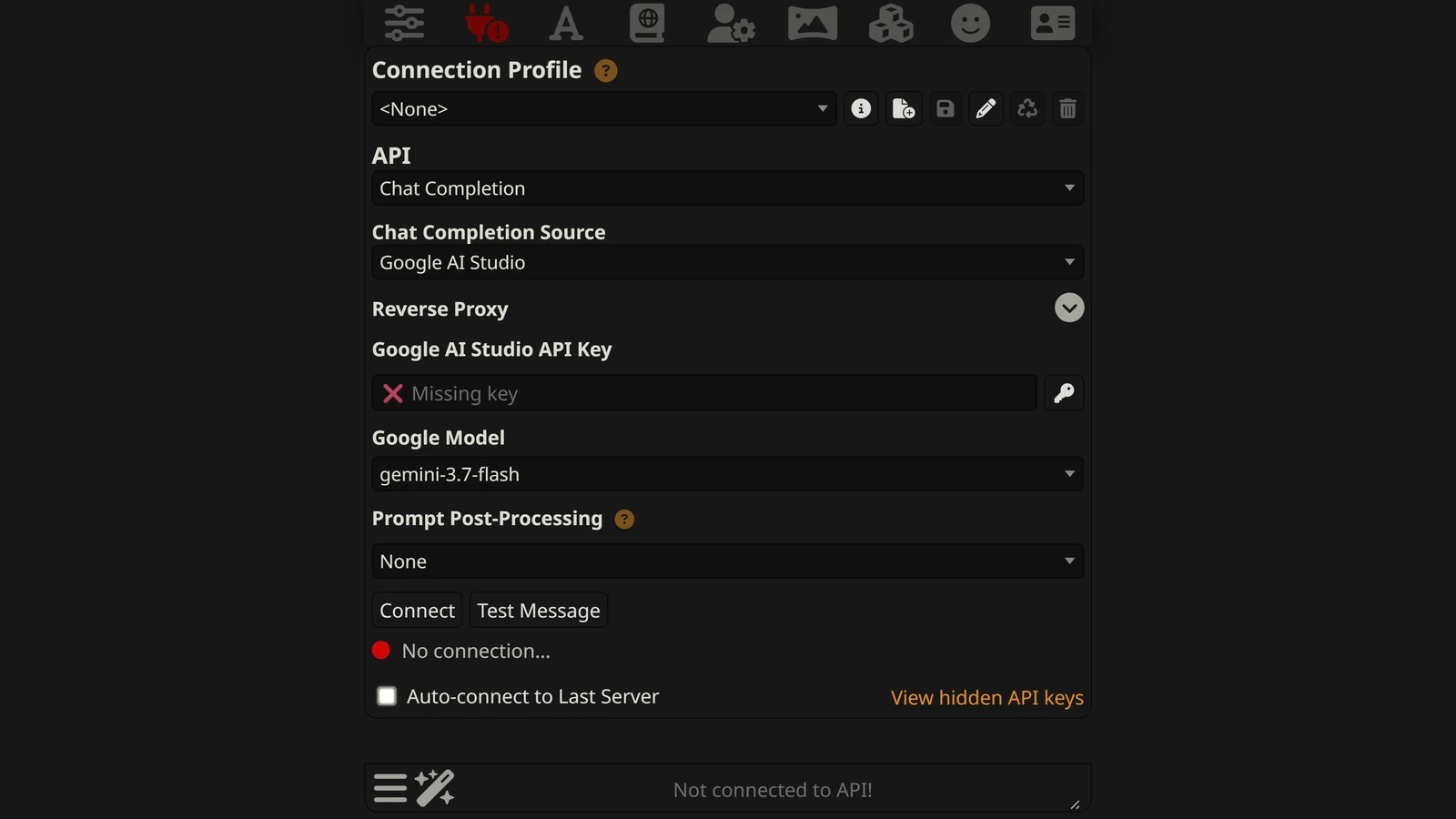
To use Gemini in SillyTavern, you create a free API key in Google AI Studio, choose “Google AI Studio” as the Chat Completion source in SillyTavern, and paste the key. That part takes two minutes. The parts that go wrong come after it: a context limit that is far too small by default, replies that come back empty, a thinking setting that is not where you expect, and blocks that no setting removes.
This guide is about SillyTavern and Gemini together. It does not choose a Gemini model for you. That is a different question, and our best Gemini model for roleplay page answers it.
Everything here comes from two places: the code of SillyTavern 1.19.0 (released 14 September 2026, still the current release on 13 October 2026) and Google’s Gemini API documentation, read on 13 October 2026. We read what SillyTavern sends to Google and what Google says it does with it. We did not run these requests ourselves, so where we describe a failure, we say whose words we are relying on.
New to SillyTavern? Start with the SillyTavern guide and the installation guide. Something broken that is not about Gemini? See SillyTavern not working.
The Short Answer
- Get the key at Google AI Studio. In SillyTavern: API Connections, then Chat Completion, then Google AI Studio.
- Change two defaults first. Context Size ships at 4,095 tokens and Max Response Length at 300. Gemini’s window is 1 million tokens.
- Empty reply? Raise Max Response Length. Thinking uses the same limit as the reply.
- Safety settings are already off. SillyTavern sends them that way on every request. A block that remains cannot be switched off.
- Thinking is controlled by Reasoning Effort. The “Request model reasoning” checkbox only shows or hides the thinking text.
- Temperature does nothing on the newest Gemini models. Google ignores it.
- Gemini 3.8 Flash needs care on SillyTavern 1.19.0. Use Reasoning Effort Low or higher, and no prefill.
Step 1: Get a Gemini API Key
SillyTavern’s own documentation calls Google AI Studio “the fastest and the most user-friendly way” to use Gemini. Its steps are:
- Go to Google AI Studio’s API key page and sign in with a Google account.
- Click “Get API Key” and accept the terms.
- Click “Create API Key”.
- Copy the key.
You do not need a Google Cloud project or a payment card to do this.
There is a second route, Google Vertex AI, which is Google’s cloud platform. SillyTavern supports it with a service account file or with an “Express Mode” key. It is more work to set up, and most players do not need it. If you are not sure which one you want, you want AI Studio.
One thing SillyTavern does not have is a sign-in for the Gemini app. A paid Gemini app plan and the Gemini API are separate products. In SillyTavern 1.19.0 the only two Google sources are AI Studio and Vertex AI, and both need a key.
Step 2: Connect It in SillyTavern
- Open the API Connections panel (the plug icon).
- Set the API to Chat Completion.
- Set the Chat Completion Source to Google AI Studio.
- Paste the key into the API Key box.
- Click Connect.
SillyTavern hides the key after you connect. That is normal.
Picking the model
SillyTavern 1.19.0 has a built-in list of Gemini models, grouped by version. The newest group in that list is Gemini 3.7, and gemini-3.7-flash is the model it selects by default.
Google’s newest model, Gemini 3.8 Flash, is not in the built-in list. It was released on 2 September 2026. You can still pick it: when you connect, SillyTavern asks Google which models your key can use and adds any it does not know to a group called Other at the bottom of the menu. Look for gemini-3.8-flash there.
Before you pick it, read the section on Gemini 3.8 Flash below.
Step 3: Change These Two Defaults
This is the step most setup guides leave out, and it causes the two most common complaints.
| Setting | SillyTavern’s default | What Gemini allows |
|---|---|---|
| Context Size (tokens) | 4,095 | 1,000,000 on current Flash and Pro models |
| Max Response Length (tokens) | 300 | 64,000 on Gemini 3.8 Flash |
Both settings are in the AI Response Configuration panel (the sliders icon).
Context Size is how much of your chat SillyTavern sends on each turn. At 4,095 tokens, a character card and a lorebook can fill most of it, and the model sees only the last few messages. The game then seems to forget everything. That is not Gemini forgetting. It is SillyTavern cutting the chat to fit a small limit.
When you choose a Gemini model, SillyTavern raises the top of the slider to the model’s real limit. It does not move the slider for you. You have to do that.
How high should it go? Not to 1 million. Every token you send is paid for on the paid tier and counted against your limits on the free tier. A setting between 32,000 and 100,000 tokens holds a long session and keeps turns cheap. Our SillyTavern memory guide explains what to do when a campaign grows past that.
Max Response Length matters even more, for a reason that is not obvious. It is the next section.
Why Gemini Returns Empty Replies
Every current Gemini model thinks before it answers. Google’s price list says the output price is “including thinking tokens”. So thinking is paid for as output, and it is counted against the same limit as the reply.
SillyTavern’s own documentation describes the result:
“When using reasoning models, the model’s internal reasoning process consumes part of your response token allowance, even if this reasoning isn’t shown in the final output (e.g. o3-mini or Gemini Thinking). If you notice your responses are coming back incomplete or empty, you should try adjusting the Max Response Length setting.”
It then gives a range: “anywhere from 1024 to 4096 tokens”.
The default is 300. On a model that thinks at a medium level by default, 300 tokens can be gone before the first word of the story is written. You get a reply with nothing in it, or a reply that stops in the middle of a sentence.
The fix: set Max Response Length to at least 1,024. If you want long replies, use 2,048 or more. This does not make replies longer by itself. It only stops them being cut. Reply length is set by your prompt and your first message.
How Thinking Works for Gemini in SillyTavern
There are two controls, and they do different jobs.
Request model reasoning is a checkbox. For Google, SillyTavern’s own help text under it says: “This setting affects visibility only.” If it is on, you see the model’s thinking in a block you can open above the reply. If it is off, you do not see it. The model thinks either way, and you pay either way.
Reasoning Effort is a menu with six choices: Auto, Minimum, Low, Medium, High and Maximum. This is the real control. SillyTavern translates each choice differently for each kind of Gemini model. We read the translation from its code:
| Reasoning Effort | Gemini 3.x Flash | Gemini 3.x Pro | Gemini 2.5 Flash |
|---|---|---|---|
| Auto | Nothing sent; Google’s default applies | Nothing sent; Google’s default applies | Model decides |
| Minimum | minimal (low on 3.7 Flash) | low | Thinking off |
| Low | low | low | 10% of Max Response Length |
| Medium | medium | low | 25% |
| High | high | high | 50% |
| Maximum | high | high | 100% |
Four things follow from that table.
Auto is not “off”. Auto sends no level, so Google’s default applies. Google’s default for the current Flash models is medium, and for Gemini 3.1 Pro it is high.
You cannot fully turn thinking off on the current models. The lowest level is minimal, and only some models accept it. Google also notes that minimal does not guarantee that thinking is off. Gemini 3.1 Pro never goes below low.
On Gemini 3 Pro, three choices are the same. Minimum, Low and Medium all send low.
On Gemini 2.5, thinking is a share of your response limit. That is why a small Max Response Length hurts twice there. Note that Google limited the 2.5 models on 18 September 2026 to people who had already been using them.
For roleplay, Low is a sensible place to start on a Flash model. Replies begin sooner and cost less, and the model still checks the scene before it writes.
Gemini 3.8 Flash on SillyTavern 1.19.0
This is the part you will not find in a setup video, because it comes from reading the two sides next to each other.
SillyTavern handles new Gemini models with a list of name patterns. In 1.19.0 that list covers Gemini 3.6 Flash, 3.7 Flash and 3.5 Flash-Lite. It does not match gemini-3.8-flash. Gemini 3.8 Flash came out twelve days before SillyTavern 1.19.0, but the rules for it were added to the code later.
Here is what that means, rule by rule.
| What Google says about 3.8 Flash | What SillyTavern 1.19.0 does | |
|---|---|---|
| Thinking level | ”minimal thinking level is not supported for Gemini 3.8 Flash and will return an error” | Reasoning Effort Minimum sends minimal |
| Prefilled reply | A request that ends with a model turn returns “an HTTP 400 Error” | A prompt that ends with an assistant message is sent as a model turn |
| Temperature, top_p, top_k | ”deprecated and ignored” | Still sent; Google ignores them |
So on 1.19.0, two ordinary settings can make every request to 3.8 Flash fail:
- Reasoning Effort set to Minimum. Use Low, Medium or High. Auto is also safe, because it sends nothing.
- A prefill. A prefill is when the preset writes the first words of the model’s reply to push the tone. In SillyTavern this happens if a preset’s last prompt has the assistant role, or if Continue prefill is switched on and you press Continue. Turn Continue prefill off and remove the prefill from the preset.
For Gemini 3.6 Flash and 3.7 Flash, SillyTavern 1.19.0 already handles both. It lowers Minimum to low on 3.7 Flash, and it changes a prefill into a user message so that Google accepts it.
This is fixed in SillyTavern’s development version. The “staging” branch, as of its commit of 2 October 2026, includes Gemini 3.8 Flash in all three rules and makes it the default Google model. It should arrive in the next release. If you use the staging branch already, this section does not apply to you.
A reminder of our method: we compared the code with Google’s guide. We did not send these requests. If your copy of 1.19.0 works with 3.8 Flash at Minimum, Google has been more forgiving than its guide says.
Safety Settings: Already Off
People search for how to set Gemini to “block none” in SillyTavern. There is nothing to set.
SillyTavern 1.19.0 adds the same safety list to every Gemini request. It has five categories: harassment, hate speech, sexually explicit, dangerous content and civic integrity. Each one is sent with the threshold OFF. There is no menu for this in the interface, because there is no choice to make.
Google’s side has changed too. Its safety page now says: “Due to the model’s inherent safety, additional filters are Off by default.”
So the adjustable filters are off twice. What is left is the part nobody can adjust. Google’s page says:
“In addition to the adjustable safety filters, the Gemini API has built-in protections against core harms, such as content that endangers child safety. These types of harm are always blocked and cannot be adjusted.”
The same page carries one more note that roleplayers should know about: “Applications that use less restrictive safety settings may be subject to review.”
What the Gemini Error Messages Mean
SillyTavern does not write replies. It passes your prompt to Google and passes the answer back. So almost every error is Google’s, relayed. A few are SillyTavern’s own words for what Google returned.
The first two messages below are written by the part of SillyTavern that handles replies with streaming off. We did not trace what the page shows for the same problem with streaming on. If you get a silent empty reply, turn streaming off once and send again, and you should see which of the two it is.
”Google AI Studio API returned no candidate”
A “candidate” is Google’s word for a reply. This message means Google answered the request but included no reply at all. If Google gave a reason, SillyTavern adds a second line:
Prompt was blocked due to : PROHIBITED_CONTENT
That reason is about your prompt, not about the model’s reply. The prompt is everything SillyTavern sent: the system prompt, the character card, the persona, any lorebook entries that fired, and the chat history up to the context limit. Google’s error list describes this code as “Prohibited content guidelines blocked the request”.
Because the adjustable filters are already off, this is the non-adjustable kind. Changing settings will not help. What can help:
- Find the part that triggers it. Start a new chat with the same character. If the first message is blocked, the cause is in the card or the lorebook. If only the old chat is blocked, the cause is in the history.
- Check the ages and descriptions in the card. Google names child safety as the first example of what is always blocked. A character described as young, or with a young appearance, in a scene with adult content is the clearest case.
- If the story is one Gemini will not run, change model, not settings. Our page on why AI refuses to roleplay covers the choices.
Other reasons can appear in the same place. Google lists safety, recitation (the text is too close to copyrighted material), blocklist and a general content_blocked.
”Google AI Studio Candidate text empty”
This one means Google did send a reply, and it had no text in it that SillyTavern could show. By the code, SillyTavern removes the thinking parts first and then looks at what is left.
The usual cause is the one above: the response limit ran out during thinking. Raise Max Response Length. If the limit is already high, the reply may have been stopped by a filter after it started. Regenerating sometimes gets through. If it never does, treat it like a blocked prompt.
A plain “Internal Server Error” or “Bad Request”
When streaming is off and Google returns an error, SillyTavern’s server passes Google’s message to the page but marks it with its own status, 500. So the page may show a server error for something that was really a full quota or a wrong setting.
The real status is in the terminal window where SillyTavern runs. Look for a line that starts Google AI Studio API returned error:. The number after it is Google’s.
| Google’s status | What Google says it means | What to do |
|---|---|---|
| 400 | The request is malformed or a setting is invalid | Check Reasoning Effort and prefill, above all on 3.8 Flash |
| 401 / 403 | The key is missing, invalid or lacks permission | Create a new key and paste it again |
| 402 | Prepaid credit is used up | Add credit; retrying will not work |
| 404 | The model was not found | Pick a model from the list again |
| 429 | A per-minute limit or a daily quota is used up | Wait; see below |
| 500 | An error on Google’s side | Try again |
| 503 | The service is overloaded or down | Wait and try again |
429 and “quota exceeded”
Google measures three things: requests per minute, tokens per minute and requests per day. Passing any one of them gives a 429.
Three facts from Google’s rate-limit page explain most 429 errors in SillyTavern:
- Tokens per minute counts your whole prompt. A large Context Size uses that limit quickly, even if you send few messages.
- “Rate limits are applied per project, not per API key.” Making a second key in the same project does not give you a second allowance.
- Daily quotas “reset at midnight Pacific time”.
Google does not publish one number for the free tier. Its page says limits “can be viewed in Google AI Studio”. Open AI Studio and read the limit for your own account.
Settings That Behave Differently With Gemini
Temperature, Top P and Top K
Google’s page for Gemini 3.6 says these three settings “are deprecated and ignored”, starting with Gemini 3.6 Flash and Gemini 3.5 Flash-Lite and for “all future Gemini model releases”. It adds that in later model generations, sending them will return an error.
SillyTavern 1.19.0 removes them from requests to 3.6 Flash, 3.7 Flash and 3.5 Flash-Lite. The sliders stay on screen. Moving them changes nothing.
If a Gemini preset you downloaded is built around a temperature of 1.2 or a special Top K, that part of the preset is out of date. Style now comes from the prompt. Our SillyTavern presets guide explains what a preset contains and what still matters.
”Use system prompt”
This checkbox is off in SillyTavern’s default settings. With it off, SillyTavern sends your system prompt to Gemini as an ordinary user message at the start of the chat. With it on, it sends the opening system messages in the place Gemini reserves for instructions.
Google’s advice for the newest models is to steer behaviour with a system instruction, since the sampling settings are gone. So this is worth switching on and comparing. Two exceptions come from the code: SillyTavern does not use it for Gemma 3 models or when image output is requested.
Custom stopping strings
For Gemini, SillyTavern sends at most five stopping strings, and only strings between 1 and 16 characters long. Longer ones are dropped without a message. If a stop string works on another provider and not on Gemini, check its length.
Web search
“Enable web search” lets Gemini look things up through Google Search. Google’s price list marks this as “Not available” on the free tier. On the paid tier it gives 5,000 free search requests a month across the Gemini 3 models, and then charges $14 per 1,000. Few roleplay scenes need it.
Prompt caching
SillyTavern’s settings file has a Gemini option called enableSystemPromptCache. The comment next to it says “Only for OpenRouter”. It does nothing for a direct AI Studio connection.
AI Studio Key or OpenRouter?
You can also reach Gemini through a router such as OpenRouter. The models are the same. The differences are practical:
| Google AI Studio key | OpenRouter | |
|---|---|---|
| Free tier | Yes, on Flash models | No free Gemini model in its list on 13 October 2026; you pay per token |
| Free-tier content used by Google | Yes | Not applicable |
| One key for other models too | No | Yes |
| Safety filters sent as off | Yes | Yes; SillyTavern sends the same list for Gemini models |
| Errors | Google’s, relayed | OpenRouter’s, which wrap Google’s |
If you only want Gemini and you want it free, use AI Studio. If you switch between Gemini, DeepSeek and Claude in one evening, a router saves you three accounts. Our SillyTavern and OpenRouter guide covers that route, and SillyTavern and DeepSeek covers the cheapest direct one.
Checklist
- Key from Google AI Studio, pasted under Chat Completion, Google AI Studio.
- Context Size raised from 4,095 to something between 32,000 and 100,000.
- Max Response Length raised from 300 to at least 1,024.
- Reasoning Effort on Low to start. Never Minimum on Gemini 3.8 Flash with SillyTavern 1.19.0.
- No prefill, and Continue prefill off, on Gemini 3.8 Flash with SillyTavern 1.19.0.
- “Use system prompt” switched on and compared.
- When something fails, read the terminal window for Google’s real status code.
Frequently Asked Questions
How do I connect Gemini to SillyTavern?
Create a key at Google AI Studio. In SillyTavern, open API Connections, choose Chat Completion as the API, choose Google AI Studio as the source, paste the key and click Connect. Then pick a model, raise Context Size from the default of 4,095 tokens and raise Max Response Length from the default of 300.
Is Gemini free in SillyTavern?
It can be. SillyTavern is free, and Google’s price list shows a free tier for its Flash and Flash-Lite models, including Gemini 3.8 Flash. Gemini 3.1 Pro has no free tier. Google says it uses free-tier content to improve its products, and it shows your limits inside AI Studio instead of publishing one number.
Why does Gemini return an empty response in SillyTavern?
The most common cause is the response limit. Gemini models think before they answer, and thinking is paid for from the same limit as the reply. SillyTavern’s default Max Response Length is 300 tokens, which thinking can use up completely. Raise it to between 1,024 and 4,096, which is the range SillyTavern’s own documentation gives for reasoning models.
What does ‘Prompt was blocked due to PROHIBITED_CONTENT’ mean?
Google refused the prompt before the model wrote anything. SillyTavern already sends every adjustable Gemini safety filter set to off, so there is no setting left to change. Google says its protections against core harms are always on and cannot be adjusted. The block is about something in the prompt, which includes the character card, the lorebook and the chat history.
How do I turn off Gemini safety settings in SillyTavern?
You do not need to. SillyTavern 1.19.0 sends all five adjustable safety categories set to off with every Gemini request, and there is no menu for it. Google also says these extra filters are now off by default. A block that still happens comes from the part of Google’s filtering that cannot be turned off.
How do I turn off thinking for Gemini in SillyTavern?
Use the Reasoning Effort menu, not the Request model reasoning checkbox. For Gemini the checkbox only shows or hides the thinking text. Reasoning Effort set to Minimum asks for the lowest level the model allows. Gemini 3.6 Flash accepts a minimal level. Gemini 3.7 Flash, 3.8 Flash and 3.1 Pro cannot go below low.
Why does Gemini 3.8 Flash give errors in SillyTavern?
SillyTavern 1.19.0 was built with rules for Gemini 3.6 and 3.7 Flash, and those rules do not match the name gemini-3.8-flash. By the code, it can send 3.8 Flash a minimal thinking level and a prefilled reply. Google says both are rejected. Set Reasoning Effort to Low or higher, turn off Continue prefill and remove any prefill from your preset.
Does temperature work with Gemini in SillyTavern?
Not on the newest models. Google says temperature, top_p and top_k are deprecated and ignored from Gemini 3.6 Flash and Gemini 3.5 Flash-Lite onward. SillyTavern 1.19.0 does not even send them to Gemini 3.6 Flash, 3.7 Flash or 3.5 Flash-Lite. The sliders still move, but they are not connected to anything.
The connection steps and the reasoning quote are from SillyTavern’s documentation. The default settings, the model list, the safety list, the Reasoning Effort mapping, the prefill and sampling rules, the stop-string limits, the error messages and the settings-file comment are from the code of SillyTavern 1.19.0 (release of 14 September 2026); the note on the development version is from the staging branch at its commit of 2 October 2026. The statements about thinking levels, deprecated settings, prefilled turns, safety filters, error codes, rate limits and prices are from Google’s Gemini API documentation. All were read on 13 October 2026. We did not send requests to test these behaviours; where the code and Google’s guide point to a failure, we say so. We have no commercial relationship with SillyTavern, Google or OpenRouter.
SillyTavern, Gemini, Google AI Studio, Vertex AI, OpenRouter, DeepSeek and Claude are the property of their respective owners. Arcanum is not affiliated with any of them.