SillyTavern Personas (2026): How to Create, Write, Lock and Back Up Your Persona
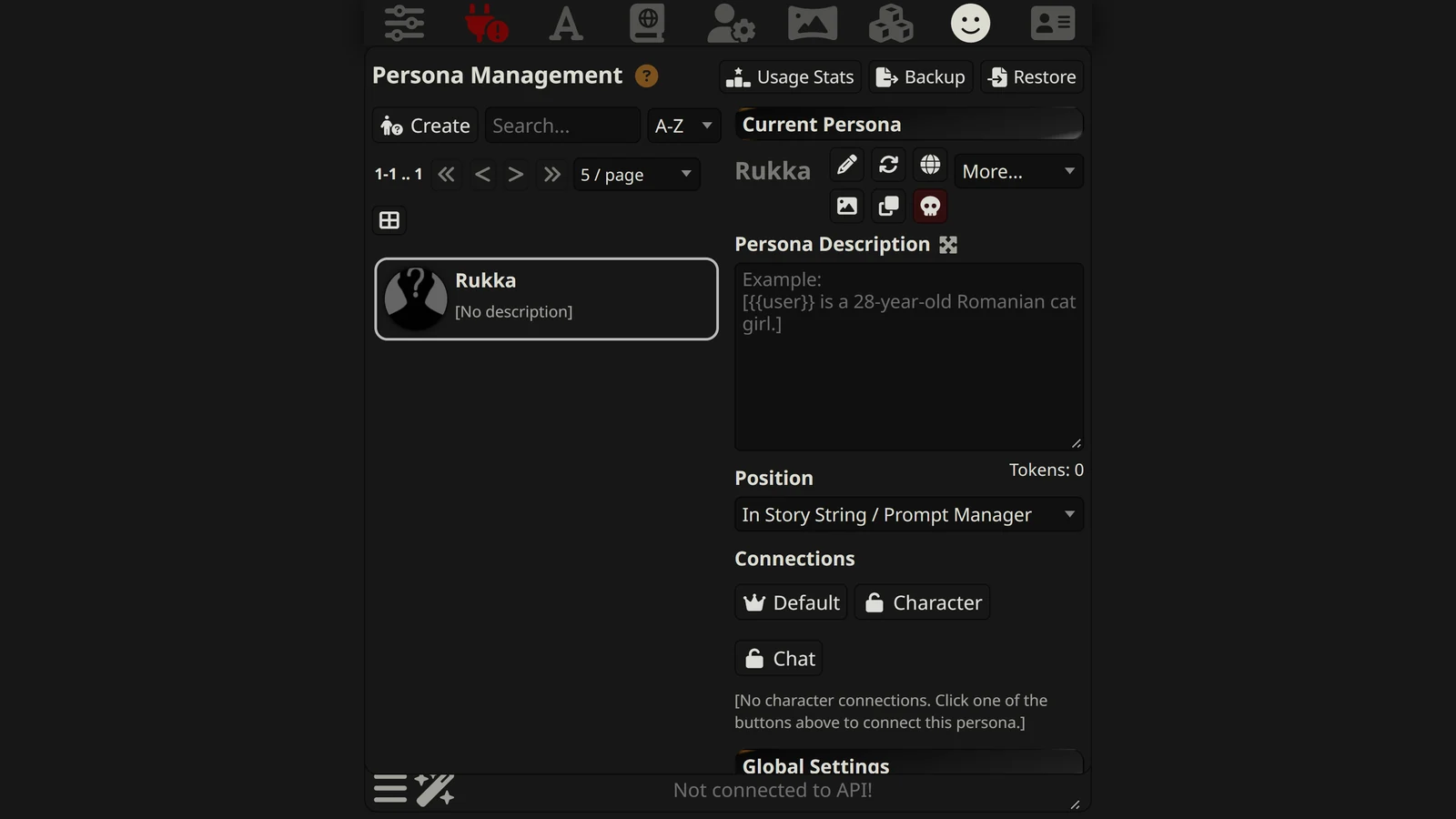
A SillyTavern persona is the identity you use in a chat: a name, an avatar and an optional description that tells the AI who you are. It is the other half of every roleplay. The character card describes who the AI plays; the persona describes who you play. Get it wrong and the AI calls you by the wrong name, forgets you are a soldier, or starts writing your lines for you.
This guide covers everything SillyTavern does with personas in version 1.19.0, the current release: creating one, writing the description, where it goes in the prompt, locking it to a character or a chat, the persona lorebook that the persona documentation leaves out, where the files live, and how to fix a persona the AI seems to ignore.
How we checked. We read SillyTavern’s official persona documentation and the 1.19.0 source code (public/scripts/personas.js, power-user.js, world-info.js and the Persona Management panel), on 19 October 2026. Where the code shows something the documentation leaves out, we say so. Arcanum has no commercial relationship with SillyTavern.
The Short Answer
| You want to | Do this |
|---|---|
| Create a persona | Persona Management (smiley icon) → Create → name it |
| Tell the AI who you are | Write the Persona Description |
| Use it with one character every time | Select it → Character button under Connections |
| Use it in one chat only | Chat button under Connections |
| Use it everywhere else | Default (crown) button |
| Give your persona its own lore | The globe button: link a persona lorebook |
| Turn a character into a persona | Character → More… → Convert to Persona |
| Back it up | Backup in Persona Management (images not included) |
| Fix “the AI ignores my persona” | Check the Position and the Prompt Manager |
How to Create a Persona
The steps from SillyTavern’s documentation:
- Open Persona Management, the smiley-face icon in the top bar.
- Press Create and give the persona a name.
- Select the new persona in the list.
- On the right, write a description and set an avatar with Change Persona Image. Both are optional.
- The persona is ready to use.
The panel also has buttons to rename, duplicate and delete a persona. Rename also lets you set a Persona Title: a note shown in the panel only. The documentation says the title “is not used in the prompt”, so use it to tell similar personas apart (“Mira – fantasy”, “Mira – sci-fi”).
If you see a persona called “[Unnamed Persona]”, it is an old user name or avatar from before SillyTavern tied everything to personas. The documentation says such legacy data was migrated, and anything without a name got that label. Rename it or delete it.
How to Write a Persona Description
The description is the part the AI actually reads. Here is what works, and why.
What to put in
| Include | Example | Why |
|---|---|---|
| Name, age, look | {{user}} is a 28-year-old courier with a scar across one eyebrow. | The AI describes you and reacts to how you look |
| Role in the world | She runs messages between the river districts. | Gives the AI a reason for people to know you |
| Two or three traits others notice | Fast-talking, owes money to half the docks. | Shapes how characters treat you |
| Relationship to the character, if fixed | {{char}} is her older brother. | Saves you explaining it every chat |
What to leave out
- Your character’s thoughts, plans and feelings in the moment. The AI reads the description as a fact sheet it is allowed to use. Write “{{user}} secretly plans to leave the city” and the AI may start narrating that plan for you. Keep your inner life in your messages.
- Long backstories. Every word is sent with every message. The panel shows a token count under the description; a few hundred tokens is plenty.
- Instructions to the AI such as “never speak for {{user}}”. Those belong in the system prompt or your preset, not in a description of who you are. Our SillyTavern presets guide explains where.
A template
[{{user}} is a [age]-year-old [role or occupation].
Appearance: [two or three details the AI should mention].
Known for: [two or three traits other characters notice].
Situation: [one line on where {{user}} stands in this story].
Relationship to {{char}}: [only if it is always the same].]
SillyTavern’s own placeholder text in the description box uses the same shape: ”[{{user}} is a 28-year-old Romanian cat girl.]”
{{user}}, {{char}} and {{persona}}
{{user}}becomes your persona’s name everywhere: in the character card, the lorebook and the prompt.{{char}}becomes the character’s name.{{persona}}becomes your persona’s description. SillyTavern’s macro list describes it as “User persona description.” You need it only if you build your own story string or prompt and want the description somewhere specific.
Pronouns. SillyTavern 1.19.0 has no pronoun field for personas. Write them into the description (“{{user}} uses they/them”) and the AI will follow them.
Where the Description Goes in the Prompt
The Position setting decides where SillyTavern places your description. It is saved per persona, so different personas can use different positions. The options, from the documentation:
| Position | What it does | When to use it |
|---|---|---|
| In Story String / Prompt Manager (default) | Placed with the character’s details near the top of the prompt | Most chats |
| Top of Author’s Note / Bottom of Author’s Note | Added to the Author’s Note; “will only be added when an Author’s Note exists” | If you already use an Author’s Note |
| In Chat @ Depth | Inserted into the chat history, a set number of messages from the end | Long chats where the AI starts forgetting who you are |
| None | Not sent at all | A persona that is only a name and an avatar |
The code’s defaults for In Chat @ Depth are a depth of 2 and the system role. Depth 2 means two messages from the end of the chat, close to where the AI is writing, which keeps your details fresh in a long chat at the cost of a little coherence with the character card above.
For Chat Completion APIs (OpenAI, Claude, Gemini, DeepSeek, OpenRouter and so on), “In Story String / Prompt Manager” means the Persona Description item in the Prompt Manager. If that item is switched off or removed from your preset, your description is not sent, whatever the Position says. This is the most common reason a persona is “ignored”.
Persona or Character?
| Character | Persona | |
|---|---|---|
| Played by | The AI | You |
| Fields | Description, personality, scenario, greeting, example dialogue and more | Name, avatar, description, title |
| Macro | {{char}} | {{user}} |
| Can have its own lorebook | Yes | Yes (see below) |
| Stored | A character card file | Your settings and the User Avatars folder |
Convert a character to a persona. Open the character, choose More…, then Convert to Persona. The documentation says it creates a persona with the same name and description; “Other character card fields like Scenario or Personality will not be used,” and the character is not deleted. Because {{user}} and {{char}} mean opposite things in the two, SillyTavern offers to swap them if the description contains either. The bulk-edit mode in the character list can convert several at once.
Convert a persona to a character. SillyTavern 1.19.0 has no button for this. Create a new character and paste the description in, swapping {{user}} and {{char}} by hand. Our SillyTavern character cards guide covers the character fields.
Locking a Persona: Chat, Character and Default
Persona connections decide which persona is selected automatically. Without any, SillyTavern keeps whatever persona you chose last. There are three kinds, all under Connections in Persona Management.
| Connection | Button | Effect |
|---|---|---|
| Chat lock | Chat | Opening this chat always selects this persona |
| Character lock | Character | Opening any chat with this character selects this persona |
| Default persona | Crown | Used whenever no other lock applies; shown with a yellow border |
Three details worth knowing:
- One persona per character, unless you allow more. Locking a second persona to a character unlinks the first. Turn on Allow multiple persona connections per character in Global Persona Settings and SillyTavern will instead ask which persona to use each time you open that character.
- Temporary persona. If a lock applies but you pick another persona anyway, it is marked “Temporary Persona”. The documentation says reloading or leaving the chat “will reset it to the linked persona again.” Lock it to the chat to keep it.
- Auto-lock. The global setting Auto-lock a chosen persona to the chat locks whatever persona you pick, or that is picked for you, to the chat. Combined with “allow multiple”, it gives you a choice per character that then sticks per chat.
Switching mid-chat does not rewrite the past. Your earlier messages stay labelled with the persona you used then. The sync button (or /persona-sync) re-labels every user message in the chat with the current persona.
The Persona Lorebook
SillyTavern’s persona documentation does not mention this feature, though its World Info documentation does, and our lorebook guide covers it from that side.
Next to the persona’s name in Persona Management there is a globe button labelled Persona Lore. Click it to load the linked lorebook; Shift-click or long-press it, or choose Link to Persona Lorebook from the More… menu, to choose which lorebook belongs to the persona.
What the code does with it:
- It is scanned whenever that persona is active, whatever character you are talking to. That makes it the right place for facts about you: your home town, your rival, your ship, the spell you know.
- Order: SillyTavern’s code places entries in this order: the chat’s own lorebook first, then the persona lorebook, then the global and character lorebooks.
- No double counting: if the chat’s lorebook is the same book as the persona’s, the persona copy is skipped.
Lorebook entries work the same way as anywhere else in SillyTavern: keywords, scan depth, insertion order. Our SillyTavern lorebook guide explains them. A lorebook entry can also be set to match against the persona description itself, so a keyword in your description can trigger an entry.
Description or lorebook? Put what the AI must always know in the description. Put the details that matter only sometimes in the persona lorebook, so they are sent only when a keyword comes up.
Where Personas Are Stored, and How to Back Them Up
| What | Where |
|---|---|
| Persona images | The User Avatars folder inside your SillyTavern user data folder (for the default user, data/default-user/User Avatars/) |
| Names, descriptions, positions, titles, connections | Your settings.json in the same user data folder |
The Backup button in Persona Management downloads a file called personas_ plus the date, as JSON. In the code it contains three things: the persona names, the persona descriptions and the default persona. The documentation adds: “Images and chat connections are not saved together with personas and will not be backed up via this,” and the backups “are not designed to be shared, as they contain internal links.”
To move personas to another computer, copy the User Avatars folder as well as the backup file, or copy the whole user data folder. To share a persona with someone else, copy the description text and the image; the backup file is not meant for that.
Slash Commands
| Command | What it does |
|---|---|
/persona Blaze | Switch to the persona named Blaze |
/persona mode=temp Blaze | Use the name Blaze for now, keeping your current avatar and description |
/persona-lock type=chat on | Lock the current persona to this chat (character, default also work) |
/persona-sync | Re-label all your messages in this chat with the current persona |
/getpersonabook | Return the name of the persona’s lorebook |
When the AI Ignores Your Persona
| Symptom | Likely cause | Fix |
|---|---|---|
| The AI never mentions anything from your description | Position is None, or the Persona Description item is off in the Prompt Manager | Set Position to the default; switch the Prompt Manager item on |
| It worked, then stopped after you changed preset | The new preset has no Persona Description item | Add it back, or use In Chat @ Depth |
| The AI uses an old name | Earlier messages carry the old persona | /persona-sync |
| The persona keeps switching by itself | A chat, character or default lock | Check Connections; unlock or change the default |
| Author’s Note position does nothing | There is no Author’s Note in this chat | Write one, or use another position |
| The AI writes your actions for you | Your description lists your plans or feelings | Keep the description to facts others can see |
| Details fade in long chats | The description is far from the end of a long prompt | Try In Chat @ Depth at depth 2 to 4 |
The last two are about the model, not just SillyTavern; our SillyTavern memory guide covers long chats in general. If you are coming from Janitor AI or Character.AI, their personas work differently: see Janitor AI personas and Character.AI personas.
Our Recommendation
- Keep the description short and visible: look, role, a few traits others notice. A few hundred tokens at most.
- Write in the third person with
{{user}}. - Leave your plans and feelings out of the description, or the AI will play them for you.
- Lock personas to characters you always play the same way, and set a default for everything else.
- Use the persona lorebook for facts about you that only matter sometimes.
- If the AI ignores you, check the Prompt Manager first.
- Back up the User Avatars folder along with the Backup file.
Frequently Asked Questions
What is a persona in SillyTavern?
It is the identity you use in a chat: a name, an avatar and an optional description. The name is what the {{user}} macro becomes, and the description tells the AI who your character is. You can keep many personas and switch between them, or lock one to a character or a chat so it is chosen automatically.
How do I create a persona in SillyTavern?
Open Persona Management, the smiley-face icon in the top bar. Press Create and give the persona a name. Select it in the list, then write a description and set an image on the right. Both are optional. The persona is ready to use as soon as it is selected.
How should I write a SillyTavern persona description?
Short and factual. Write what the character you are playing with needs to know: your name, age, look, role in the story and two or three traits that should change how others treat you. Write in the third person with {{user}}, for example {{user}} is a 28-year-old courier. Leave out your character’s inner thoughts and plans, which the AI may otherwise act out for you.
Where does the persona description go in the prompt?
By default, in the story string or, for Chat Completion APIs, in the Persona Description item of the Prompt Manager. You can also put it at the top or bottom of the Author’s Note, in the chat at a chosen depth, or switch it off. The position is saved separately for each persona.
What is the difference between a persona and a character in SillyTavern?
A character is played by the AI and has a full card: description, personality, scenario, greeting and example dialogue. A persona is played by you and has only a name, an avatar and a description. You can turn a character into a persona with Convert to Persona, but SillyTavern 1.19.0 has no button to turn a persona into a character.
How do I make SillyTavern use the same persona for one character?
Select the persona in Persona Management and press the Character button under Connections. Every chat with that character will then open with that persona. You can also lock a persona to one chat with the Chat button, or make one the default with the crown button.
Can a persona have its own lorebook in SillyTavern?
Yes, although SillyTavern’s persona page does not mention it; its World Info page does. In Persona Management, the globe button next to the persona’s name links a lorebook to the persona. Its entries are scanned whenever that persona is in use, after the chat’s own lorebook and before global and character lorebooks.
Where are SillyTavern personas stored?
Persona images are files in the User Avatars folder inside your SillyTavern user data folder. Names, descriptions, positions and connections are stored in your settings.json. The Backup button in Persona Management saves names, descriptions and the default persona to a JSON file, but not the images or chat connections.
Sources, read on 19 October 2026: SillyTavern’s documentation pages “Personas” and “Macros”, and the SillyTavern 1.19.0 source code: public/scripts/personas.js (positions, conversion, backup), public/scripts/power-user.js (defaults), public/scripts/world-info.js (persona lorebook order), public/scripts/PromptManager.js (the Persona Description item) and public/index.html (the Persona Management panel). The writing advice is ours.
SillyTavern is an open-source project. Arcanum is independent and not affiliated with it.