SillyTavern on Your Phone: Android, iPhone and iPad (2026)
SillyTavern is not an app you install from a store, and that single fact decides everything about running it on a phone. It is a web interface with a small server behind it, which means the only question worth asking is where that server lives: on the phone itself, or on a machine somewhere else that the phone talks to.
Android can do both. iPhone and iPad can only do the second, and that is not an opinion — it is the project’s own FAQ, which says that “iPhones and iPads are not capable of running the whole SillyTavern app.”
That split is why most mobile advice collapses on contact. A thread telling you to install Termux is useless on an iPad. A thread telling you to edit config.yaml and connect over Wi-Fi is beside the point if you wanted the phone to work alone on a train. Decide which job you are doing first, and everything below sorts itself into one of two halves.
Everything here was checked against SillyTavern’s own documentation and FAQ on 20 September 2026. Where the docs and popular community guides disagree, we follow the docs and say so.
The Only Decision: Which of Two Jobs
| Server on the phone | Server elsewhere, phone as screen | |
|---|---|---|
| Works on | Android only | Android, iPhone, iPad, anything with a browser |
| Needs a PC | No | Yes, running and awake |
| Works without Wi-Fi | Yes, if the model is local | No, unless you add a VPN or tunnel |
| Setup lives in | Termux | config.yaml on the host machine |
| Officially supported | No — the project says so | Yes |
| Main cost | Phone battery, RAM, and one disabled optimisation | The PC has to be on |
If you have an iPhone or an iPad, the left column does not exist for you. Skip to the remote route.
Android: Running the Whole Thing on the Phone
This is the route people mean by “SillyTavern on Android”. It uses Termux, a terminal emulator that gives Android a working Linux package manager, and it runs the real server on the handset. No PC is involved at any point.
One warning before the first step, because it is the single most common way this goes wrong.
Do Not Install Termux From the Play Store
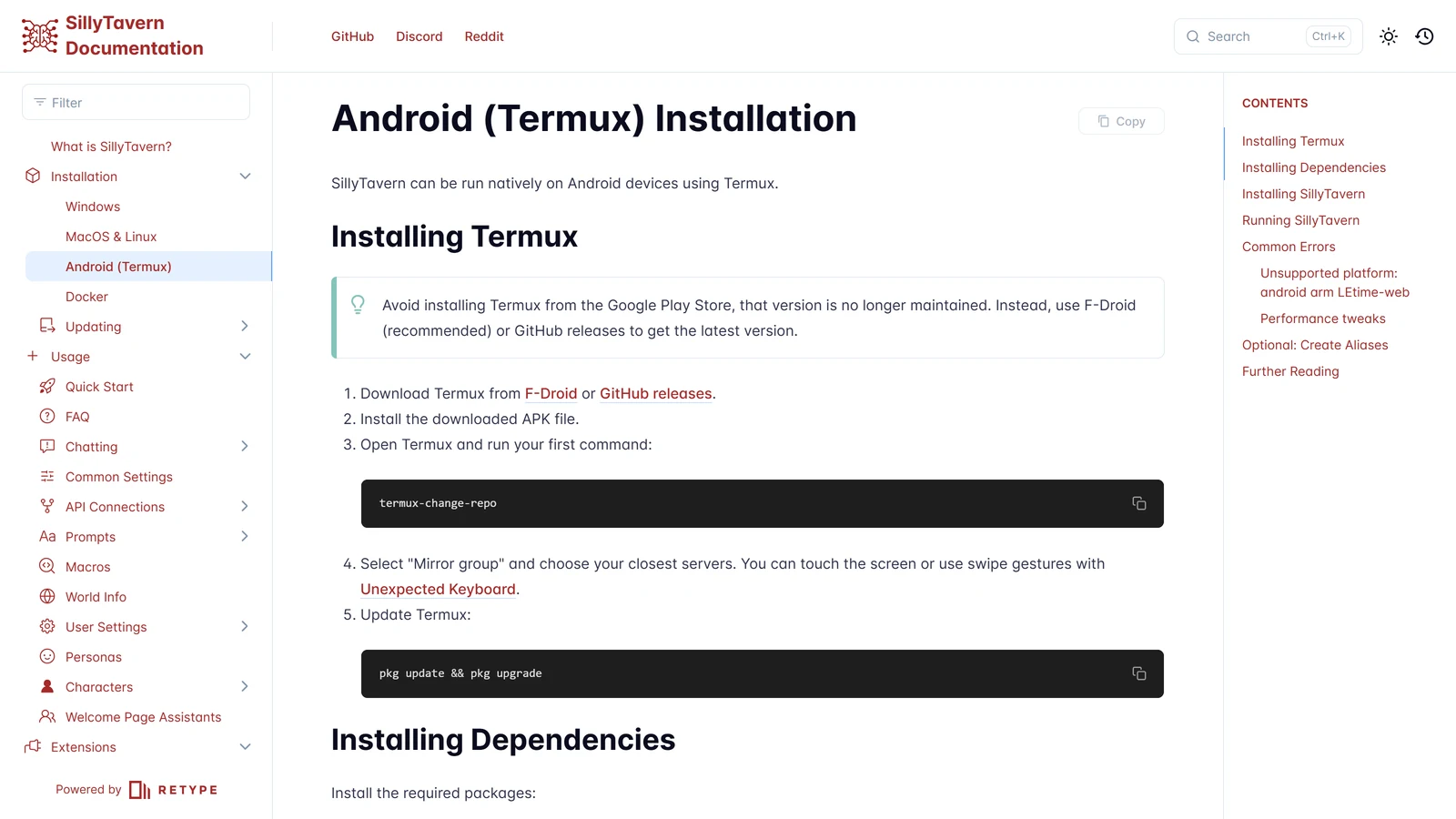
SillyTavern’s install guide is blunt about it: “Avoid installing Termux from the Google Play Store, that version is no longer maintained.” Use F-Droid — which the project recommends — or the APK from Termux’s own GitHub releases.
People who skip this get package errors that look like SillyTavern’s fault and are not. If you already installed the Play Store build, uninstall it and start again with F-Droid.
The Install, Step by Step
- Install Termux from F-Droid or GitHub releases, and open it.
- Pick your mirrors. Run
termux-change-repo, choose “Mirror group”, and select the servers closest to you. The docs note you can touch the screen or use swipe gestures here; a keyboard app with proper terminal keys, such as Unexpected Keyboard, makes the rest far less painful. - Update Termux:
pkg update && pkg upgrade - Install the dependencies:
pkg install git nodejs-lts nano - Clone SillyTavern. The release branch is the right choice unless you have a reason to want the staging one:
git clone https://github.com/SillyTavern/SillyTavern -b release - Start it:
cd ~/SillyTavernthenbash start.sh - Open it. Once the console says it is listening, open your phone’s browser at
localhost:8000. That tab is SillyTavern.
To update later, go back to the folder and pull:
cd ~/SillyTavern then git pull --rebase --autostash
If You Are on a 32-Bit Phone
An older or budget handset may stop with Unsupported platform: android arm LEtime-web. That is a documented case, not a mystery: 32-bit Android needs a dependency npm cannot install. Run pkg install esbuild first, then do the install steps above.
Aliases, So You Never Type That Again
The docs suggest putting shortcuts in .bashrc, and on a phone keyboard the saving is real. Open it with nano ~/.bashrc and add:
alias pkgup="pkg update && pkg upgrade"
alias st='cd ~/SillyTavern && bash start.sh'
alias stup='cd ~/SillyTavern && git pull --rebase --autostash'
Save with CTRL + X, then Y, then Enter, and apply them with source ~/.bashrc. From then on st starts it, stup updates it, and pkgup updates Termux.
What the Android Route Actually Costs You
It works, and it is genuinely impressive that it works. But three things are true about it that the enthusiastic threads tend to leave out.
It is not officially supported. The FAQ says it plainly: “Termux installations are not officially supported, and we can’t guarantee it will work.” That does not mean it is broken — it means a bug that only happens on Termux is your problem to solve, and the answer will come from the community rather than the issue tracker.
One optimisation is switched off on Android by design. SillyTavern normally keeps characters in a memory cache to load them faster. The FAQ states that “memory cache is disabled on Android devices due to the limited amount of available memory.” So the trick that makes a large library usable on a desktop is not available to you, which makes the next point matter more than it would on a PC.
A big character library hurts, and there is a number. The project says performance degradation “starts to become noticeable when you have more than 1000 characters.” On a phone, treat that ceiling as much lower.
The Android Performance Settings
The docs give a specific config.yaml block for handsets. Edit it with nano ~/SillyTavern/config.yaml:
performance:
  # Avoid loading all character data until needed
  lazyLoadCharacters: true
  # Disable disk caching to reduce storage usage
  useDiskCache: false
backups:
  chat:
    # Optional: Disable automatic chat backups to save storage
    enabled: false
lazyLoadCharacters is the one that matters most, because it stops the app reading every card at startup and only loads the ones you open. One caveat from the docs: third-party extensions that were never updated for lazy loading may misbehave with it on.
Turning off chat backups saves storage, but it also removes your safety net. If your campaign matters to you, leave backups on and delete old ones by hand instead — and read our guide to moving an AI RPG campaign before you rely on any single device holding the only copy.
One more piece of housekeeping the docs point at: Android will put Termux to sleep in the background and kill your server mid-session. Termux’s wake-lock feature exists for exactly this, and it is worth turning on before you settle in for a long game.
iPhone and iPad: The Honest Answer
There is no version of the left-hand column for iOS. The project’s FAQ says iPhones and iPads “are not capable of running the whole SillyTavern app”, and the reason is structural rather than a missing feature request: SillyTavern needs a Node server and a filesystem it controls, and iOS does not hand those to a third-party app.
So when a search result promises a “SillyTavern iOS app” or an APK-style download for iPhone, it is one of three things: a different product borrowing the name, a front end for some other service, or a wrapper around the remote route below. The project publishes no app on either store, for either platform. If you are looking for something you can genuinely install and play on an iPhone tonight, that is a different question with real answers — we audited every AI RPG platform with a real app, including which of them are websites in a costume. And if what you want is a SillyTavern-style front end that runs in Safari with no server behind it, that exists too: RisuAI, Agnai and KoboldAI Lite all run in a browser, and we sort them in SillyTavern alternatives.
What iOS can do is be an excellent screen for SillyTavern. Safari on an iPad running a session hosted on a desktop is one of the nicer ways to play this software. That is the rest of this guide.
The Remote Route: The Phone Is Just the Screen
This is the officially supported path, it works on every phone and tablet, and the docs describe the audience exactly: “people who want to use SillyTavern on their mobile phones while their PC runs the ST server within the same WiFi network.”
Three steps: let the server listen, tell it who may connect, then connect.
Step 1: Let It Listen
By default SillyTavern accepts connections only from the machine it runs on. In the config.yaml in the SillyTavern root folder, set:
# Listen for incoming connections
listen: true
There is a trap here worth naming, because it produces a failure that looks like nothing happened. Searching your SillyTavern folder for config.yaml turns up two files. The one that counts is /SillyTavern/config.yaml, not /SillyTavern/default/config.yaml. Editing the second changes nothing, and the symptom is a server that keeps binding to localhost while you are certain you changed the setting.
The console tells you which state you are in. Listening looks like:
SillyTavern is listening on IPv4: 0.0.0.0:8000
Not listening looks like:
SillyTavern is listening on IPv4: 127.0.0.1:8000
If you see 127.0.0.1 after editing, you edited the wrong file.
Step 2: The Part That Stops the Server Booting
This is the single most useful thing on this page, and it explains a family of confused “SillyTavern won’t start” reports.
The documentation says: “After enabling remote connection listening, you must configure at least one access control method. Otherwise, the server will not start.”
So listen: true on its own does not give you a slightly insecure server. It gives you a server that refuses to boot. That is a deliberate safety refusal, and it is the correct behaviour — but if you do not know it exists, you will read it as SillyTavern breaking the moment you touched the config, and start undoing the wrong things.
Pick one of the two methods below and the server starts again.
Method A: A Whitelist
Edit the whitelist section of the root config.yaml. It takes individual addresses, CIDR masks and wildcards. If you are not sure what your home network uses, the docs recommend covering all three private ranges:
whitelist:
  - ::1
  - 127.0.0.1
  - 10.0.0.0/8
  - 172.16.0.0/12
  - 192.168.0.0/16
Keep 127.0.0.1 in the list, or you lock yourself out of the machine you are sitting at. To allow only two named devices, list them exactly:
whitelist:
  - ::1
  - 127.0.0.1
  - 192.168.0.2
  - 192.168.0.5
One legacy gotcha: if a whitelist.txt file exists in the install folder it takes precedence over the config, and the docs warn it can hit permission problems and silently fall back to the config list. Unless you have a reason to keep it, remove or rename it and manage everything in config.yaml.
Method B: A Username and Password
The other accepted method is HTTP Basic Authentication, set in the same file:
basicAuthMode: true
basicAuthUser:
  username: "MyUsername"
  password: "MyPassword"
Read the docs’ own caveat before you lean on it: basic auth “does not provide strong security”, there is no rate limiting against brute force, and both the username and password travel in plain text unless you serve SillyTavern over HTTPS. On a home Wi-Fi network it is a reasonable lock on the door. It is not what should be standing between the open internet and your chat logs.
If you already run multi-user accounts, there is a tidier variant that reuses them:
basicAuthMode: true
enableUserAccounts: true
perUserBasicAuth: true
Step 3: Connect the Phone
Restart the server, then on the phone — on the same Wi-Fi — open the host machine’s local IP address followed by the port:
http://192.168.0.10:8000
Substitute your own machine’s address. That is the whole connection. Bookmark it, or add it to the home screen, and it behaves close enough to an app that most people stop noticing the difference.
Playing From Outside the House
Everything above assumes one Wi-Fi network. The moment you want to play on mobile data, the advice changes, and the docs lead with a prohibition rather than a method:
“You should not use port forwarding to expose your ST server to the internet.”
Take that seriously. A forwarded port puts a server holding all of your chats on the public internet, and the documentation carries an all-caps disclaimer about hosting instances without proper security. The recommended alternatives are a VPN or a tunnel.
- A router-hosted VPN. Many routers can run OpenVPN or WireGuard from their admin page. Connect, then use the same private IP you always use. The docs call this the easier option for Windows users.
- Cloudflare Zero Trust. Free for up to 50 users, proxies your traffic, and uses
cloudflaredon the host machine. The docs note you will need to add a route to your router’s private addresses and work out the CIDR values for full local access on the go. - A standalone Cloudflare or ngrok tunnel. Quickest to stand up, with one real annoyance the docs name: you copy a freshly generated link every time you want to use it.
- Tailscale. The one most people end up on, and the one the docs walk through in full.
The Tailscale Route, Step by Step
- Make an account at Tailscale. The docs note that everyday use by a single person is permanently free, and suggest simply not adding a payment method if you are wary of hidden costs.
- Install the client on both devices — the machine running SillyTavern and the phone — and log into both with the same account.
- Approve both devices in the Tailscale admin page, and note the machine names it gives them.
- Add the connecting device’s machine name to SillyTavern’s whitelist, and make sure
listenistrue. - Connect. With Tailscale on at both ends, open
http://<machine name of the PC running ST>:8000/from the phone, anywhere in the world.
Tailscale can also share the host with a friend from the admin page’s “Share” option. The docs attach a warning worth repeating: sharing gives that person access to anything running locally on your PC — SillyTavern, your image generator, everything else — so uncheck “Allow use as an exit node” and only do it for someone you genuinely trust.
One Setting to Add With Any Tunnel
If you are reaching the server over a hostname rather than a plain IP, turn on host whitelisting, which defends against DNS rebinding:
hostWhitelist:
  enabled: true
Then add the hosts you use. A leading dot covers subdomains, so .trycloudflare.com trusts every ephemeral Cloudflare link you get handed. Do not add localhost or loopback addresses — the docs say those are always trusted anyway.
What It Is Actually Like to Play On
Two things surprise people who arrive expecting a native app.
The interface is the desktop interface at phone width. It is responsive and entirely usable, but it was designed around panels — a character list on one side, settings on the other — and on a narrow screen those become drawers you slide in and out. Nothing is missing; you simply tap more.
And if the UI feels slow or jittery, the FAQ’s first suspect is not the phone. It is browser extensions: the docs say performance degradation, particularly input lag, is most commonly caused by them, and recommend testing with all browser and third-party SillyTavern extensions disabled before blaming the app. On mobile that usually means trying a clean browser with nothing installed, which takes a minute and settles the question.
If what you are hitting is errors rather than slowness, the diagnosis is a different one and we have written it up separately: SillyTavern not working sorts the error messages by which end of the connection produced them.
Which Route Should You Pick?
You have an iPhone or iPad. The remote route, and there is no second option. Tailscale if you want it away from home.
You have an Android phone and a PC you leave on. Use the remote route anyway. It is officially supported, it keeps your library and your backups on a real machine, and the phone stays cool. Termux is a fallback, not an upgrade.
You have an Android phone and no PC, or you want to play with the PC off. Termux, with the performance block in config.yaml, a small character library, and wake-lock on.
You want to play on a phone tonight without configuring anything. Be honest with yourself about that, because it is a legitimate preference and SillyTavern is the wrong tool for it. Our audit of AI RPG apps covers the platforms that do ship something you can install, and what to look for in a long campaign covers which of them hold up past the first evening.
Before You Start: What You Still Need
Running SillyTavern on a phone gets you the interface. It does not get you a model — SillyTavern generates nothing by itself, and the mobile question is separate from the connection question. If you have not set that side up yet, start with our SillyTavern guide for what it is and what it needs, and the installation guide for the desktop path, which is also the machine you will be connecting your phone to.
Frequently Asked Questions
Can you run SillyTavern on a phone? On Android, yes: SillyTavern runs natively through Termux, a terminal app, with no PC involved. On iPhone and iPad, no. SillyTavern’s own FAQ says iPhones and iPads are not capable of running the whole SillyTavern app. On iOS the phone can only be a browser pointed at a copy of SillyTavern running somewhere else, usually a computer on your home Wi-Fi.
Is there a SillyTavern app for Android or iOS? There is no official SillyTavern app on either store. SillyTavern is a web interface that you host yourself, so what you open on a phone is a browser tab, not an installed app. On Android the server runs inside Termux and you reach it at localhost:8000 in your browser. Anything in an app store using the SillyTavern name is not the project, and the project does not publish one.
How do I install SillyTavern on Android with Termux? Install Termux from F-Droid or its GitHub releases rather than the Google Play Store, because the project says the Play Store version is no longer maintained. Then run termux-change-repo and pick a mirror group, run pkg update && pkg upgrade, install the dependencies with pkg install git nodejs-lts nano, clone the release branch with git clone https://github.com/SillyTavern/SillyTavern -b release, and start it with cd ~/SillyTavern then bash start.sh. Note that Termux installs are not officially supported by the SillyTavern team.
Why won’t SillyTavern start after I set listen to true? Because enabling remote connections without an access control method is refused on purpose. SillyTavern’s documentation says that after enabling remote connection listening you must configure at least one access control method, otherwise the server will not start. Set a whitelist in config.yaml or turn on basicAuthMode with a username and password, then start it again. It is a safety refusal, not a crash.
How do I use SillyTavern on my phone from my PC? Set listen to true in the config.yaml in the SillyTavern root folder, add your phone’s address range to the whitelist, restart the server, and check the console says it is listening on 0.0.0.0:8000 rather than 127.0.0.1:8000. Then open your PC’s local IP address followed by :8000 in the phone’s browser while both devices are on the same Wi-Fi. If the console still shows 127.0.0.1 you edited the wrong config.yaml.
How do I access SillyTavern away from home? Use a VPN or a tunnel, not port forwarding. SillyTavern’s documentation says outright that you should not use port forwarding to expose the server to the internet, and recommends Cloudflare Zero Trust, ngrok or Tailscale instead. Tailscale is the simplest: install it on both devices, approve them in the Tailscale admin page, add the connecting device to SillyTavern’s whitelist, and open the host machine’s name followed by :8000 from anywhere.
Why is SillyTavern slow on Android? Partly because the phone is doing the whole job, and partly because one optimisation is switched off there by design: SillyTavern’s FAQ says memory cache is disabled on Android devices due to the limited amount of available memory. The documented fixes are in config.yaml — set performance.lazyLoadCharacters to true so the app does not load every character until needed, set useDiskCache to false to reduce storage use, and optionally disable automatic chat backups. A large character library makes it worse; the project says degradation becomes noticeable past about 1,000 characters.
Checked against SillyTavern’s official documentation — the Android (Termux) installation page, the remote connections page, the VPN and tunnelling guide and the usage FAQ — on 20 September 2026. SillyTavern is a third-party open-source project; Arcanum is an independent publication with no affiliation to it, to Termux, to Tailscale or to any other service named here, and all names are used nominatively. Commands and configuration keys change between releases; check the docs if a step does not match what you see.