SillyTavern + Ollama: The Easiest Local Roleplay Setup (2026)
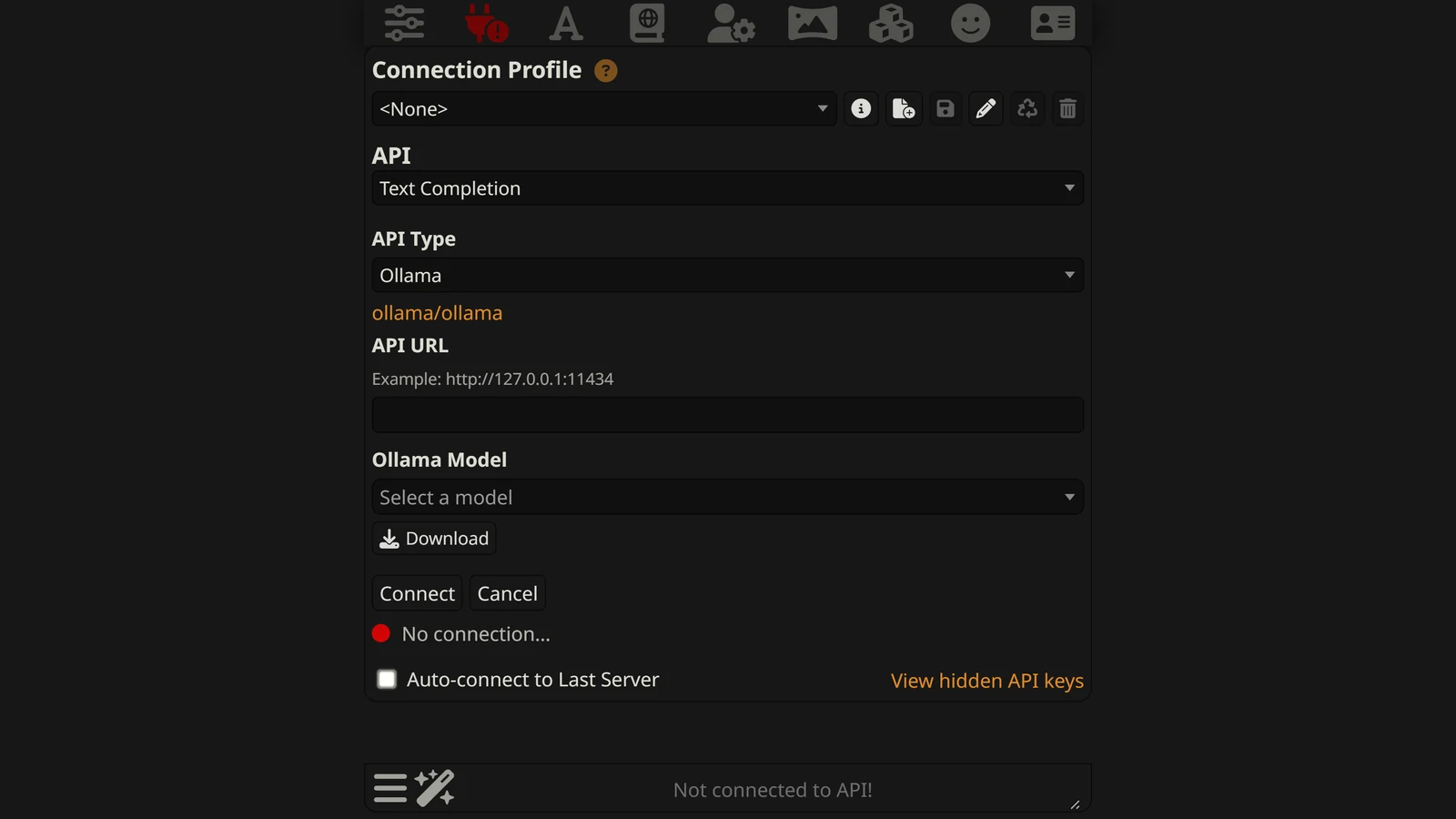
Ollama is the fastest way to get a local model talking to SillyTavern — install it, run one pull command, point SillyTavern at http://localhost:11434, and you’re playing on your own hardware with nothing leaving your machine. It trades a bit of KoboldCpp’s fine-grained control for genuine one-command simplicity, which makes it the easier on-ramp if this is your first time running a model locally.
This is one of two local-backend deep-dives in our SillyTavern setup cluster. Start with how to install SillyTavern itself if you haven’t yet, and see SillyTavern + KoboldCpp if you’d rather trade some simplicity for maximum control over exact model quantizations.
New to running models on your own machine? Local models for AI RPGs is the map — what the two pieces are, what your GPU can honestly handle, and what you give up against a hosted platform. This page is the Ollama half of it.
What Ollama Is (and Why It’s the Easy On-Ramp)
Ollama is a free, open-source tool that packages the whole “run an AI model locally” problem into a couple of commands. Install it, tell it which model you want by name, and it downloads, configures, and serves that model behind a local OpenAI-compatible API — no manual model-file hunting, no separate download step from a site like Hugging Face required for its supported models.
That API compatibility is why it slots into SillyTavern cleanly: SillyTavern already knows how to talk to OpenAI-shaped APIs, so pointing it at your own machine instead of a cloud provider is a small configuration change, not a new integration.
Step-by-Step: Connecting Ollama to SillyTavern
- Install Ollama from the project’s official site — it’s a standard installer on Windows and Mac, and a one-line install script on Linux.
- Pull a model. Open a terminal and run
ollama pullfollowed by a model name — for example a Llama or Qwen variant sized to your hardware (see model picks below). This downloads and prepares it automatically. - Confirm it’s serving. Ollama runs as a background service once installed and starts serving its API automatically, by default at
http://localhost:11434. You can check it’s alive by runningollama listin a terminal to see your downloaded models. - Open SillyTavern and click the plug icon (API Connections).
- Select Ollama as your API source (or, on some SillyTavern versions, “Chat Completion” with an Ollama-compatible source — the exact label shifts slightly between releases).
- Set the server URL to
http://localhost:11434and select the model you pulled from the dropdown. - Connect, then load a character and send a message to confirm the chain works end to end.
That’s the whole setup — meaningfully fewer manual decisions than sourcing and loading a GGUF file by hand.
Hardware Requirements
The same underlying math as any local setup applies, because Ollama is still running the model on your GPU:
- ~8GB VRAM for a comfortable 7B–8B model.
- 12GB+ VRAM to move up to 13B-class models with real headroom.
- 24GB+ VRAM for larger models (30B+) or minimal-quantization-loss mid-size models.
Ollama defaults to sensible quantizations for most pulled models automatically, which is part of what makes it approachable — but the underlying VRAM ceiling is identical to any other local backend.
Which Model Should You Pull?
- General-purpose picks — Llama 3.3, Qwen3, and various Mistral variants are common starting points and pull directly by name with no extra steps, at whichever size fits your hardware.
- Dedicated roleplay finetunes — community models tuned specifically for staying in character, like MythoMax, are more commonly distributed as GGUF files for KoboldCpp and typically need an extra manual conversion step (using a custom Modelfile) to run cleanly on Ollama. If a specific roleplay finetune is the priority over setup simplicity, KoboldCpp is the more direct path to it.
For the fuller picture of how local models stack up against cloud options on quality, cost, and content freedom, see best LLM for roleplay. And because Ollama-served open-weight models carry no built-in content filter, this pairing shows up as a standard answer in our uncensored AI roleplay guide too.
A Security Note
Ollama’s API has no authentication by default — it assumes it’s only reachable from your own machine. Do not expose port 11434 to the open internet; anyone who can reach it can use your model and your computer’s resources. Keep it on localhost for normal single-machine use. If you genuinely need to reach it from another device, put it behind a properly secured, authenticated reverse proxy rather than opening the port directly.
Troubleshooting
- SillyTavern says it can’t connect. Confirm Ollama is actually running in the background (check
ollama listin a terminal), and that the server URL in SillyTavern exactly matcheshttp://localhost:11434. - Model not found / not in the dropdown. You need to
ollama pullthe model first — Ollama only serves models you’ve explicitly downloaded. - Generation is very slow. The model is likely too large for your available VRAM and is spilling into slower CPU/RAM processing. Pull a smaller model size.
- Firewall blocking the connection. Rare, but if Ollama is confirmed running and SillyTavern still can’t reach it, check that your firewall or security software isn’t blocking local loopback connections.
- Roleplay finetune won’t pull by name. Not every community GGUF finetune is available as a one-command Ollama pull — some need manual Modelfile setup, or are simpler to run through KoboldCpp instead, which reads GGUF files directly.
If the fault is not Ollama-specific — an error code from a cloud provider, remote access, or a slow interface — SillyTavern not working covers the wider set.
KoboldCpp or Ollama — Which Should You Pick?
Short version: Ollama for the fastest path to “it works,” especially if this is your first local setup. KoboldCpp for maximum control over exact model files, quantizations, and the widest access to community roleplay finetunes. Neither is locked in — both connect to the same SillyTavern install, so trying one doesn’t cost you the option to switch later. Our KoboldCpp setup guide covers that path in full, and KoboldCpp vs Ollama compares the two in detail — context size defaults, and which SillyTavern sampler settings reach each one.
Once connected, either backend gives you the same SillyTavern experience on top — lorebooks, personas, group chats, extensions — fully covered in the main SillyTavern guide.
Frequently Asked Questions
What is Ollama? Ollama is a free tool that downloads and runs open-weight AI language models on your own computer with a single command, then exposes them through a local, OpenAI-compatible API. It’s built to be the simplest way to get a model running locally, which makes it a popular first local backend for SillyTavern.
How do I connect Ollama to SillyTavern?
Install Ollama, run ollama pull followed by a model name to download it, and Ollama automatically starts serving an API on http://localhost:11434. In SillyTavern, open API Connections, choose Ollama (or Chat Completion with an Ollama source, depending on your version), set the server URL to that address, select your model, and connect.
Is Ollama easier than KoboldCpp for SillyTavern? For getting a model running at all, yes — one install and one pull command versus manually sourcing a GGUF file and tuning load settings. Where KoboldCpp pulls ahead is fine-grained control over exact quantizations and community roleplay finetunes, some of which need manual conversion to run cleanly on Ollama.
Which Ollama model is best for roleplay? General open-weight models at a size your hardware supports — Llama 3.3, Qwen3, and Mistral variants are common starting points, pulled directly by name. Dedicated roleplay finetunes like MythoMax are more readily available in the GGUF format KoboldCpp uses directly, and typically need an extra conversion step to run on Ollama.
Is it safe to expose Ollama’s port to the internet? No — Ollama’s API has no authentication by default, so anyone who can reach port 11434 can use your model and computer’s resources. Keep it bound to localhost for a single-machine setup, and if you need remote access, put it behind a properly secured and authenticated reverse proxy rather than exposing the port directly.
Why isn’t Ollama connecting to SillyTavern?
Confirm Ollama is actually running (check for it in your system tray or run ollama list in a terminal), that you’ve pulled the model you’re trying to select, and that SillyTavern’s server URL exactly matches Ollama’s address and port. A firewall blocking local connections is a less common but real cause too.