NovelAI Memory, Author's Note and Context (2026): What the AI Reads, Timed Events and Stopping Repetition
In NovelAI, what the AI writes next depends on one block of text called the context, and you control most of it through four things: the Memory box, the Author’s Note, the Lorebook and your own story. The documentation’s description is plain: context is “how your NovelAI story is shown to the AI when generating outputs”. Learning where each piece goes, and how to look at the result, is the difference between a story that keeps its facts and one that drifts.
We read NovelAI’s Story Settings, Advanced Settings, Phrase Repetition Penalty and model pages on 8 November 2026. We did not subscribe, open a story or change a setting, so nothing here is a play report. Where we interpret instead of quote, we say so.
NovelAI is a trademark of Anlatan, used here only to identify the service. Arcanum is independent and not affiliated with NovelAI or Anlatan.
The Short Answer
| You want | Use | Where it lands |
|---|---|---|
| Lasting facts about the setting and your character | Memory | Top of the context, by default |
| A nudge for the current scene | Author’s Note | Close to the newest text, by default |
| Facts that appear only when named | Lorebook | Where its placement says |
| An event that fires after N steps | Ephemeral Context | Inserted for a set number of steps |
| To see what was really sent | Context Viewer | Advanced tab |
| To break a loop | Config Preset or Phrase Repetition Penalty | Story tab or Config Settings |
The Story Tab
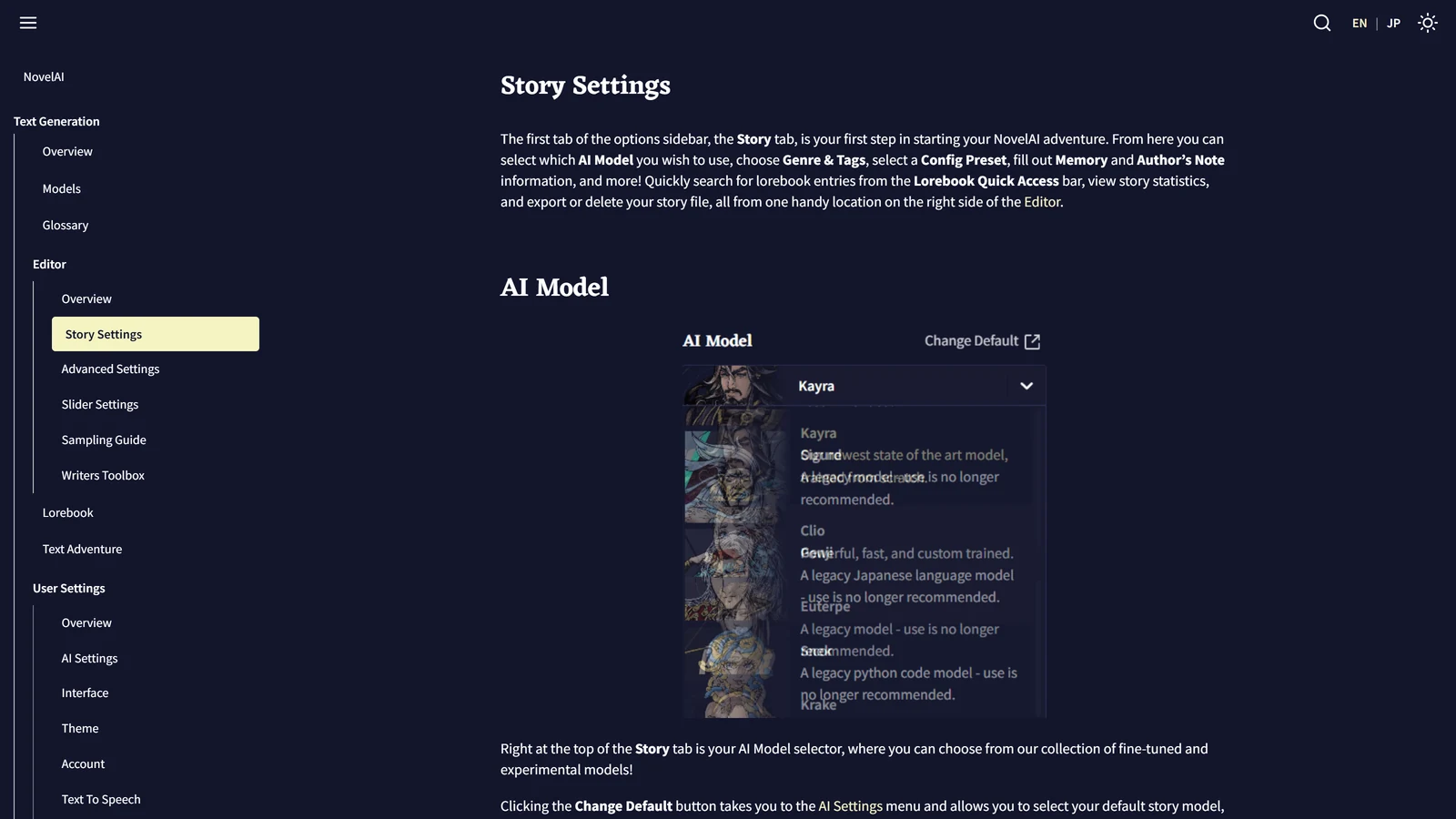
The first tab of the options sidebar is where a story starts. According to the page it holds the AI model selector, the AI module, Genre and Tags, the Config Preset, the Memory and Author’s Note boxes, a Lorebook quick-access search, story statistics and the export and delete buttons.
Three small items there matter more than they look.
Change Default. The model, preset and module you pick are per story. The Change Default button takes you to the AI Settings menu, where you set the ones used for new stories, including which model writes Lorebook entries. The page warns: check your defaults often, because when new models and features release, they must be set in this menu. Our reading: after NovelAI launches a model, an old story keeps what it had, and a new story takes the default, which might be an older model.
Genre and Tags. This is a quick way to fill the story’s ATTG block, the header line [ Author: ; Title: ; Tags: ; Genre: ]. Genre is the broad category, tone and world, and Tags are the “ingredients”. Author and Title must be added by hand. The page notes that GLM-4.6 does not explicitly support NovelAI-specific formatting such as the ATTG line, although it will most likely still understand it.
Config Preset. A dropdown of saved and imported presets plus each model’s recommended defaults. We come back to it under repetition.
Memory
The Memory box “allows you to store information that you want the AI to remember”. The documentation’s advice is to put broad details there: the setting, your character, their companions, and what has already happened. Updating it as important things take place “will help the AI stay more consistent”. By default, Memory is placed at the top of the story context, before anything else. It is optional.
What that means in practice, as our reading: Memory is where a summary of the story so far belongs once the story outgrows the context. The model cannot read the early chapters any more, so a short paragraph in Memory carries the plot the story text no longer holds. Our page on why models forget explains why, and the token budget page shows what a summary costs.
Author’s Note
The Author’s Note is inserted “much more recently in context than Memory by default”, and the page calls it “a supercharged version of it”. Its guidance:
- Use a few short sentences to say what you want to happen, or what detail the AI should focus on.
- Update it diligently. Anything in the box “has a very strong effect on the AI”.
The warning is in that last phrase. Because the note sits right beside the newest text, the model gives it more weight than a line in Memory. A note that says “the party is exhausted and wants to rest” will push every scene toward resting until you change it. Treat it as the steering wheel and not as storage.
| Memory | Author’s Note | |
|---|---|---|
| Default position | Top of the context | Near the newest text |
| Use for | Setting, character, history | The current scene, tone, focus |
| Strength | Lasting, background | Strong, immediate |
| Update | When facts change | Often, diligently |
The Context Viewer: Look Before You Guess
This is the most useful tool in the documentation and the least used. On the Advanced tab, the Context Bar shows a coloured breakdown of the text in your most recent context, with token counts and percentages when you hover. Choose Last Context or Current Context to open the Context Viewer.
The Viewer shows the whole context in a scrollable box, coloured by origin, and tells you:
| Column | Meaning |
|---|---|
| Stage | The stage at which the entry was inserted |
| Order | The entry’s insertion order |
| Identifier | Its name as it appears in the Lorebook or Story Settings |
| Inclusion | Whether it went into the context |
| Reason | Why it was included or left out |
| Key | The activation key, if relevant |
| Reserved | Tokens it reserved |
| Tokens | Tokens it uses |
| Trim Type | How it may be trimmed |
The Reason column is the one to read when something is missing. The page adds a toggle, Show non-activated entries, which lists every enabled entry that did not fire. The Goose Tip says that, depending on your settings, “Context and Lorebook entries can cancel out story text and vice versa”, and suggests the Viewer to see how it all works together.
Stages. The Viewer builds the context in stages, starting at stage 0. With the Next and Previous Stage buttons you can step through them and see where each entry went according to its Insertion Order. Hidden Lorebook entries are hidden here too.
The maximum size of the context depends on your plan, and you can limit it by hand with the Max Context Size slider on the AI Settings page. Our pricing page lists the sizes. According to the model page, Xialong and GLM-4.6 have 28,672 tokens plus an 8,192-token rollover window, so the usable size sits between 28,672 and 36,864 tokens as the story grows and is cut back.
Context Settings: Budget, Reservation and Order
The Edit Context Settings button opens four sections: Memory Context Settings, Author’s Note Context Settings, Default Lorebook Settings and Story Context Settings, plus a Reset to Defaults button. Each has the same set of fields as the Lorebook placement tab, which our Lorebook page describes in full: prefix, suffix, token budget, reserved tokens, insertion order, insertion position, trim direction, maximum trim type and insertion type.
The practical point from the documentation is that Memory and the Author’s Note are budgeted like Lorebook entries. They have a ceiling, can reserve room, and have an order. If a long Memory is crowding out your story text, that is the screen to open.
Ephemeral Context: Events on a Timer
This is the feature most useful to anyone running an RPG. Ephemeral Context lets you insert text for a limited time, based on the Story Step, which you can read under View Story Stats in the Story tab. The entry is written in curly braces:
{+3~10,-2:Example}The page breaks it into four parts:
| Part | Written as | Meaning |
|---|---|---|
| Delay | +3 | Activate in three story steps. +0 means immediately. A minus sign counts negative. An r after the number lets the entry repeat |
| Duration | ~10 | Stay active for ten steps |
| Insertion | ,-2 | Where to insert it. 0 is the top of the context and -1 the bottom |
| Text | :Example | Everything between the colon and the closing brace is inserted verbatim |
So the example inserts the word Example, one newline up from the bottom, for ten steps, three steps after the entry is created. The page warns that an entry with a longer Duration than Delay “will continue to loop once active”, so set the Delay longer for an intermittent effect. It also warns not to add spaces unless you mean them, since the text is inserted verbatim.
The documentation’s suggestions are exactly the sort of thing a game needs: has your character picked up a cursed object, does an enemy return at random intervals to cause trouble? Our caution is the usual one for AI games: this puts a sentence into the prompt on a schedule. It does not make the story obey it. Our mechanics page covers why that matters. Compare it with the Lorebook’s Advanced Conditions (Xialong and GLM-4.6 only), which can do a countdown with numeric comparison.
System Prompt and Prefill (Xialong and GLM-4.6)
On the newest models, the Advanced tab shows a System Prompt: “the initial system message given to the model”. The Prefill is text inserted at the start of the most recent assistant message. The defaults differ between Storyteller and Text Adventure mode, and the page says both are available only on Xialong and the GLM-4.6 model. Our Text Adventure page covers the mode itself.
Our reading: this is the clearest sign that the newest models are instruction models. You can write rules for the whole story in the System Prompt, such as how long the replies should be, and the documentation gives no example, so test any rule you write.
When the Story Starts Looping
Repetition is the problem the search data asks about most (“NovelAI keeps repeating”), so here is what the documentation gives. It is a short list, and we have not tried any of it.
- Switch the Config Preset. The Story tab’s Goose Tip says that switching the preset “might help get the AI back on track if the AI completely goes off the rails, outputs nonsense, or begins to loop”.
- Use Phrase Repetition Penalty. This is, in the page’s words, “a new repetition penalty method that aims to affect token sequences rather than individual tokens”. If a sentence keeps appearing in different spots, the penalty makes it harder to finish: the first token generates, the second gets a penalty, the third a stronger one, and so on. It has no slider. It has six settings: Off, Very Light, Light, Medium, Aggressive and Very Aggressive.
- Combine it with the ordinary penalties. The page says it acts independently of the other repetition settings (Rep Pen Range and Rep Pen Slope), so it can run alongside them, and all of them affect the output together.
- Bias or ban the offending phrase. Phrase Bias lowers the chance of a phrase, and Banned Tokens removes it. The page warns that “the AI may sometimes try to work around a ban or bias with alternate spellings”, so a ban needs thought. Banned Tokens are not available on Xialong and GLM-4.6.
- Edit the story. Remove the repeated line from the text. The model reads what is in the story, and a phrase that is not there cannot be copied.
Our general page on the repetition loop explains why models loop and works across tools.
Banned Tokens, Brackets and Stop Sequences
Three more Advanced settings are small and useful for games:
- Banned Tokens completely bans a token or sequence. Exact text goes in
{curly braces}and token IDs in[square brackets], and the entry is case sensitive. Not available on Xialong and GLM-4.6. - Ban Bracket Generation stops the AI generating
[and]. The page says turning it off “may be useful for generators or RPGs”. Our reading: some RPG setups use square brackets for status lines or stats, and this toggle decides whether the model may write them. - Stop Sequences stop generation when a token or word appears. A Min Output Length slider sets how long an output must be before a stop sequence counts.
Story Options: Keep, Trim, Flatten, Reset
At the bottom of the Story tab, View Story Stats shows data blocks, steps, dead ends and most-used words. Four buttons act on the story itself:
| Button | What it does |
|---|---|
| Trim Story | Removes branches of undos, redos and retries, leaving only what is in the Context and Editor |
| Flatten Story | Removes all undo and retry history and branches, treating all the text as a starting prompt |
| Reset to Prompt | Cuts everything back to your original starting prompt and removes branches and history |
| Remote Storage | Stores the story on NovelAI’s servers so you can move between browsers and devices |
The page says remotely stored stories are encrypted and only accessible to your account, and recommends keeping Remote Storage on “just in case”. We took that as the company’s statement and have not checked it. Exports: To File saves a .story with all branches, so a shared file shows your undos. As Scenario makes a .scenario with tags, a description and placeholders. As Plaintext saves only the text. There is also an As Image screenshot designer. Delete Story cannot be undone.
What We Did Not Check
| Not checked | Why it matters |
|---|---|
| Using any of these settings | We read the documentation and ran nothing |
| Whether Ephemeral Context works with Xialong’s instruction format | The page does not discuss it |
| How well any repetition setting works | The page describes what each does, not how well |
| The size of Memory’s default budget | Context Settings holds the numbers and we did not open it |
| The encryption claim | We repeat the page’s statement without checking it |
| What a good System Prompt looks like | The page gives no example |
Frequently Asked Questions
What is the difference between Memory and Author’s Note in NovelAI?
Both are boxes of text you write, and both are added to what the AI reads. Memory is placed at the top of the story context by default and is meant for broad, lasting facts. The Author’s Note is placed much closer to the newest text, so NovelAI’s documentation says it has a very strong effect and should be kept short and updated.
How can I see what NovelAI actually sends to the AI?
Open the Advanced tab and choose Last Context or Current Context to open the Context Viewer. It shows your lorebook entries, Memory, Author’s Note and story text in coloured sections, with token counts and the reason each entry was included or left out.
What is Ephemeral Context?
It is a timed entry written in curly braces, such as {+3~10,-2:Example}. The numbers set a delay in story steps, how long it stays active, and where it is inserted, and the text follows a colon. NovelAI’s documentation suggests uses such as a cursed object or an enemy returning at intervals.
What can I do when NovelAI keeps repeating itself?
NovelAI’s documentation suggests switching your Config Preset if the AI goes off the rails, outputs nonsense or begins to loop. It also has a Phrase Repetition Penalty with six levels from Off to Very Aggressive, which penalises sentences that keep recurring, and it works alongside the ordinary repetition penalties.
Does the System Prompt work on every NovelAI model?
No. The documentation says the System Prompt and its Prefill are available only on Xialong and the GLM-4.6 model, and that the defaults differ between Storyteller and Text Adventure mode.
Can I stop NovelAI from writing square brackets?
Yes. The Ban Bracket Generation toggle prevents the AI from generating square brackets. The documentation says turning it off may be useful for generators or RPGs.
NovelAI’s Story Settings, Advanced Settings, Phrase Repetition Penalty and model documentation were read on 8 November 2026. We did not subscribe to NovelAI or change any setting for this page. NovelAI is independent of Arcanum, and we have no commercial relationship with it.