SillyTavern Visual Novel Mode, Expressions, Live2D and VRM: Make Your Chat Look Like a Game (2026)
SillyTavern has four separate ways to put a face on your AI character: Character Expressions (sprites that change with the mood of each reply), Visual Novel Mode (a screen layout that shows them like a visual novel), Live2D (animated 2D models) and VRM (animated 3D models). The first two are built in. The last two are extensions. None of them changes what the AI writes. They change what you see while it writes.
We read SillyTavern’s documentation pages for each feature on 31 October 2026, along with the two small AI models that the default mood detection uses. We did not install any of the extensions, upload any sprite, or play a session with these features switched on. Everything below is what the documentation says, and the places where it leaves a question open are marked.
SillyTavern and the extensions named here are independent projects. Arcanum is not affiliated with any of them. Doki Doki Literature Club, Fate/stay night and The Fruits of Grisaia are named only because SillyTavern’s documentation names them.
The Short Answer
| You want… | Use | Built in? |
|---|---|---|
| A picture of the character that changes with the mood of the reply | Character Expressions | Yes, in the Extensions panel |
| That picture shown big in the middle, like a visual novel | Visual Novel Mode | Yes, one tick box in User Settings |
| A cinematic look, with only the last message showing | Prome Visual Novel Extension | No, an endorsed third-party extension |
| A character that blinks, moves and follows your cursor, drawn in 2D | Live2D | No, install the extension |
| A character in 3D, with animations and lighting | VRM | No, install the extension |
| Something on screen with no setup at all | Visual Novel Mode with the character card image | Yes |
Character Expressions: Sprites That Follow the Mood
SillyTavern’s page calls expression images “images (aka ‘sprites’) of your AI character which are shown next to (or behind) the chat window”. They can change on their own, depending on the feeling in the AI’s latest reply, or you can set them by hand.
Adding sprites
Open the Extensions panel, expand Character Expressions and, with a chat open, you see a grid of placeholders, one for each emotion. Use the upload button at the top left of a placeholder to attach an image to that emotion. SillyTavern saves it in your data folder, in the characters folder under the character’s name. If you have a whole pack, the Upload sprite pack (ZIP) button imports it, with two conditions that the documentation states plainly: the ZIP must hold all images in a flat structure with no subfolders, and they must already be named correctly, because “importing a zip will not automatically rename any images to make them match the emotions”.
| Fact | What the documentation says |
|---|---|
| File types | ”Any image format is allowed, including webp and animated gifs”. The most common is a PNG with a transparent background |
| One image per emotion | File name is the emotion name, for example joy.png |
| Several images per emotion | Switch on Allow multiple sprites per expression. Names start with the emotion, then a suffix after a dot or a dash: joy.png, joy-1.png, joy.expressive.png |
| Which one shows | One of the images is picked at random. A Re-roll if same sprite is used again option forces a different one when the same emotion repeats |
| Missing sprites | A Default / Fallback Expression setting: pick a fallback emotion, show nothing, or use built-in emoji-style images |
How the mood is detected
The mood comes from a classifier, which reads the new reply and picks the single most likely emotion. SillyTavern’s page offers four sources.
| Source | How it works | Custom expressions |
|---|---|---|
| Local | A small model that runs alongside the server. A one-time download of about 100 megabytes from Hugging Face. 28 labels by default | No |
| Main API | Your connected AI model does the classifying. You can send only the last message with an instruction (Limited Context) or the whole chat and the character card (Full Context) | Yes |
| WebLLM | Needs the official WebLLM extension | Yes |
| Extras | The older Extras server. The page says it “is deprecated and may be removed in future updates” | No |
For the local classifier we read the two models the page links to. The default is a model named distilbert-base-uncased-go-emotions-onnx, and the configuration file in its repository lists exactly 28 labels:
admiration, amusement, anger, annoyance, approval, caring, confusion, curiosity, desire, disappointment, disapproval, disgust, embarrassment, excitement, fear, gratitude, grief, joy, love, nervousness, optimism, pride, realization, relief, remorse, sadness, surprise, neutral
The alternative, bert-base-uncased-emotion-onnx, which you switch to by changing one value in SillyTavern’s config.yaml, lists six: sadness, joy, love, anger, fear, surprise. That difference decides how much art you need. SillyTavern’s Visual Novel page warns that “generating sprites from scratch is time-consuming”, and “more so if you plan on making 28 sprite expressions than 6”.
You do not need all of them. If a detected emotion has no image, the fallback you chose is shown. A small set covering the feelings your story actually uses, plus a neutral fallback, is a workable start. That is our reading of the fallback setting, not something we tested.
Setting a sprite by hand
The page documents the command /expression-set (name) and says you can also use a matching Quick Reply. SillyTavern’s scripting page lists a related command, /emote (sprite), which “sets a sprite for the active character by fuzzy matching its name”, and /costume (subfolder), which switches to a different set of sprites. Type /help slash in a chat for the list your own version has. The documentation itself says its command list is updated rarely.
Outfits and same-name characters
Sprites are matched by the character’s display name, not by the card’s file name, so two characters with the same display name share one sprite set. The Sprite Folder Override fixes that, and it doubles as an outfit system: create another folder in the characters folder, put images in it, then enter its name in the override box or use /costume Boris. A folder name with a backslash in front resolves to a subfolder of the character’s own folder, so /costume \tracksuit for a character called Boris points to a tracksuit folder inside his sprites.
What we could not tell from the page
The Main API option sends the classification to your connected model. The page does not say whether that counts as an extra request to a paid service, and we did not measure it. If you use a pay-per-token model, check your usage before you leave it on for a long session. Our token budget guide explains what extra requests cost.
Visual Novel Mode: One Tick Box
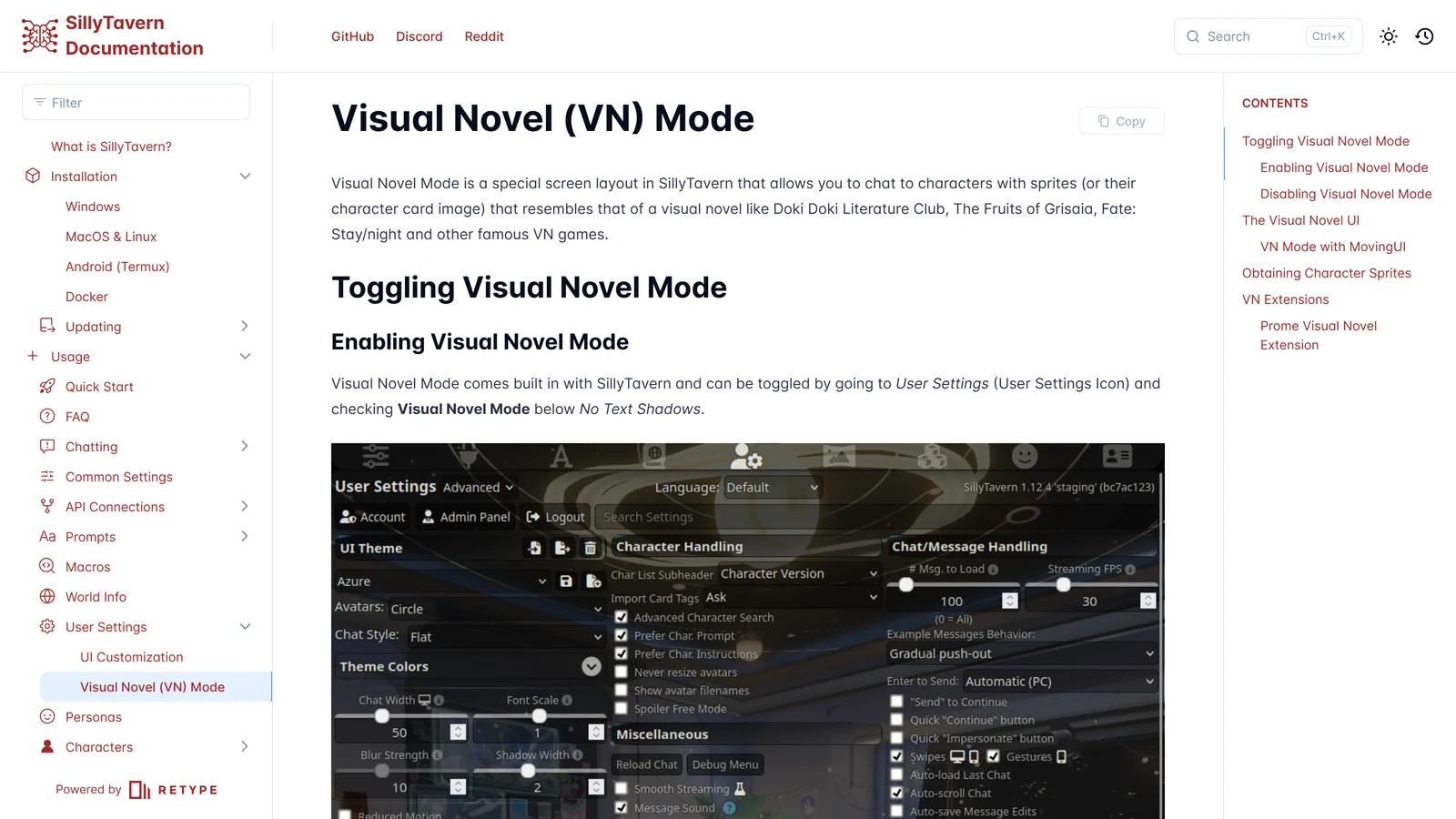
SillyTavern’s documentation describes Visual Novel Mode as “a special screen layout” that lets you chat with sprites that resemble “a visual novel like Doki Doki Literature Club, The Fruits of Grisaia, Fate: Stay/night”. It is built in. To switch it on, open User Settings, find Visual Novel Mode just below No Text Shadows, and tick it. Unticking returns you to the normal chat.
What changes on screen:
- The character’s sprite, or their character card image if they have no sprites, appears in the centre of the screen.
- In a group chat, the sprites spread out so that they do not cover each other.
- With MovingUI switched on in User Settings, you can drag sprites to new places. The documentation says this “only works on Desktops”. It also warns that large sprites can cover the drag button of the others, so you may have to move them around more than you expect.
One limit is easy to miss: using the card image as a stand-in works, but the page says that “multiple character cards cannot be used in VN mode”. That is the reason the extension below exists.
Where to get sprites
The documentation lists three options, in order:
- Look for an existing pack. Search the character’s post for a sprite ZIP or a link to a sprite pack. The page notes that some bot creators release a pack with their bot, either in the same post or in a sprites channel.
- Make your own with LoRAs and Stable Diffusion. The page warns this “will require decent hardware” and takes time, especially with larger image models or if you upscale. Our guide to SillyTavern’s image generation covers connecting an image source.
- Use the character card image. It is not a sprite, but “at least you have something to look at on-screen”.
The Prome Visual Novel Extension
SillyTavern’s documentation calls the Prome Visual Novel Extension “an endorsed third-party extension from Bronya Rand and Prometheus”. It builds on the built-in mode.
| Feature | What the documentation says |
|---|---|
| Letterbox Mode | Makes the visual novel screen more “cinematic” |
| Focus Mode | Can darken the sprites of characters who are not speaking |
| Traditional VN Mode | Only the last message in the chat appears, as in a classic visual novel |
| Hide the message box | Screenshots on the page show the message box hidden |
| Emulate Character Card as Sprite | From version 1.0.6, lets one group chat include characters with sprites and characters with only a card image |
You install it from Download Extensions and Assets in the Extensions panel, or follow the instructions on the extension’s GitHub page. Its settings live under Extensions then Prome (Visual Novel Extension), or in the wand menu. One warning from SillyTavern’s page: the extension turns on Visual Novel Mode when you use its own modes, so switching the mode on or off in User Settings also affects the extension.
Live2D: Animated 2D Models
The Live2D extension replaces a still sprite with an animated 2D model. The documentation’s prerequisites are three: use the latest version of SillyTavern, install Live2D from Download Extensions and Assets, and put your model folders in /data/<your user handle>/assets/live2d. Each model folder must hold the model’s parts, and the page is firm on one file: the ***.model.json file “must be at the root of the Live2D model folder for the model to be detected”. You can also keep a model inside one character’s own folder, in which case only that character can use it.
What you can set:
| Setting | What it does |
|---|---|
| Enabled | Switches the extension on. Turn it off to use normal sprites, for example while you position them in a group chat |
| Follow Cursor | The model follows your cursor, “provided that the model supports this feature” |
| Auto-send Interaction | Clicking areas with mapped messages sends them for you |
| Model scale and offsets | Size and position. You can also drag the model with your mouse |
| Mouth parameter and speed | Makes the mouth move when the character speaks. The page warns it “does not work on every model” |
| Starter and default animations | An expression and motion that play when a chat starts and when a message arrives |
| Hit areas | If the model has them, you can map each one to an animation and a message sent as you |
| Classified expressions mapping | An animation for each emotion the classifier detects. It needs the Character Expressions classifier, otherwise it falls back to the default animation |
The page’s remarks are candid about limits. If the previous animation has not finished when a new message arrives, the new animation may not play, and “this behavior is dependent on the Live2D model”. Models older than a certain version of Live2D may not expose the parameters the mouth needs. If something glitches, the debug panel has a reload button for every Live2D model.
VRM: 3D Models
The VRM extension does the same job in three dimensions. You install VRM from the same menu, put .vrm files in /data/<your user handle>/assets/vrm/model, and put animation files in /data/<your user handle>/assets/vrm/animation. The supported animation formats are .fbx and .bvh, and the page names two sources: Mixamo, and animations you export from tools such as XR Animator.
Settings that matter for a roleplay session:
- Look at camera makes the eyes follow the camera, and Blink makes them blink at random. The page warns that a badly made model can blink with its eyes closed. Its three fixes are to correct the model if you have the source, to avoid that face expression, or to turn blinking off.
- TTS Lip sync makes the mouth follow your text-to-speech audio. The page says it “only works with TTS whose sound is played by SillyTavern itself like XTTS (not in streaming mode)”. Otherwise the mouth moves according to the length of the message. Our text-to-speech guide explains the speech options.
- Performance options. Caches for the model and for animations make switching faster but “can affect performance”. Body hit areas, which detect clicks on parts of the model, can be switched off to improve it.
- Lighting. Colour and intensity of the 3D scene’s light, with slash commands
/vrmlightcolorand/vrmlightintensity. The page suggests colour-picking your background image for immersion. - Settings are saved per model, not per character. To use the same model with different settings for two characters, the page says to make a copy of the file.
The extension also adds the commands /vrmmodel, /vrmexpression and /vrmmotion, so a script or a Quick Reply can change the model, its expression or its animation. If you name your animation files after the 28 classifier emotions, with a file called neutral as the fallback, the page says they are mapped automatically when you reset a model’s settings. This is the same list of 28 labels as the local classifier uses, which means the same mood detection can drive a 2D sprite, a Live2D model or a 3D model.
Which One Should You Pick?
| Situation | Our suggestion, from the documents |
|---|---|
| You have no art and want something now | Visual Novel Mode with the card image. One tick box |
| You have or can download a sprite pack | Character Expressions with the local classifier, plus Visual Novel Mode |
| You want the cinematic layout or single-message view | Add the Prome extension |
| You have a Live2D model and a capable computer | Live2D, mapped to the classifier |
| You have a VRM model and want 3D | VRM, with the performance options reviewed |
| You play on a phone | Expect the least. Only the MovingUI limit is stated, so test one feature at a time |
Two practical points follow from the documents. First, each feature depends on the one before it: the mood mapping in Live2D and VRM requires the Character Expressions classifier, and Visual Novel Mode is what puts the sprites in the middle of the screen. Second, the cost of art is real. The documentation says plainly that making 28 expressions with Stable Diffusion needs time and hardware, which is a reason to start with the six or so moods your story uses and rely on the fallback for the rest.
How This Fits an AI RPG
These features are presentation. The model still writes the same text and your lorebook, persona and memory still work as before. What the features add is a visible state: you can see at a glance whether a character reacted with anger or relief. For a long campaign with a small cast, that is a way to make characters feel distinct without writing more. For a game that needs fair dice, tracked inventory or consequences, sprites do nothing, and our guide to using SillyTavern as a game master covers the features that do. If you want to compare with games that ship their own visuals, our page on AI RPG images looks at how platforms handle them. For the setup of everything else in SillyTavern, see our extensions guide and the main SillyTavern guide.
What We Did Not Check
| Not checked | Why it matters |
|---|---|
| Installing and running any of the extensions | We read the documentation, not the code or a live install |
| How well the classifier picks the mood in a real roleplay reply | The page describes how it works, not how accurate it is |
| Whether the Main API classifier costs extra on paid services | The page does not say |
| Whether the menus match the current release | The screenshots on SillyTavern’s Visual Novel page show version 1.12.4, and the latest release we found is 1.19.0 (14 September 2026), so a setting may sit in a different place |
| Phone and tablet behaviour | Only the MovingUI limit is stated |
| Performance of Live2D and VRM on your hardware | The documentation warns about caches and hit areas but gives no numbers |
| Licences of third-party sprite packs and models | They vary and are the creator’s to set. Check before you use or share one |
Frequently Asked Questions
How do I turn on Visual Novel Mode in SillyTavern?
SillyTavern’s documentation says it is built in. Open User Settings, scroll to the option below No Text Shadows and tick Visual Novel Mode. Untick it to go back to the normal chat screen. It shows your character’s sprite, or their card image if there are no sprites, in the centre of the screen.
Where do SillyTavern expression images go, and what are they called?
You upload them in the Character Expressions panel, and SillyTavern saves them in your data folder under characters and the character’s name. File names must start with the expression name, for example joy.png. If you keep several images for one expression, add a suffix after a dot or a dash, such as joy-1.png or joy.expressive.png.
How does SillyTavern know which expression to show?
A classifier reads the latest reply and picks the most likely emotion. The default local classifier downloads a small model of about 100 megabytes once and has 28 labels. A 6-label model is available. You can instead use your connected model or the WebLLM extension, which also support custom expressions you name yourself.
Are Live2D and VRM built in?
No. The documentation says to install each one from the Download Extensions and Assets menu in the Extensions panel. Live2D needs model folders in your assets folder with a model.json file at the root of each folder. VRM needs .vrm files in an assets folder and, for movement, animation files in .fbx or .bvh format.
Do these features work on a phone?
We could not confirm it. SillyTavern’s documentation says one part, moving sprites with MovingUI, only works on desktops. It does not make a statement about the rest on phones. We did not test any of the four features on a mobile device.
Do I need to draw or generate sprites myself?
Not necessarily. SillyTavern’s documentation suggests searching for an existing sprite pack for your character, or checking the character’s post for one. It also lists generating your own with LoRAs and Stable Diffusion and warns that this is time-consuming and needs decent hardware. If you have no sprites, you can use the character card image.
SillyTavern’s documentation pages for Character Expressions, Visual Novel Mode, Live2D, VRM and its scripting commands, and the configuration files of the two classifier models on Hugging Face, were read on 31 October 2026. We did not install or run any of the extensions for this page. SillyTavern, the Prome Visual Novel Extension, Live2D, VRM, Mixamo, Stable Diffusion, Hugging Face and the games named are separate projects and companies. Arcanum is not affiliated with any of them.