How to Create an AI Dungeon Scenario (2026): The Complete Creator's Guide
A Scenario is a template. An Adventure is one playthrough of it. Almost every confusion in the AI Dungeon creation tools comes from that one distinction, including why your edits do not appear in a game you already started, and why the same Scenario can give two players completely different openings.
This is the full guide to building one: both tabs of the editor, the three Scenario types, the placeholder syntax and its trap, and the part nobody covers — why a long, carefully written Prompt fades faster than the two lines you put in Plot Essentials.
Scenario, Adventure, Draft
Pressing Play on a Scenario starts a brand-new Adventure. Latitude’s documentation is precise about what comes across: the Plot Essentials, the Story Cards and the other settings are copied over, and the Prompt is run as the first action.
Three consequences follow, and they cause most of the questions people ask:
- The Scenario is not changed by playing it. Whatever happens in the Adventure stays in the Adventure. One Scenario can produce any number of them.
- Editing a Scenario does not reach back. Adventures already started keep the copy they were given. If you fix a typo in a Story Card, existing playthroughs keep the typo.
- Everything starts private. Every new Scenario is a draft, visible only to you, until you publish it.
That third one has a sting in it that we come back to under publishing.
Where Worlds Went
If you are searching for Worlds and cannot find them, they were not removed. Worlds were renamed to Character Creator, and Latitude says so directly in its own documentation. The feature is now a type of Scenario rather than a separate kind of content, chosen from the gear icon on the Opening component.
Nothing was deleted in the rename. If you made a World, look for it among your Scenarios.
Opening the Editor
On desktop: click the Play button at the top right of the screen, beside your profile.
On mobile: press the large > button at the very bottom middle of the home page, then Create Scenario.
Either route lands you on the Scenario Creation Page, which splits into two tabs. The split is the most useful mental model in the whole editor, so it is worth stating plainly:
| Tab | Contains | Who it is for |
|---|---|---|
| Basics | Title, Description, Tags, Rating, visibility, Placeholders | The player |
| Technical | Prompt, Plot Essentials, Author’s Note, Story Cards, Scripting | The AI |
One field crosses the line in a way people get wrong: the AI never sees the Description. It is search-listing copy and player-facing notes, nothing more. Latitude’s own advice is to use the later part of it for out-of-game explanation, since only the first lines appear in search results.
The Basics Tab
Title is what appears in My Stuff and in other players’ searches. Make it unique and descriptive — new Adventures inherit it by default.
Description carries the listing text. First lines show in search; the rest is a good place for instructions to the player.
Tags are how people find it. Type a tag, press Enter, remove with the X.
Visibility has three states, and they are not the same thing as published/unpublished:
- Private — the default. Only you. Latitude states these are encrypted and that staff cannot read them without your consent.
- Unlisted — anyone with the direct link can play it. It never appears in search or on your profile.
- Published — public, discoverable, and subject to the Community Guidelines.
Placeholders, and the Trap in Them
Placeholders are how you ask the player a question before the story starts. The syntax is a dollar sign followed by the question in curly brackets:
${Enter a few words to describe who you are and what you do.}The player sees that text as a prompt to fill in, and their answer is substituted into the Prompt, a Plot Component or a Story Card. ${character.name} is a special one that renders as “Enter your character’s name…”.
Latitude’s own worked example is the clearest way to see it. A prompt reading:
You are ${character.name}, ${Enter a few words to describe who you are and what you do.} living in the Kingdom of Larion.
…asks two questions, and with the answers “Peach” and “a princess” begins:
You are Peach, a princess living in the Kingdom of Larion.
Three rules decide whether this works:
- Placeholders are case-sensitive.
${what is your gender}and${What Is Your Gender}are two different placeholders, and the player will be asked the same question twice. This is the single most common reason a Scenario interrogates its players. - Identical text reuses the answer. Use exactly the same placeholder string again and it fills with what they typed the first time. That is how you refer to the character’s name in three places without asking three times.
- They do not work in the Type field of a Story Card. Everywhere else on a card is fine.
Rule 1 and rule 2 are the same rule seen from two sides, and both are exact string matching. Copy and paste your placeholders rather than retyping them.
The Technical Tab: What the AI Sees
The Prompt is an action, not a setting
This is the part worth reading twice, because it is the difference between a Scenario that holds and one that quietly stops mattering.
Latitude’s documentation says the Prompt “is the first Action in the Adventure”, and that there is nothing stopping you filling it to the maximum size. Both halves are true, and together they are a trap.
The Prompt is story history. AI Dungeon’s published context rules cap the Required elements — AI Instructions, Plot Essentials, Story Summary, Author’s Note, Front Memory, your last action — at 70% of the context, and split what remains roughly 50% to history, 25% to Memory Bank and 25% to Story Cards. History is trimmed from the oldest end, and the oldest end of your story is the top of your Prompt.
So a magnificent thousand-word opening will begin dissolving from its first paragraph within the first handful of turns, while two lines in Plot Essentials stay in front of the AI for the entire campaign.
The rule that follows: the Prompt is for starting the story. Anything that has to remain true — the tone, the premise, who the character is, the rules of the world — belongs in Plot Essentials, which Latitude names as the place for what is “always relevant”. Our model guide has the per-model context table, and the difference between tiers here is not small.
There is a second-order version of this worth knowing: AI Instructions sits third in the published priority order, after Author’s Note and Plot Essentials. On a small context it can be trimmed mid-sentence or dropped entirely, which means “the AI ignores my instructions” is often a prompt that no longer contains them.
Author’s Note
Short, concise, directive — it guides theme, setting and writing style. Latitude flags it as “an extremely strong plot component, as it is one of the last things the AI sees”, and recommends leaving it blank if you are unsure. That is good advice. A vague Author’s Note is the most powerful way to make a Scenario subtly worse.
Story Cards
Story Cards are only fed to the AI when their triggers appear in recent text. They are where a large setting lives, and some Scenarios are built almost entirely out of them.
Two facts save most of the trouble: the AI only ever sees the Entry, never the card’s Name, and triggers are sensitive to spaces in ways that quietly stop them firing. Both, plus how much room cards actually get, are covered in full in our Story Cards guide — it is the companion piece to this one and there is no point repeating it here.
Scripting
You can attach JavaScript to a Scenario to change how the interface handles text — from quality-of-life reminders through to reworking how the game plays. Scripting is not available on mobile.
Scenario Types
The default type is Story. The gear icon on the Opening component gives you two more.
Character Creator
Instead of a fixed opening, the player builds a character from options you provide, and the opening prompt is generated from those choices. Latitude’s phrasing is that no two Character Creator Adventures start the same way.
The mechanic underneath is the thing most guides miss: every selectable option is a Story Card. Creating an option opens the Story Card editor, and a card you already have can be promoted with the three-dot menu on its preview and Add to Character Creator. Its Type decides which section it appears in — a card typed as a Location becomes a Location choice.
Within an option card, the two text fields do different jobs:
- Entry — what the AI is told about it.
- Notes — what the player reads when choosing. If Notes is empty, the player sees the Entry instead.
Other things to know before you build one:
- The Description on a Character Creator is world lore, not an opening. The AI reads it as background and does not continue the story from it.
- Name and gender are always asked, so do not add placeholders for them. Refer back with
${character.name}and${character.gender}. - Placeholders otherwise work normally here.
- Players get a Quickstart option that randomises every choice, which can produce combinations your world does not support. It is worth writing options that survive being picked at random.
- Selections end up in the player’s Plot Essentials, where Latitude notes they can be wrong on edge cases.
Multiple Choice
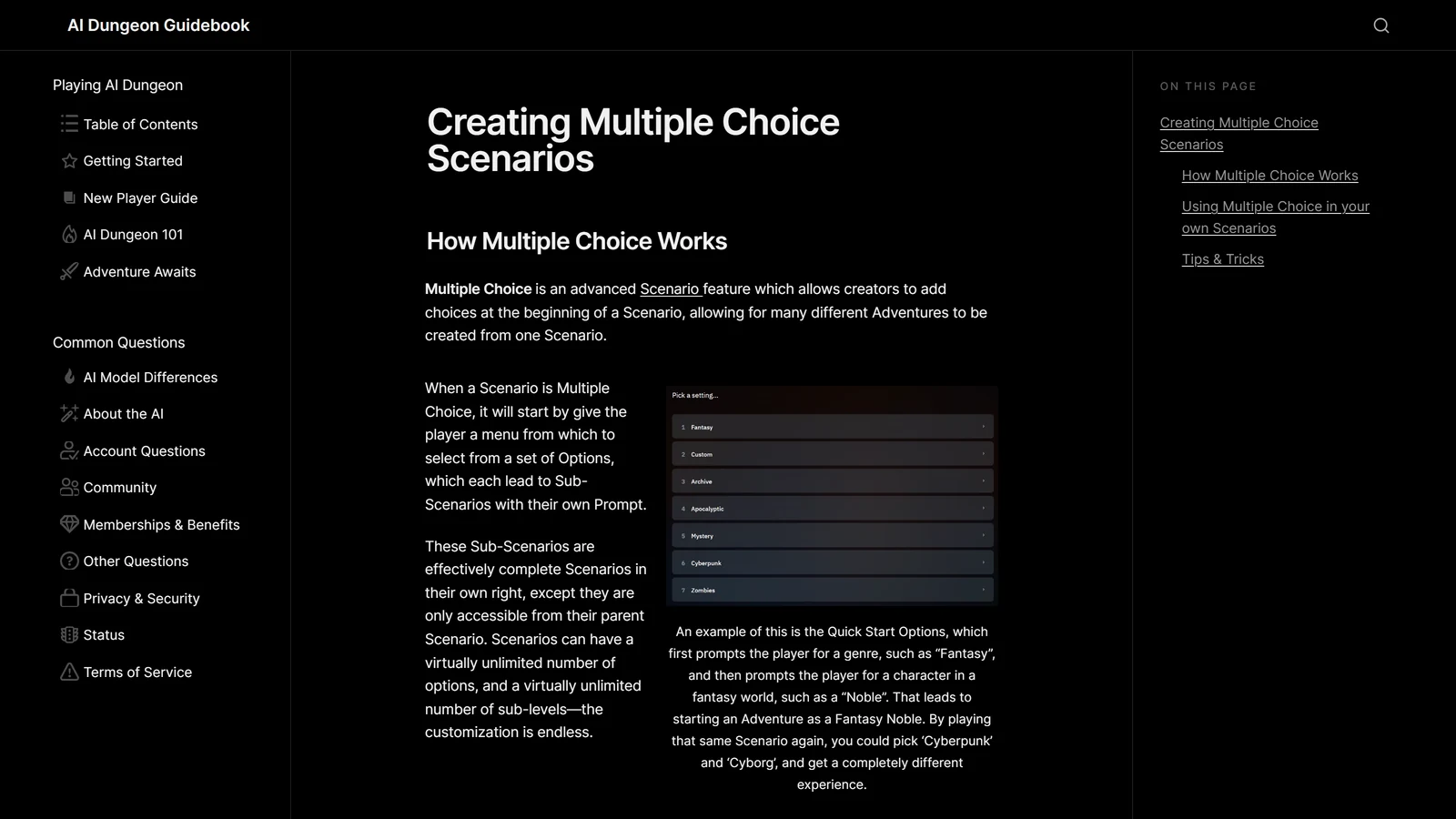
Multiple Choice opens with a menu. Each option is a sub-scenario with its own Prompt and Plot Components, and options can nest into further sub-choices — Latitude describes the depth as effectively unlimited. AI Dungeon’s own Quick Start works this way: pick Fantasy, then Noble.
The rule that breaks most Multiple Choice Scenarios: the AI is given nothing from any choice except the one that starts the Adventure. Each branch must be filled in completely, as though it were a standalone Scenario. Writing the premise once at the top level and assuming the branches inherit it is the standard mistake.
The exceptions are Story Cards and Scripting, which are inherited from the base level — but only while the branch’s own fields are empty. Add a single card to a branch and you are overriding the inherited set, not adding to it.
Two smaller ones: the Title of a choice is what the player reads when deciding, and the last option selected becomes the Adventure’s title. The Description on a Multiple Choice opening is for the player only and is never seen by the AI.
Publishing and the Rating Check
Before a Scenario can be published it must pass an automatic rating check, which assigns Everyone, Teen, Mature or Unrated. You can raise the rating the tool assigned; you cannot lower it. Latitude’s documentation states that a human review can be requested through their Discord if the tool has judged something wrongly.
Then the part that catches people out:
Editing a published Scenario changes nothing until you publish again — and each publish is re-checked by the rating tool. You can keep a draft of a live Scenario and work on it for as long as you like, but players keep getting the old version until you push it. If your players are describing behaviour you fixed last week, this is almost always why.
Latitude recommends proofreading and test-playing before publishing. That is not a formality — a Scenario is the one thing in AI Dungeon where a mistake is copied into every future playthrough.
The Pre-Publish Checklist
Nine things, in the order they usually go wrong:
- Is every placeholder identical where it is meant to repeat, capitals included?
- Is anything that must stay true in Plot Essentials rather than at the top of the Prompt?
- Does each Story Card Entry name its own subject, since the AI never sees the card’s name?
- On a Multiple Choice, does every branch carry its own Prompt and Plot Components?
- If a branch has its own Story Cards, did you mean to override the inherited set?
- On a Character Creator, is each option’s Type right, so it lands in the correct section?
- Do the options survive being picked at random by Quickstart?
- Have you test-played it from a fresh start, not just read it?
- Have you published again after your last edit?
A Scenario is the most reusable thing you can make in AI Dungeon, and the most durable — which is exactly why it rewards the ten minutes of checking. If yours is behaving strangely in play rather than in the editor, our troubleshooting guide works through it symptom by symptom.
And when the editor runs out of room — when what you want needs a rule the Scenario fields cannot express — that is where scripting starts. AI Dungeon scripting covers the four script tabs, the three hooks, and the one place the game will tell you the size of your own context budget.
Frequently Asked Questions
What is the difference between a scenario and an adventure in AI Dungeon? A Scenario is a template and an Adventure is one playthrough started from it. Pressing Play on a Scenario copies its Plot Essentials, Story Cards and other settings into a brand new Adventure, and runs its Prompt as the first action. The Scenario itself is never changed by that playthrough, which is why one Scenario can produce any number of different Adventures, and why editing your Scenario later has no effect on Adventures already started from it.
How do I create a scenario in AI Dungeon? On desktop, click the Play button at the top right of the screen next to your profile, then choose to create a Scenario. On mobile, press the large arrow button at the bottom middle of the home page and then Create Scenario. That opens the Scenario Creation Page, which is split into a Basics tab holding Title, Description, Tags, Rating, visibility and Placeholders, and a Technical tab holding the Prompt, Plot Essentials, Author’s Note, Story Cards and Scripting. Scripting is not available on mobile.
What happened to Worlds in AI Dungeon? Worlds were renamed. The feature is now called Character Creator, and it is a Scenario type rather than a separate kind of content, selected with the gear icon on the Opening component when editing a Scenario. Latitude confirms the rename in its own documentation. If you are looking for a World you made, look for it as a Scenario, since nothing was deleted in the change.
How do placeholders work in AI Dungeon scenarios? A placeholder is a dollar sign followed by a question in curly brackets, and the player is shown that text as a question before the Adventure starts. Whatever they type replaces it in the Prompt, a Plot Component or a Story Card. Placeholders are case-sensitive, so two versions of the same question with different capitals will be asked as two separate questions. Using exactly the same placeholder text more than once reuses the first answer, which is how you refer back to a name. They cannot be used in the Type field of a Story Card.
Why does the AI ignore the start of my scenario prompt? Because the Prompt is the first action of the Adventure rather than a permanent setting. It goes into the story history, and history is trimmed from the oldest end as the context fills, so the opening lines of a long prompt are among the first things to drop out. Anything that must stay true for the whole campaign belongs in Plot Essentials instead, which is a required context element and stays at the top. The Prompt is for starting the story, not for holding its rules.
Do I need to publish an AI Dungeon scenario again after editing it? Yes. Every Scenario begins as a private draft, and once published you can keep editing it as a draft without those edits being visible to anyone else. Your changes only go live when you publish again, and each publish has to pass the automatic rating check again. This is the usual reason a creator sees their own updated Scenario while players still get the old version.
How does Multiple Choice work in an AI Dungeon scenario? Multiple Choice turns the opening into a menu of options, each leading to a sub-scenario with its own Prompt and Plot Components, and those can nest further into sub-choices. The critical rule is that the AI receives nothing from any choice except the one the player picked, so each branch has to be filled in completely as though it were its own Scenario. The exceptions are Story Cards and Scripting, which are inherited from the base level only while the branch’s own fields are empty.
Checked against Latitude’s published documentation on 17 September 2026. Features and limits are theirs to change. AI Dungeon is a product of Latitude; Arcanum is an independent publication and is not affiliated with, endorsed by, or sponsored by Latitude, and references to its products are nominative.