How to Move Your Friends & Fables World to Craft (2026)
Moving a world from Friends & Fables to Craft takes about ten minutes and works properly: characters, locations, factions, lore and your map images all survive the trip. What does not survive is everything about how the world played — the narrator, the campaign history, the encounters. The import hands you a library. Turning that library back into a game is the part nobody warns you about, and it is most of the work.
Both platforms come from the same studio, and Craft publishes its own migration route, so this is a supported path rather than a hack. If you have not decided whether to move at all, read Craft vs Friends & Fables first — for groups, the answer is still to stay. This guide is for when you have decided. For moving between platforms that don’t offer an export, see how to move a campaign between AI RPG platforms.
Access disclosure: Craft’s developers provided beta access and a subscription for our coverage of Craft. No conditions were attached, and this guide is independent and unpaid — we do not accept payment for coverage.
Before You Start: Two Things That Will Bite You
You can only export worlds you own. The export lives on worlds you created. A world you have played in for months but did not build stays in Friends & Fables, and there is no route out of it. If the campaign you care about is somebody else’s world, the thing to move is your character and your notes, by hand.
The credit transfer is closed. Craft ran a one-time offer to move Friends & Fables credits into a Craft account — you entered an amount and your Craft username in Fables account settings, once per account, limited to accounts created before 1 August 2026. That window closed on 31 August 2026. Your world still moves. Your balance does not. Budget for Craft’s pricing from scratch.
Step 1: Export From Friends & Fables
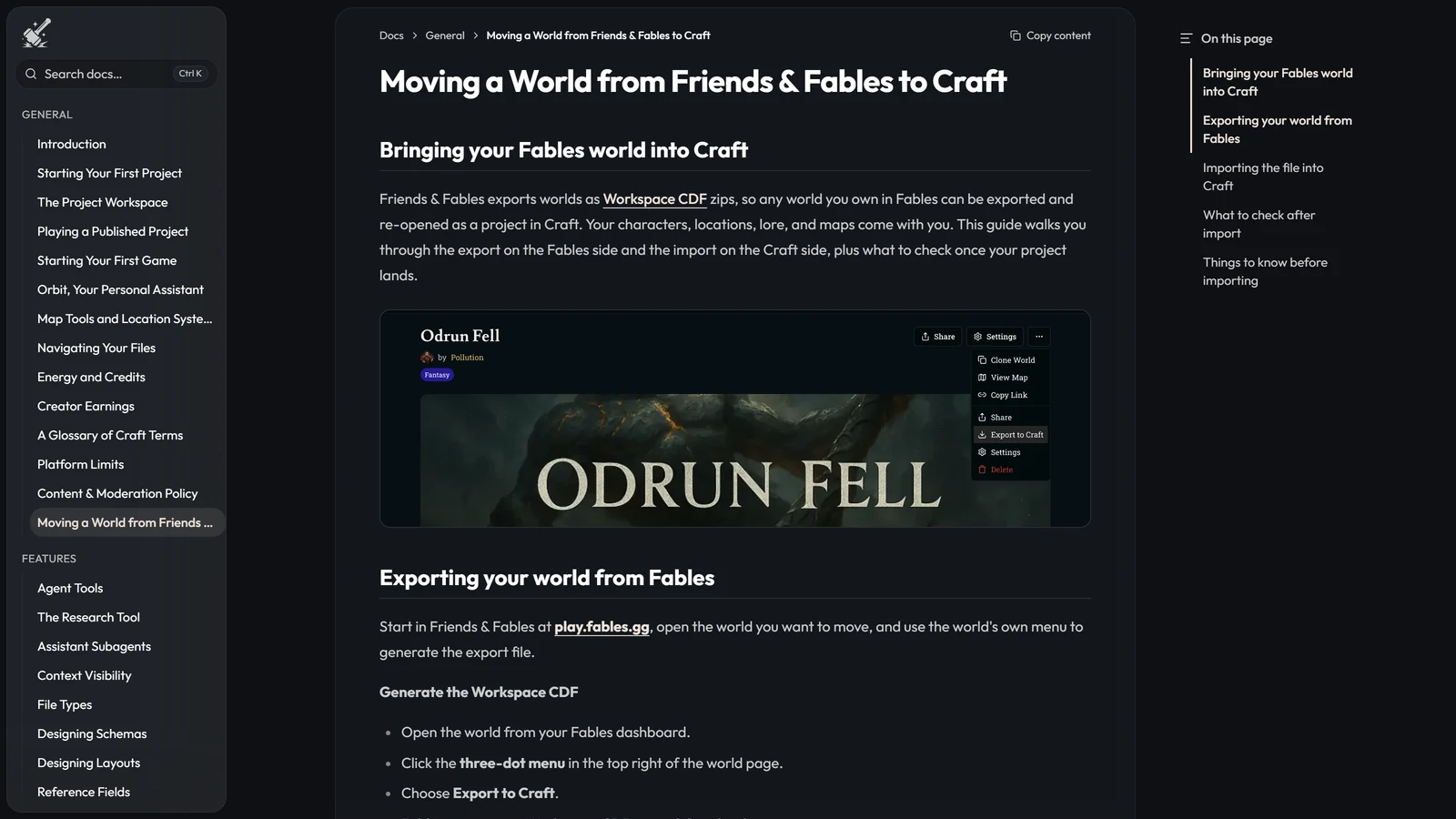
On play.fables.gg:
- Open a world you own from the Fables dashboard.
- Click the three-dot menu at the top right.
- Choose Export to Craft.
- A Workspace CDF zip downloads automatically.
CDF is Craft Data Format — Craft’s portable project format. The zip is not a proprietary blob: inside it, every piece of your world is a plain .md or .json file named like Name.<type>.json, arranged in folders that mirror the project structure, alongside a .craft/ directory holding the file-type definitions and project settings.
That matters more than it sounds. It means the export is readable, diffable and editable before you import it, and it means you can keep the zip as an archive that is not locked to either platform. If you have ever lost a campaign because a platform shut down, this is the format you wanted. We audited how every platform in the directory handles this in what happens to your campaign when you leave.
Step 2: Import Into Craft
On craftrpgs.com:
- Click + New Project in the left sidebar.
- Click Import Project in the page header.
- Drop the zip in, or browse for it.
- Craft processes the import and creates a new project.
- Click Open project when it finishes.
One trap: the import has to go through that page. Orbit — Craft’s worldbuilding assistant, sitting in the right-hand panel of every project — cannot unpack an export zip. It is a genuinely capable assistant and it will not tell you it is the wrong tool, so if you hand it the file you will lose ten minutes to a conversation that goes nowhere.
Worth knowing for later: an import is a batch of changes, not a mirror. Craft’s own documentation is explicit that “imports never delete files” — anything absent from the zip is left alone. That is what makes it safe to import a partial zip into an existing project later, and it is also why re-importing a full export does not clean up anything you have since deleted.
Step 3: Check What Actually Arrived
Do this before you build anything on top of the import, because fixing a bad import is much cheaper than fixing a world you have already extended.
- Count the files. The project overview shows a FILES count. Compare it against what you expect; browse the file tree and confirm your characters, locations and notes are really there rather than nominally there.
- Check the map. Click the Root map tab and confirm the world map image loaded. Images travel as separate assets and are the most common thing to arrive broken.
- Open Settings. Under Project, verify the name, description and game system. Under Game Master, you will find a GM still called Franz — that is the default the import leaves behind, and renaming it is the first of several things you now have to do yourself.
What Transfers, and What Doesn’t
This is the table we wanted when we did this and could not find anywhere.
| Comes across | Notes | |
|---|---|---|
| Characters | Yes | As files, with their fields intact |
| Locations | Yes | |
| Factions | Yes | |
| Lore and notes | Yes | |
| Map images | Yes | Check the Root map tab; verify by eye |
| 5e-SRD content | Yes, if it was in your game | Arrives as content files — see the caveat below |
| World name and description | Yes | |
| Folder structure | Yes | The zip mirrors it |
| Franz, as your narrator | No | A GM named Franz exists as a default; his behaviour does not |
| Campaign and session history | No | The world moves, the play does not |
| Hex battlemap encounters | No | Craft has no equivalent layer |
| Memory structures | No | Craft does not prescribe one; you author it |
| Credits or subscription | No | The transfer offer closed 31 August 2026 |
The SRD caveat is the one that catches people. Your 5e-SRD content arrives as files — the statblocks and the rules text are data, and data travels. But Craft ships no house ruleset at all. Whether that content behaves like a system depends on the project’s game system setting and on the GM instructions you write. On Friends & Fables, 5e was the platform. On Craft, 5e is something a project has to be.
The Part the Import Cannot Do: Your Narrator
Friends & Fables has one game master, and Franz runs every table the same way. That consistency was the platform’s signature strength — you always knew what you were getting. Craft removed it on purpose. Each world author writes their own narrator’s voice and behaviour, which is why a grim survival campaign and a lighthearted heist on Craft can sound nothing alike.
So the default Franz sitting in your Settings after the import is a placeholder wearing a familiar name. Rename him, then write the instructions that make him somebody. Craft’s own guidance here is unusually good and worth following literally:
- Less is more. Craft’s documentation puts it plainly: a tight set of ten clear rules will be followed more reliably than fifty vague ones. Your GM instructions are, in their words, the single most important factor in how your game feels.
- Use conditionals, not absolutes. Not “ALWAYS describe the environment in detail” but “When players enter a new location, describe it in detail.” Absolutes fire everywhere, including where they make the prose worse.
- Organise by how often something is needed. Craft’s context visibility levels let you pin core tone and universal rules so they are present in 80–90% of turns, mark combat rules and NPC behaviours as partial, and leave reference lore searchable. Everything pinned competes for the same attention; be ruthless about what earns it.
- Correct bad patterns early. Direct feedback in-session works, and the GM manages its own context — you do not need to force it to re-read files.
If you have written a character card or a world bible before, this is the same discipline applied to the narrator instead of the cast. Our guide to building a world in Craft covers the rest of what an imported project still needs. Our guide to writing a character card that holds up covers the instinct; the failure modes are the same ones.
Memory Is Now Your Job Too
The other thing Craft deliberately does not ship is a memory system. On Friends & Fables, memory is the platform’s problem — a research step pulls relevant lore into a working context, and post-processing models update sheets and coordinates. On Craft, worldbuilders author memory structures in markdown, per world, and the platform supports whatever you design.
This is the trade at the heart of the whole rebuild, and it is genuinely two-sided. It is why Craft scores Memory & Continuity — 4 against Friends & Fables’ 3.5, and it is why Craft scores Longevity — 3.5 against Friends & Fables’ 2: on Craft a campaign that has drifted can be repaired, because the memory layer is something you can open and edit. Nothing else in our directory offers that.
It is also work you did not used to do. Budget an evening. The reasons AI campaigns fall apart are structural, and inheriting responsibility for them does not make them easier — it makes them yours.
You Cannot Keep the Two in Sync
An import is a one-way snapshot. Changes in Craft never flow back to Friends & Fables, and anything you change in Friends & Fables after the export never appears in Craft.
Craft’s documented answer, if you want later Fables edits, is to re-export and import again as a new project — and then move anything worth keeping across by hand. In practice that means you should pick a moment, move, and then treat the Friends & Fables copy as an archive rather than a second working copy. Two live copies of the same world diverge within a week, and nothing will reconcile them for you.
If you are keeping the Friends & Fables version running as a group campaign while building solo on Craft — which, given Craft has no multiplayer gameplay, is a perfectly reasonable thing to be doing — accept from the start that they are two worlds now, not one world in two places.
Frequently Asked Questions
How do I export a world from Friends & Fables? Open a world you own from the Fables dashboard, click the three-dot menu at the top right, and choose Export to Craft. A Workspace CDF zip downloads automatically. You can only export worlds you created — worlds you have played in but do not own stay in Friends & Fables.
How do I import a Friends & Fables world into Craft? In Craft, click + New Project in the left sidebar, then Import Project in the page header, then drop or browse for the zip. Craft processes it and creates a new project, and you click Open project when it finishes. The import has to go through that page: Orbit, Craft’s assistant, cannot unpack an export zip for you.
What transfers from Friends & Fables to Craft? Your world files — characters, locations, factions and lore — plus map images, any 5e-SRD content that was included in your game, and the world’s name and description. What does not transfer is everything about how the world played: the Franz narrator, your campaign history and play sessions, hex battlemap encounters, and Friends & Fables credits.
Does my Friends & Fables campaign history come across? No. The export carries the world, not the play. Characters, locations, factions, lore and maps arrive; the sessions you played in that world do not. If a campaign’s events matter to you, write them into a file before you export, or copy the log out by hand — after the move there is nothing to go back for except the original world, which stays where it is.
Can I transfer my Friends & Fables credits to Craft? Not any more. Craft ran a one-time credit transfer through Friends & Fables account settings, limited to accounts created before 1 August 2026, and it closed on 31 August 2026. Worlds still move; money does not.
Does the import stay in sync with Friends & Fables? No. An import is a one-way snapshot. Changes you make in Craft never flow back to Friends & Fables, and edits you make in Friends & Fables after the export do not appear in Craft. To pick up later Fables edits you re-export and import again as a new project, then move anything you want to keep across by hand.
Is my world playable as soon as it imports? Not really. The import gives you a library, not a game. Craft has no house game master, so your project arrives with a default GM named Franz that you rename and then have to write instructions for, and Craft does not prescribe a memory system either, so that is yours to author too. Expect the import to take ten minutes and the setup after it to take an evening.
Steps and feature names verified against Craft’s own documentation on 12 September 2026. Interfaces change; if a menu has moved, the platform’s docs are the authority.
Product names and trademarks are the property of their respective owners. Arcanum is not affiliated with Craft, Friends & Fables, or Wizards of the Coast.